On namiOS, the nami app is the computer’s Settings. Search at the top of the sidebar finds any setting by name.
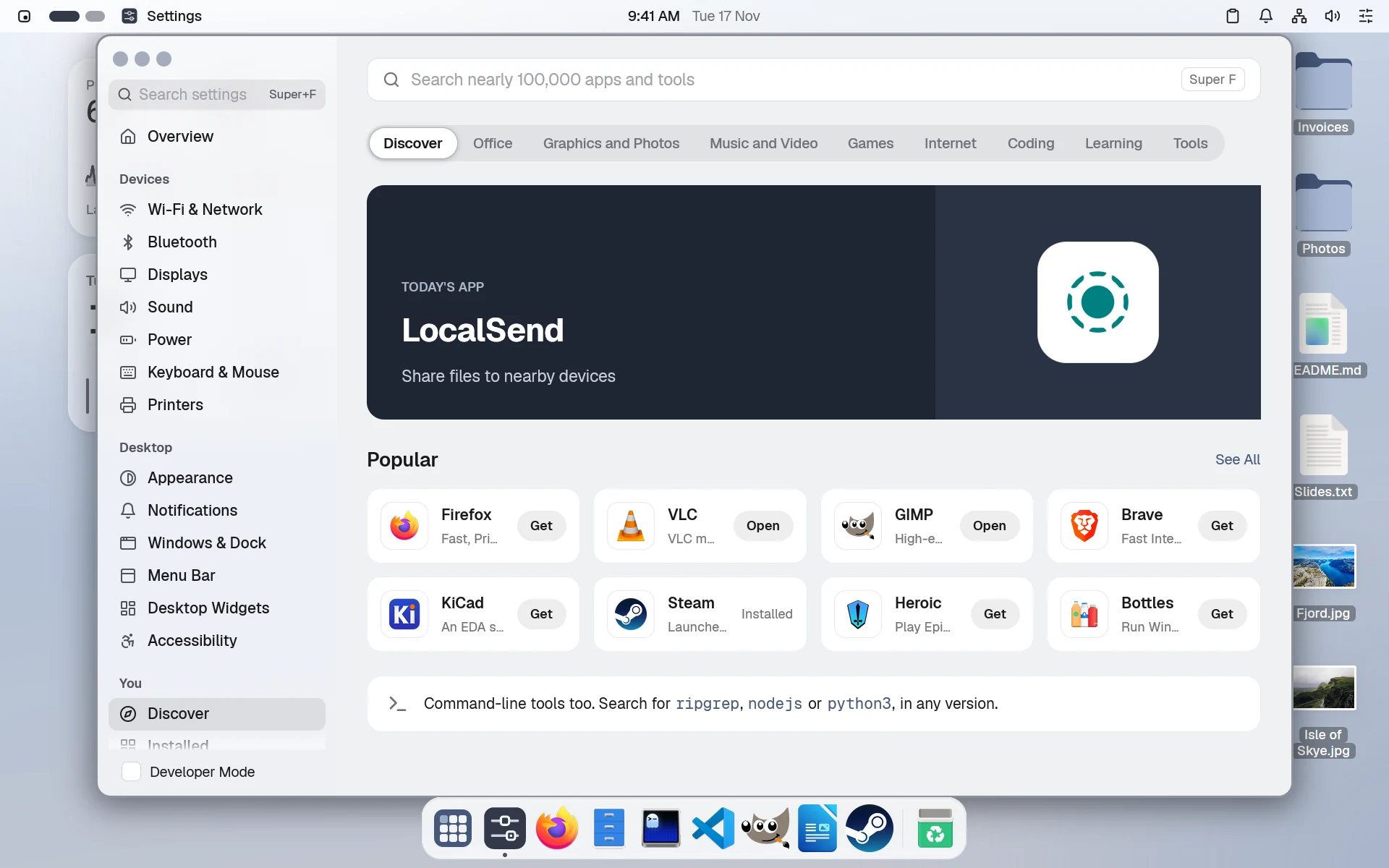
Find a setting
The sidebar is grouped the same way on every namiOS computer.
| Group | Pages |
|---|---|
| Overview | The computer at a glance, with Free Up Space and Transfer files from another computer |
| Devices | Wi-Fi & Network, Bluetooth, Displays, Sound, Battery & Power, Keyboard & Mouse, Printers |
| Desktop | Appearance, Notifications, Windows & Dock, Menu Bar, Desktop Widgets, Accessibility |
| You | Discover, Installed, Your Setup, Projects, History, Sync |
| This computer | General, People, Apps for Everyone, Privacy & Security |
| More | Shortcuts, Welcome, Report a Problem |
General opens About, Updates, Storage, Date & Time, Startup Apps, Default Apps, Sharing, Backups and History. The pages under You are the nami app’s own, the same as on any distribution: see The nami app.
Know where a change goes
What you change for yourself, such as the Dock or the wallpaper, goes under namios: in your ~/user.nami. Moving the Dock to the left in Windows & Dock, for one:
namios: dock: size: large position: leftWhat’s for everyone, such as People, Apps for Everyone or the time zone, goes in the computer’s computer.nami, and only an admin can change it. A new time zone in Date & Time:
hostname: laptoptimezone: Europe/Copenhagentimezone: America/New_YorkChanges take effect at once, and History lets you undo any of them.
Unlock settings for everyone
If you aren’t an admin, the settings for everyone are dimmed, with a lock row: An administrator’s name and password are needed to change these settings.
- Click Unlock….
- Choose an admin, and type their password.
The settings for everyone can now be changed in this window. Each change is still checked by nami’s daemon, as if the admin had made it. If the password isn’t given, the settings simply stay locked.
The lock row is on General, Date & Time, People, Apps for Everyone, Privacy & Security and the Entire Computer part of Backups.
Lock settings again
Click Lock when you’re done. Settings also locks by itself after 5 minutes without a change, and when you close the window.
Review requests from apps
When an app such as Claude asks to change the computer, a notification says so, and Requests appears in the sidebar under This Computer. Each request shows the reason, the change in words and the lines in computer.nami. Apply asks for an administrator’s password; Don’t Allow discards it. Agents explains how apps ask.
Install the computer from a USB drive
When namiOS runs from a USB drive, Install on This Computer is at the top of the sidebar. Make your own computer explains the choices.
Use Developer Mode
Turn on Developer Mode at the foot of the sidebar to see your nami files instead of the pages, and edit them directly.