The nami app reads and edits the same files as the nami command, keeping your comments, so you can switch between the window, the terminal and your editor at any time. Each page below names the command it runs.
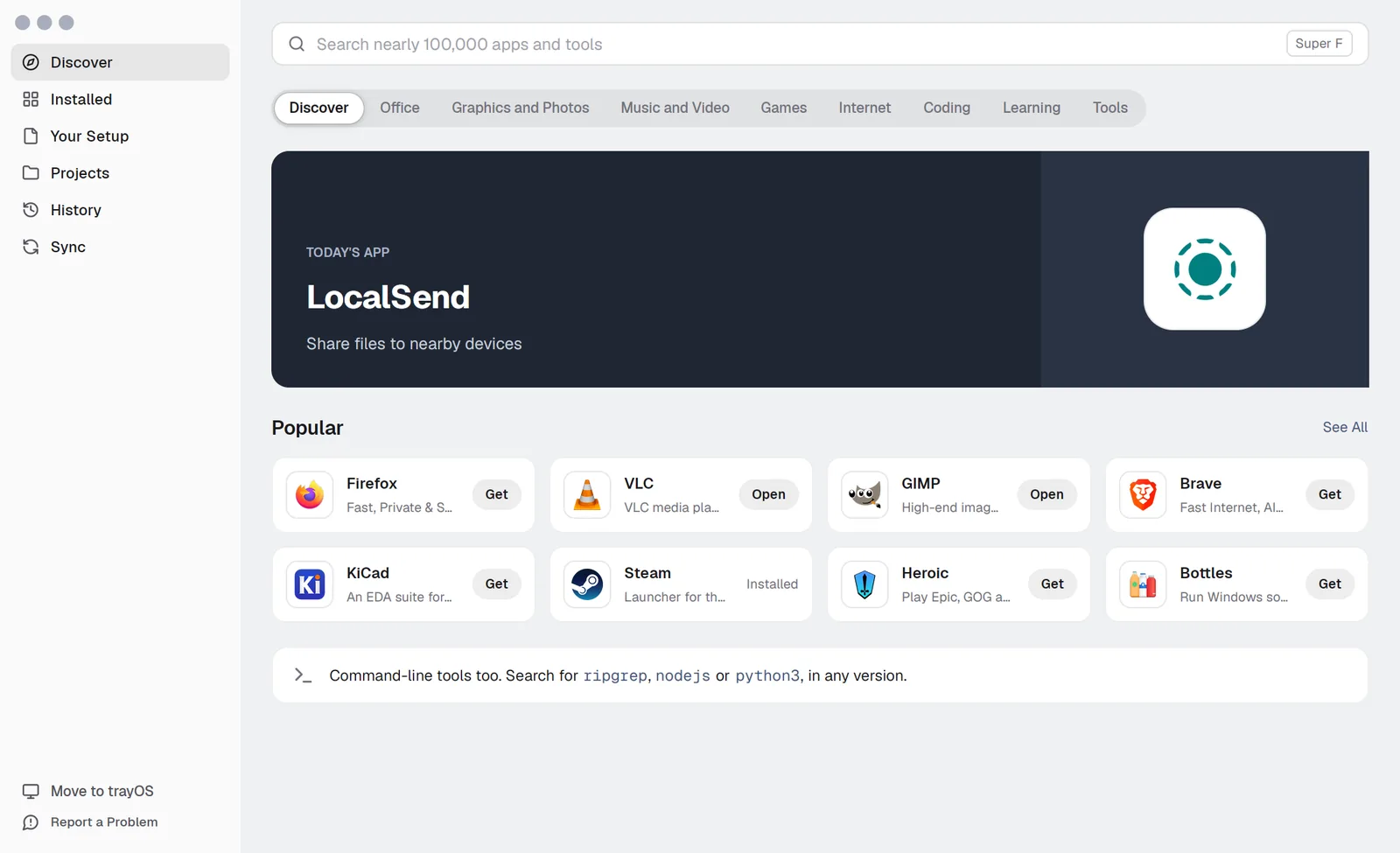
Open the app
On your distribution, open nami from the app menu, or start it from a terminal:
nami-gui                    # the app
nami-gui --page installed   # straight to a page: discover, installed, setup, projects, history, sync
The installer adds the app when the computer has a desktop. To add it later, run sudo nami install /etc/nami/packages/nami-gui. On namiOS, the same app is the computer’s Settings (Settings).
There’s no Apply button: what you change takes effect at once. A change for everyone on the computer asks for an administrator’s password; your own changes don’t.
Find and install an app
Search Discover for apps and command-line tools, with apps from Flathub below. Get installs an app at once.
On an app’s page, choose Just me or Everyone, and pick an older release under Version if you need one. In Your File shows the lines the install writes:
packages: - gimp: "2.10" # the same as nami install gimp@2.10Update your apps
Installed lists everything you have, with the updates waiting at the top.
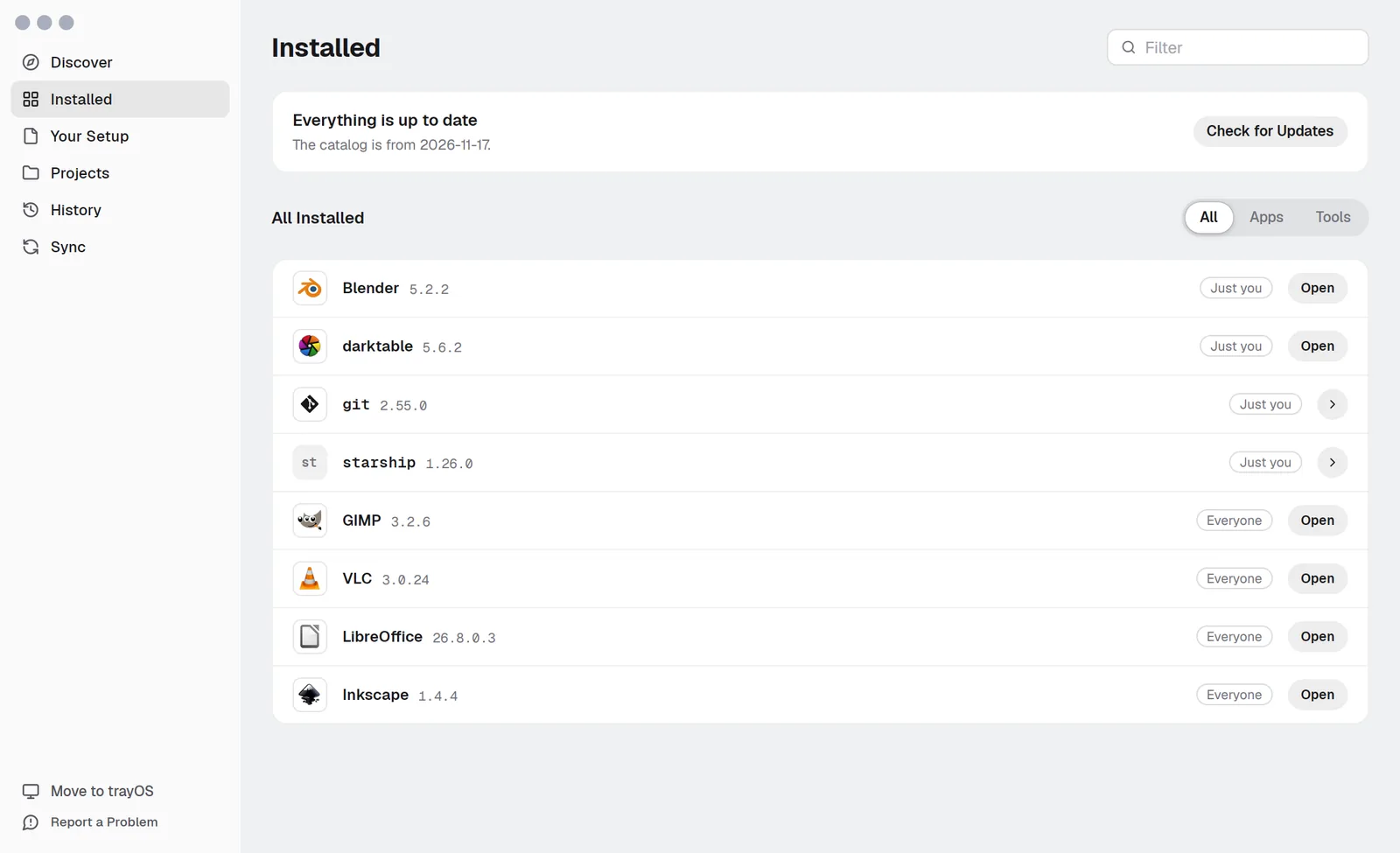
Update All runs nami upgrade and nami self-update. Check for Updates runs nami update --refresh.
Keep your settings files
Your Setup is your ~/user.nami apart from its apps: each settings file as fields, or As Text, and Shell for your env: and aliases:.
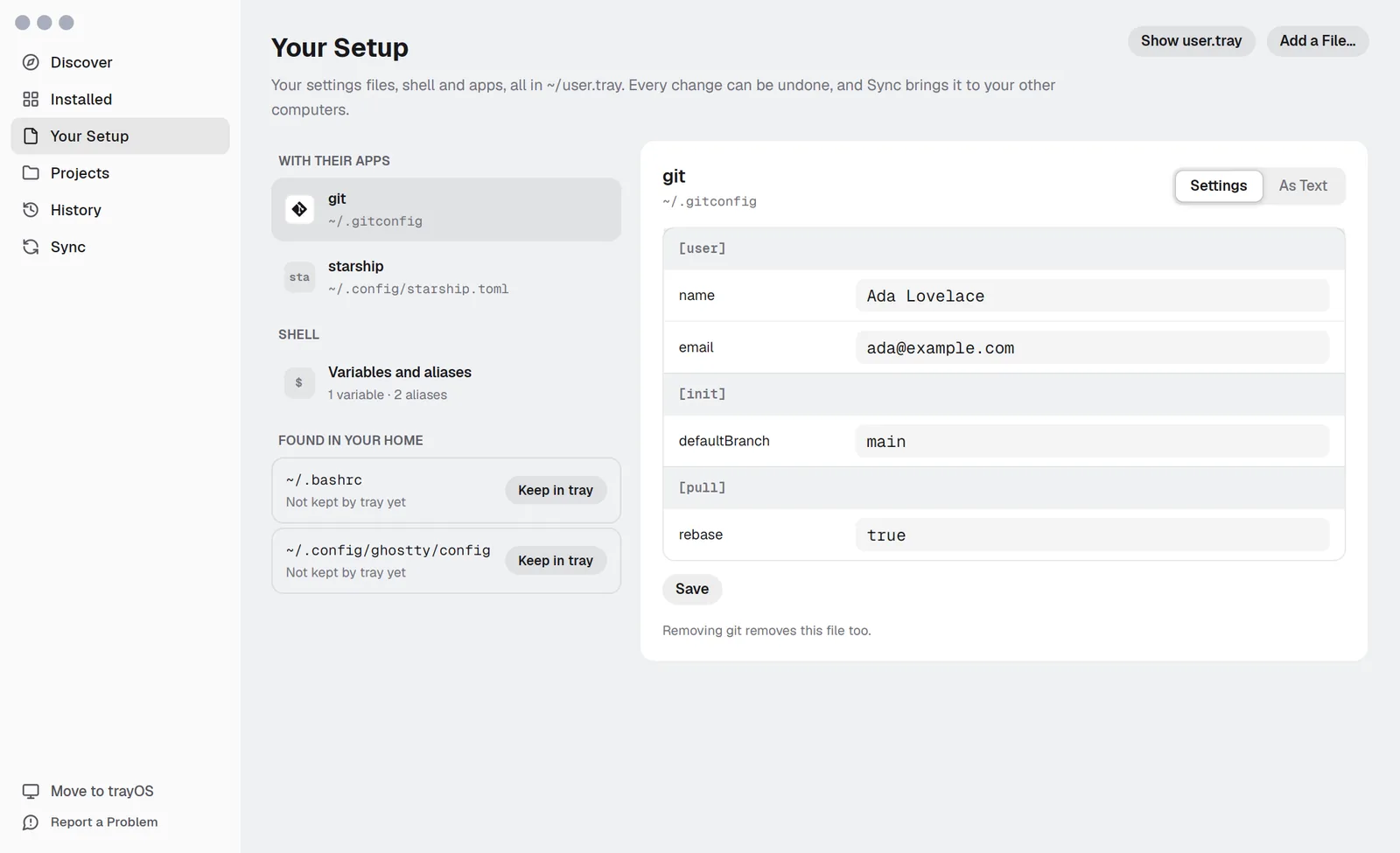
Under Found in your home, Keep in nami adopts a file such as .bashrc (nami home adopt). When an app changes a file nami keeps, choose Keep or Undo (user.nami).
Work on a project
Projects lists your folders with a project.nami, with their tools, services and tasks (Projects).
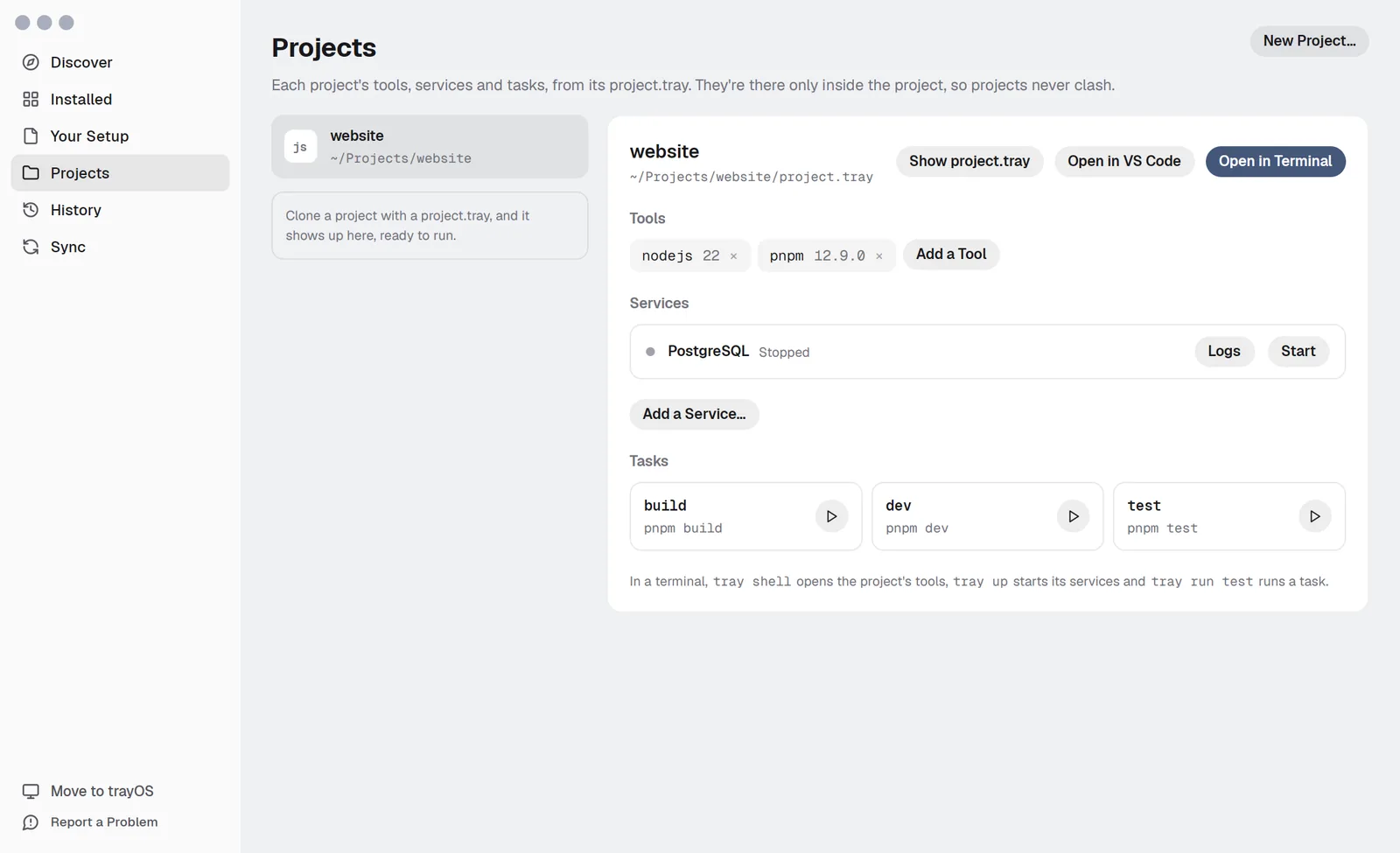
Open in Terminal runs nami shell, and Open in VS Code opens the folder with the project’s tools on its PATH. Start, Stop and Logs run nami up -d, nami down and nami logs. New Project… starts one from C, Go, Node.js, Python, Rust or an empty folder.
Go back to an earlier change
History lists every change, newest first (Changes and undo).
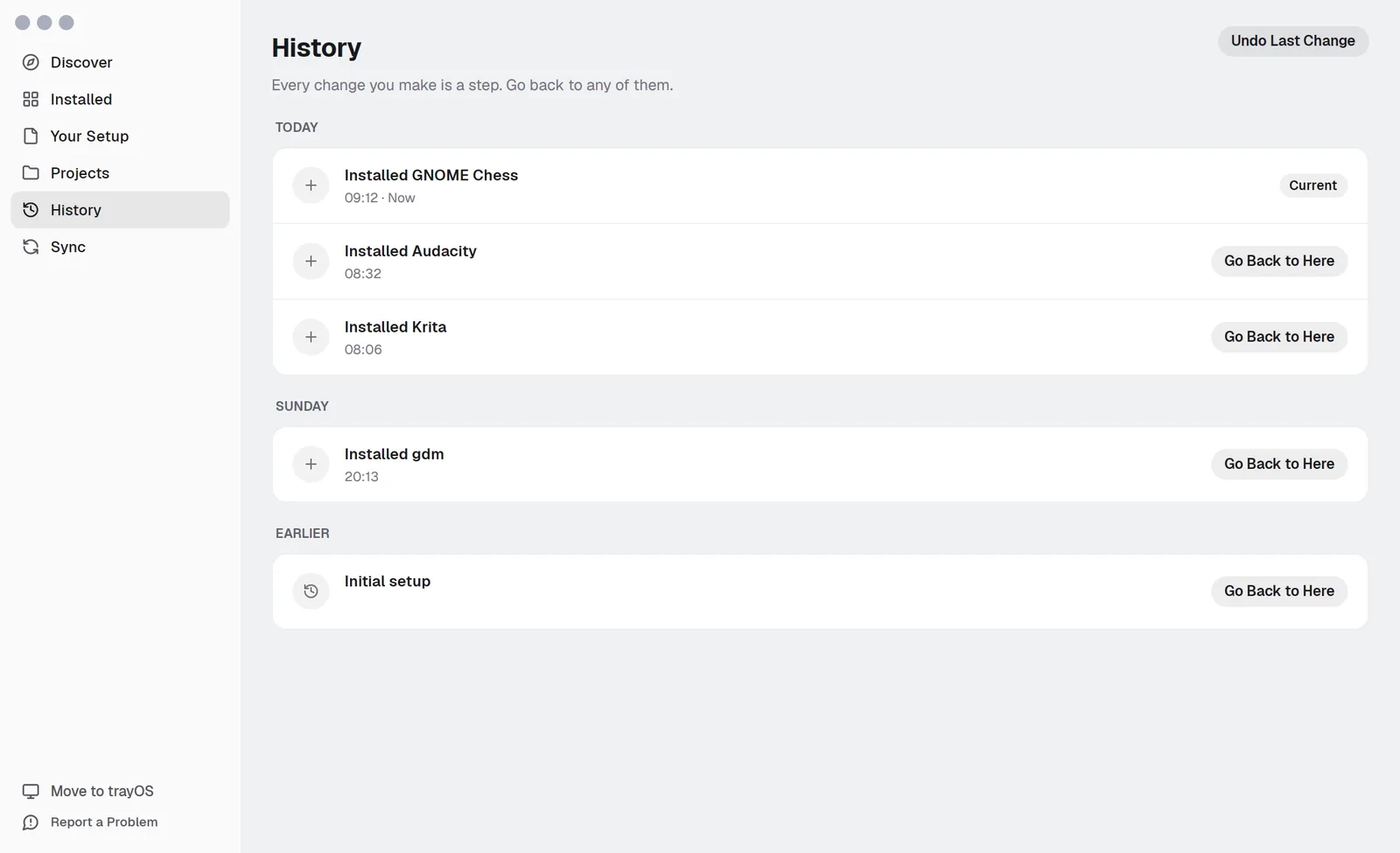
Click a change to see what’s different. Go Back to Here runs nami undo <change>.
Keep your setup on all your computers
On Sync, Keep This Setup on All Your Computers puts your ~/user.nami in a private git repository, and Sync Folders keeps folders the same with Syncthing (Sync).
Try namiOS
Move to namiOS runs the latest namiOS in a window with your apps and settings, or writes it to a USB drive. Your documents don’t come along, so choose Back Up Now… first if namiOS will replace this system (Moving in).
Edit the files as text
On namiOS, the Developer Mode switch at the bottom of the sidebar shows your files as text, and the computer’s for an administrator. The app runs nami check as you type. Saved changes wait for Apply.
Report a problem
Report a Problem sends what you describe with nami report. Show Report Contents shows exactly what goes along; values marked !secret are always left out (Troubleshooting).