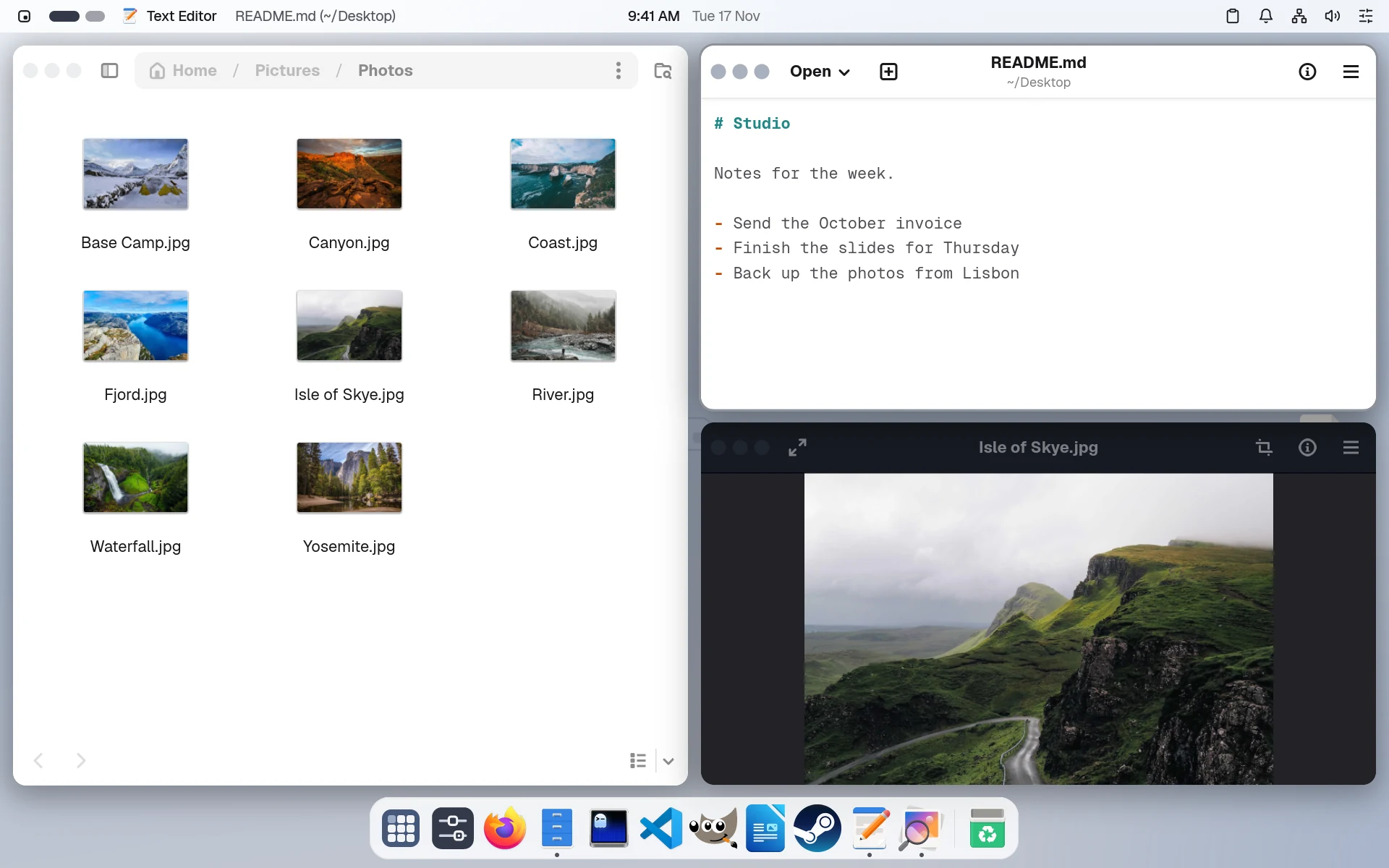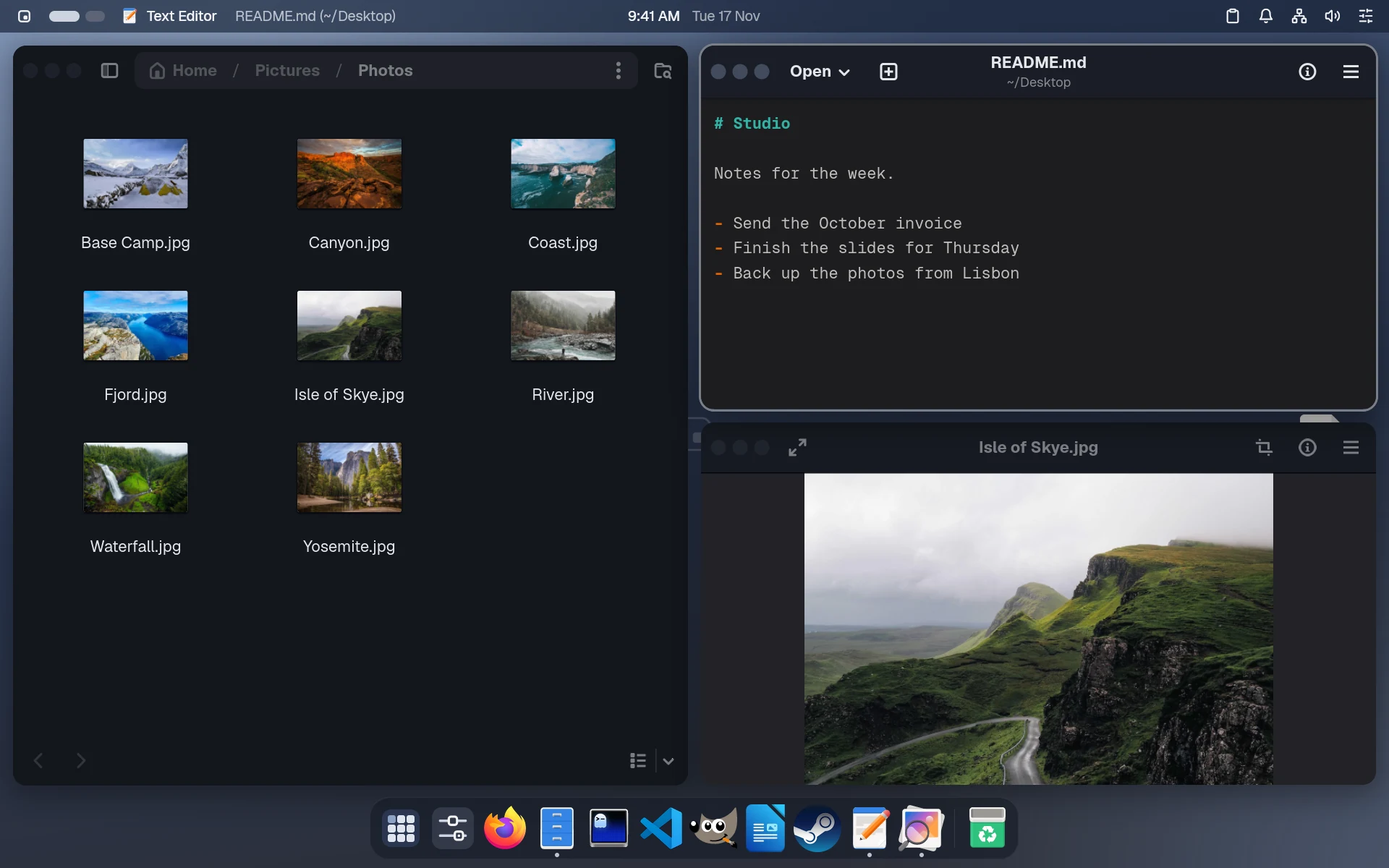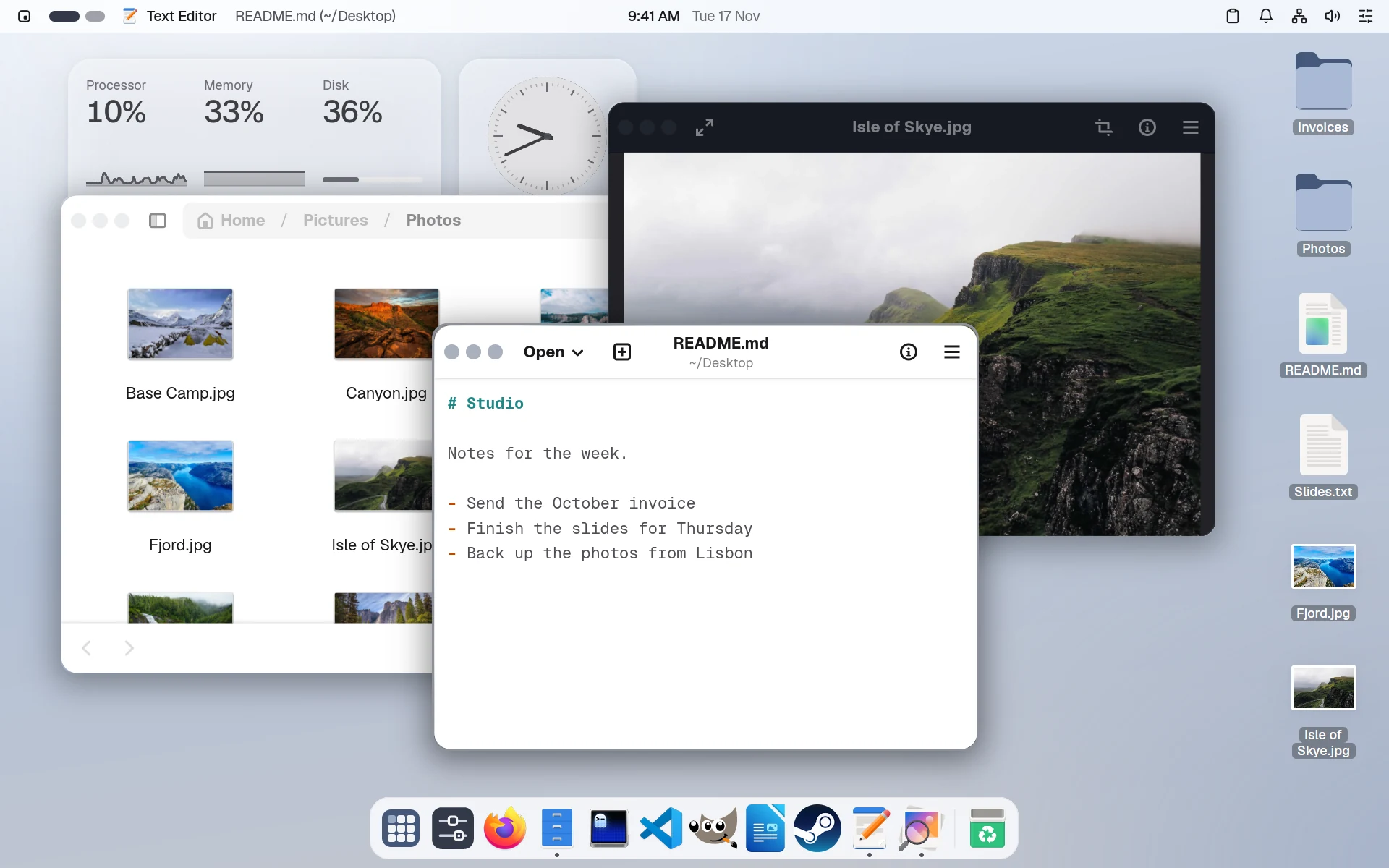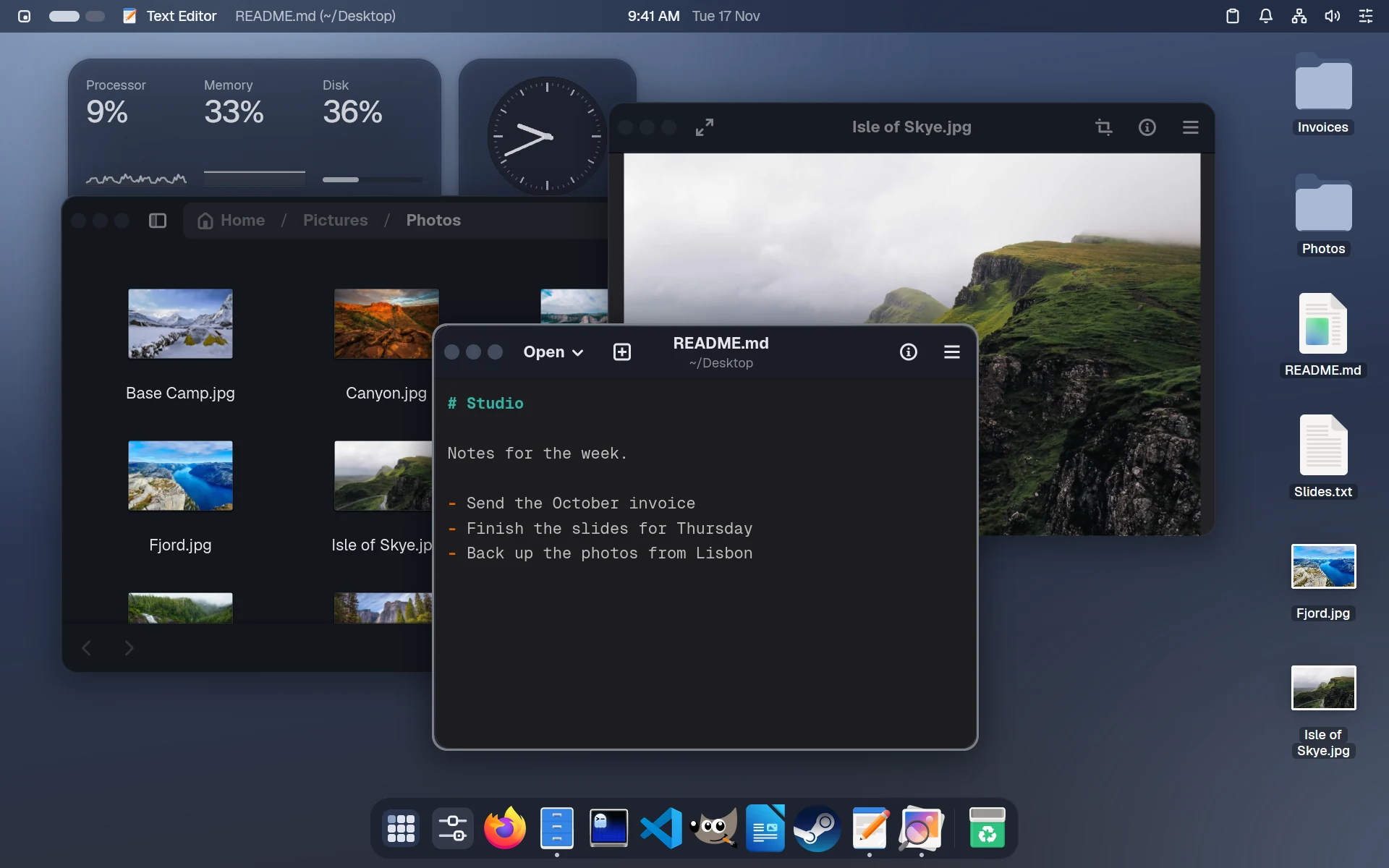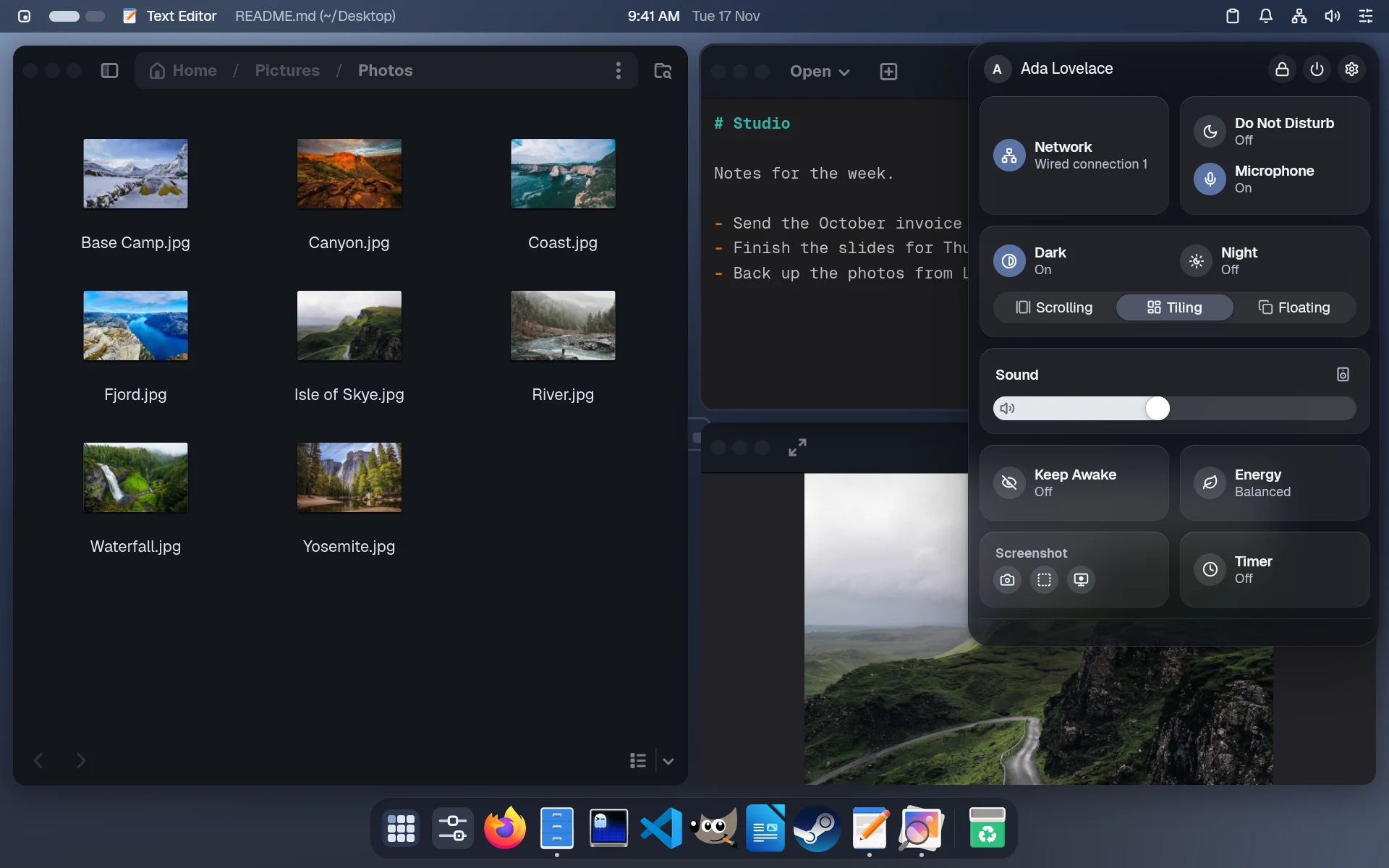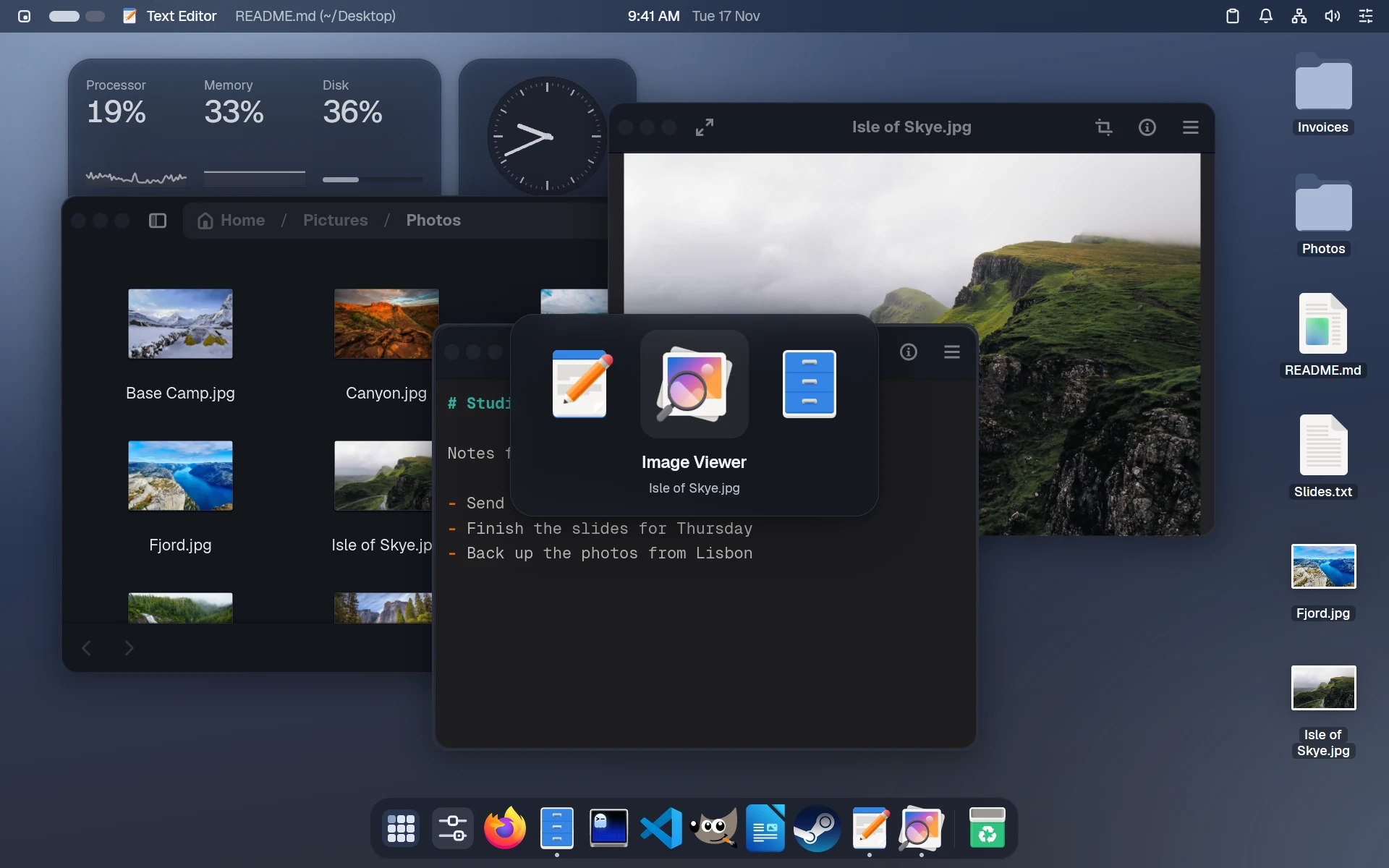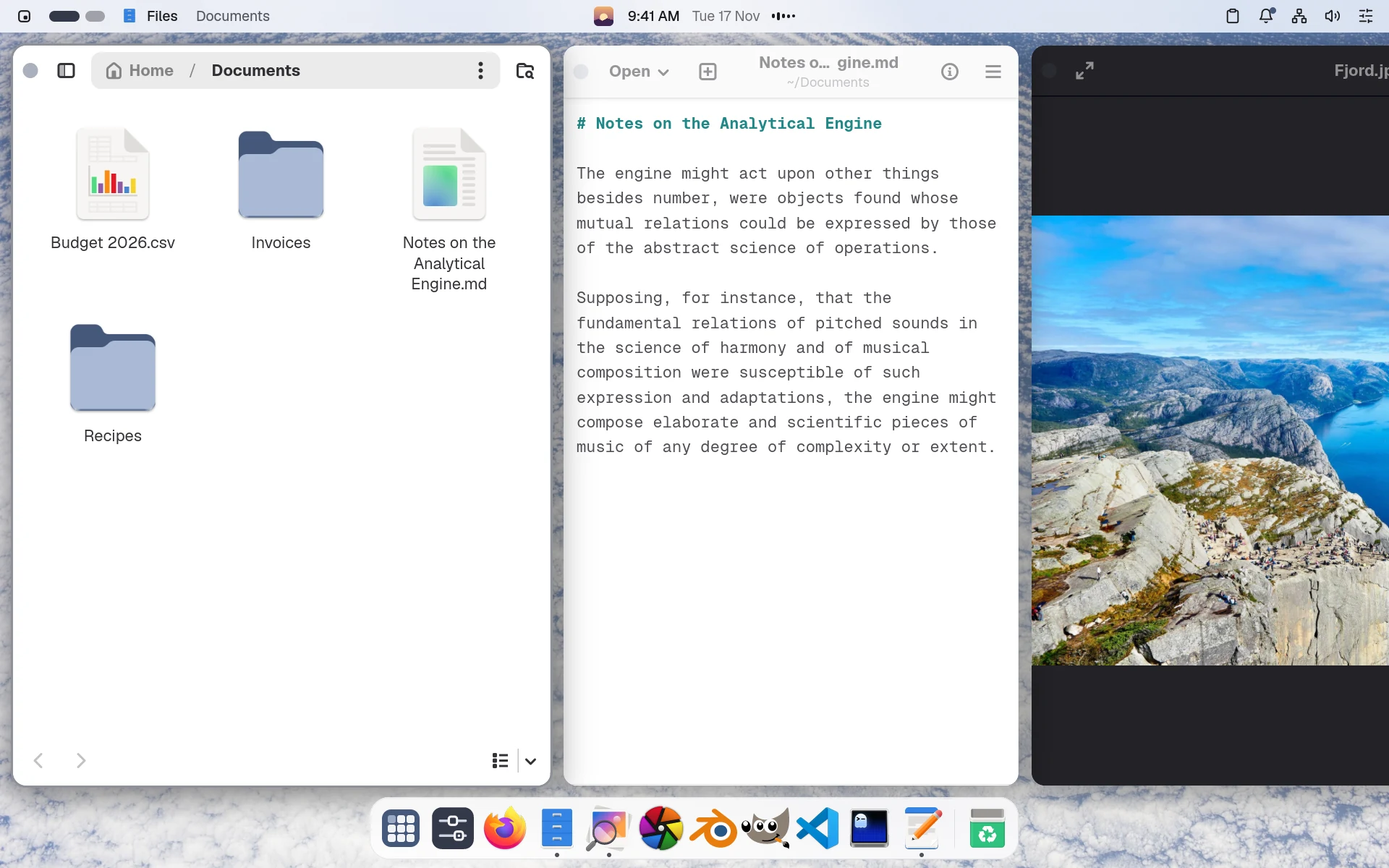
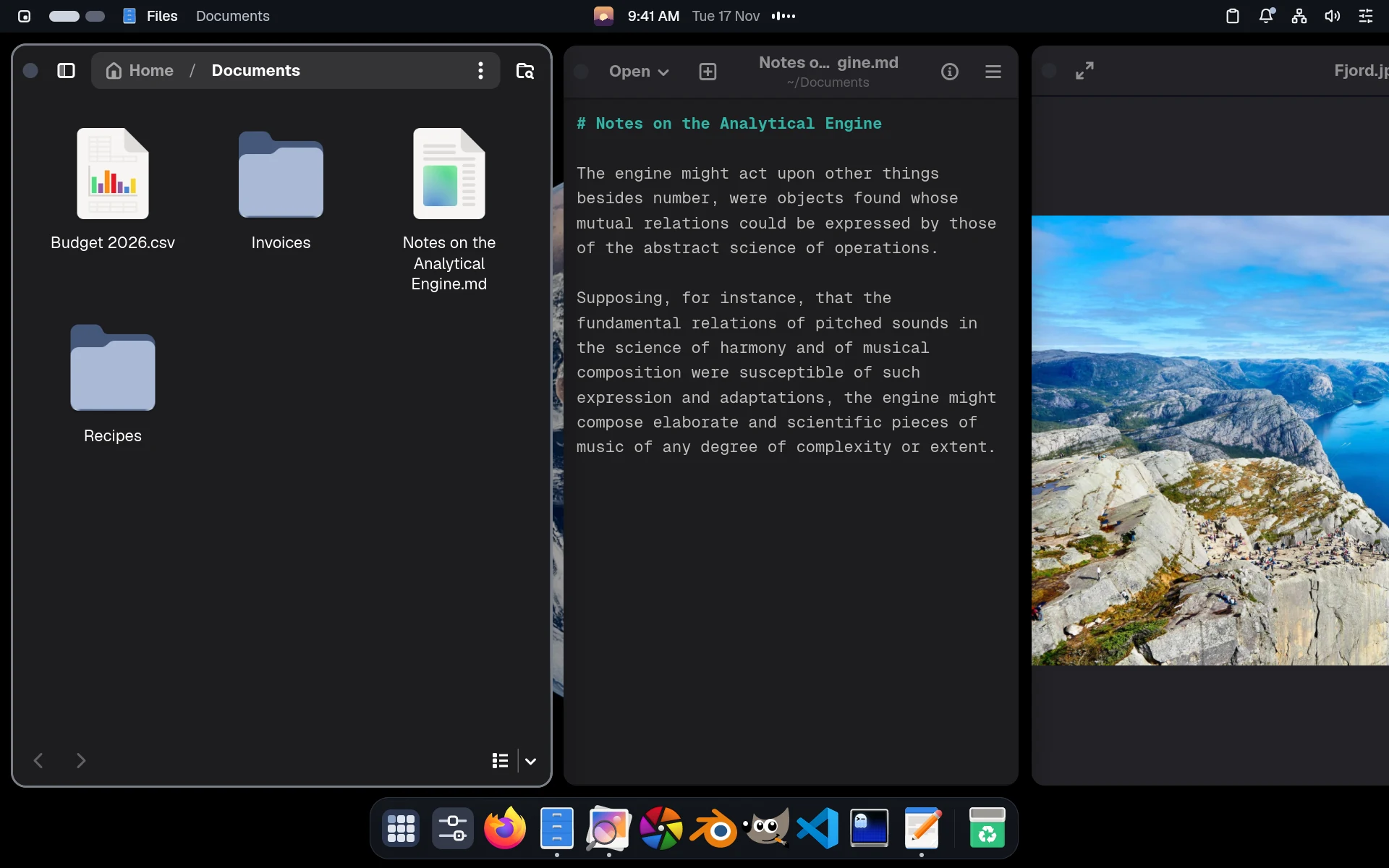
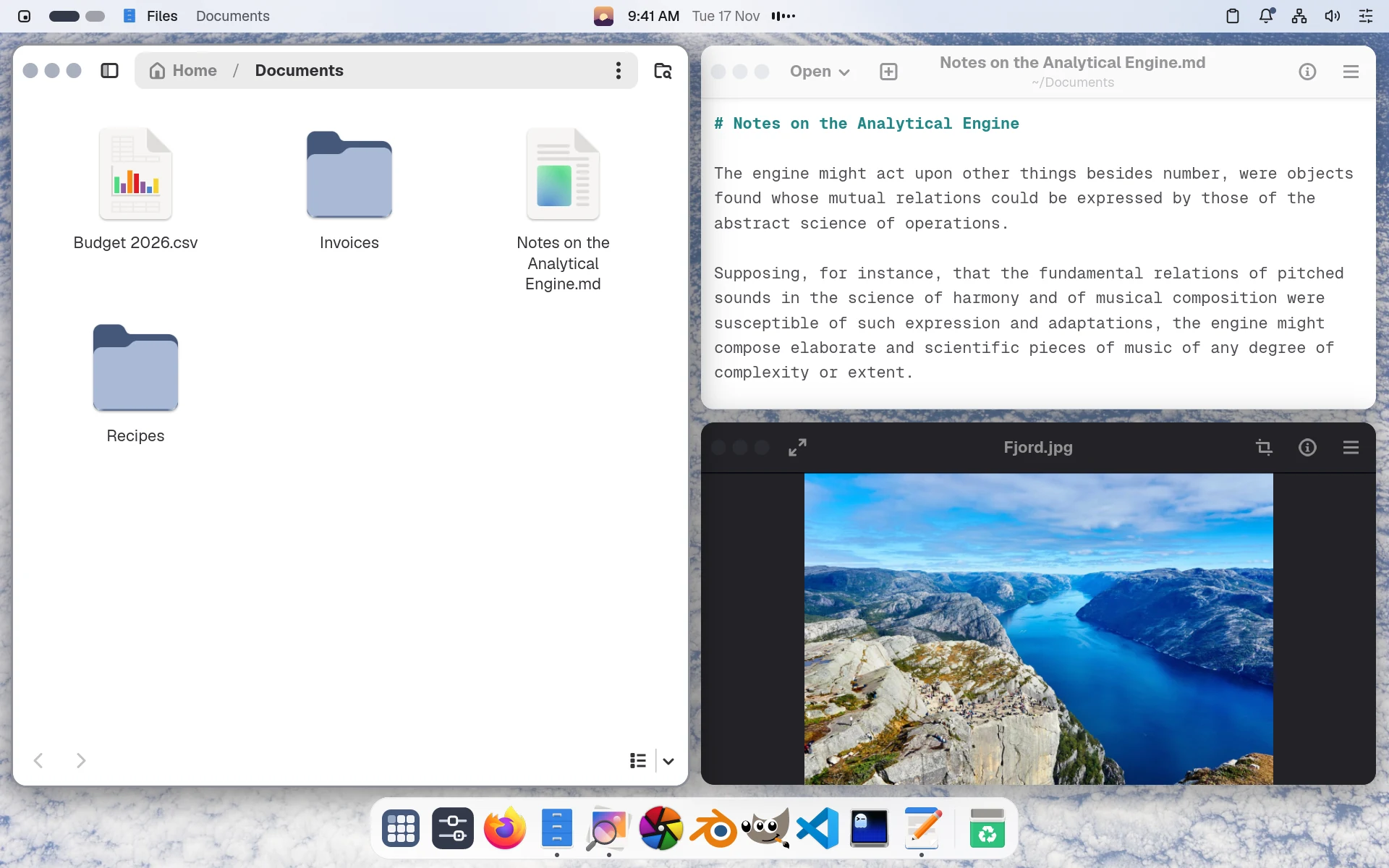
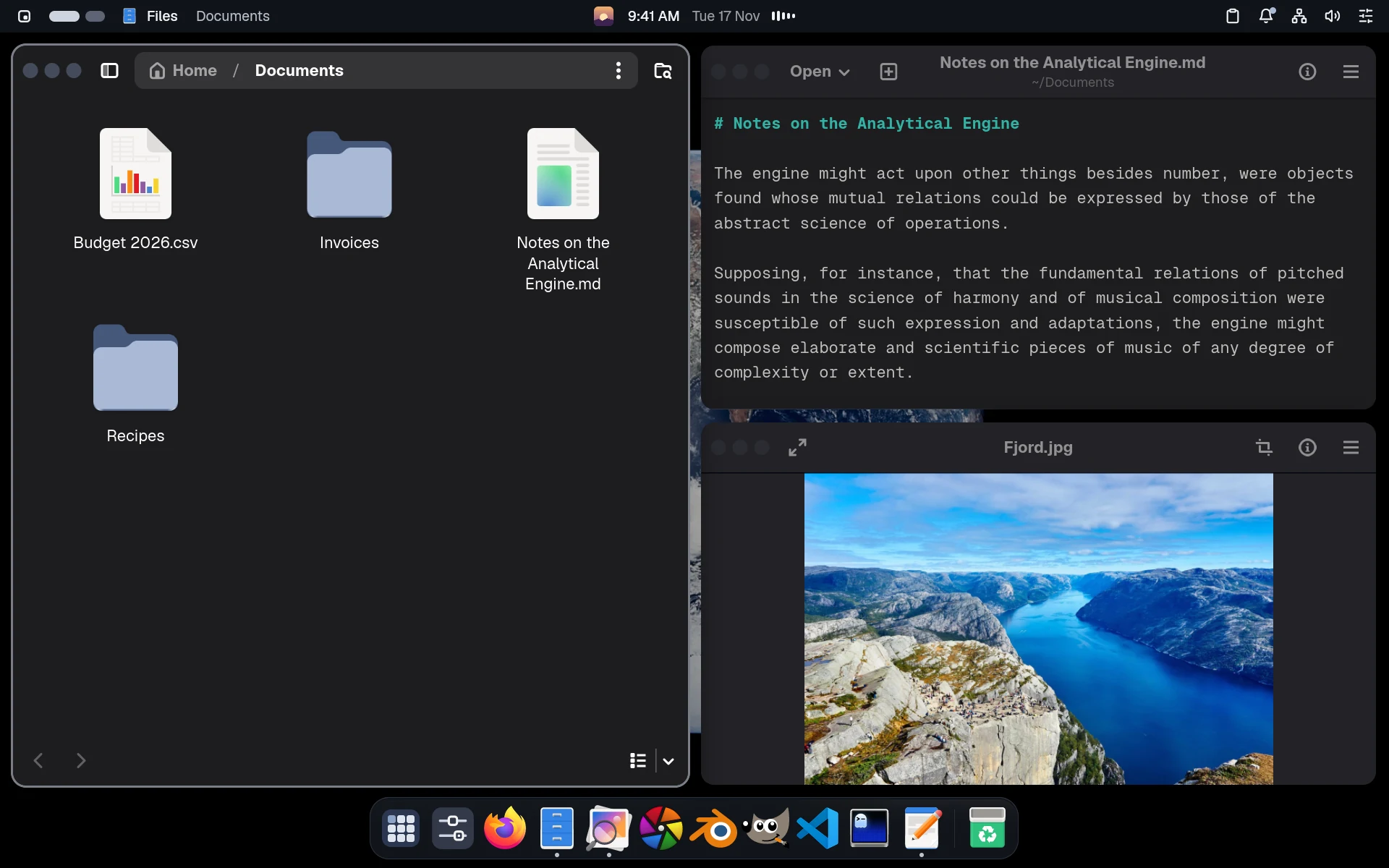
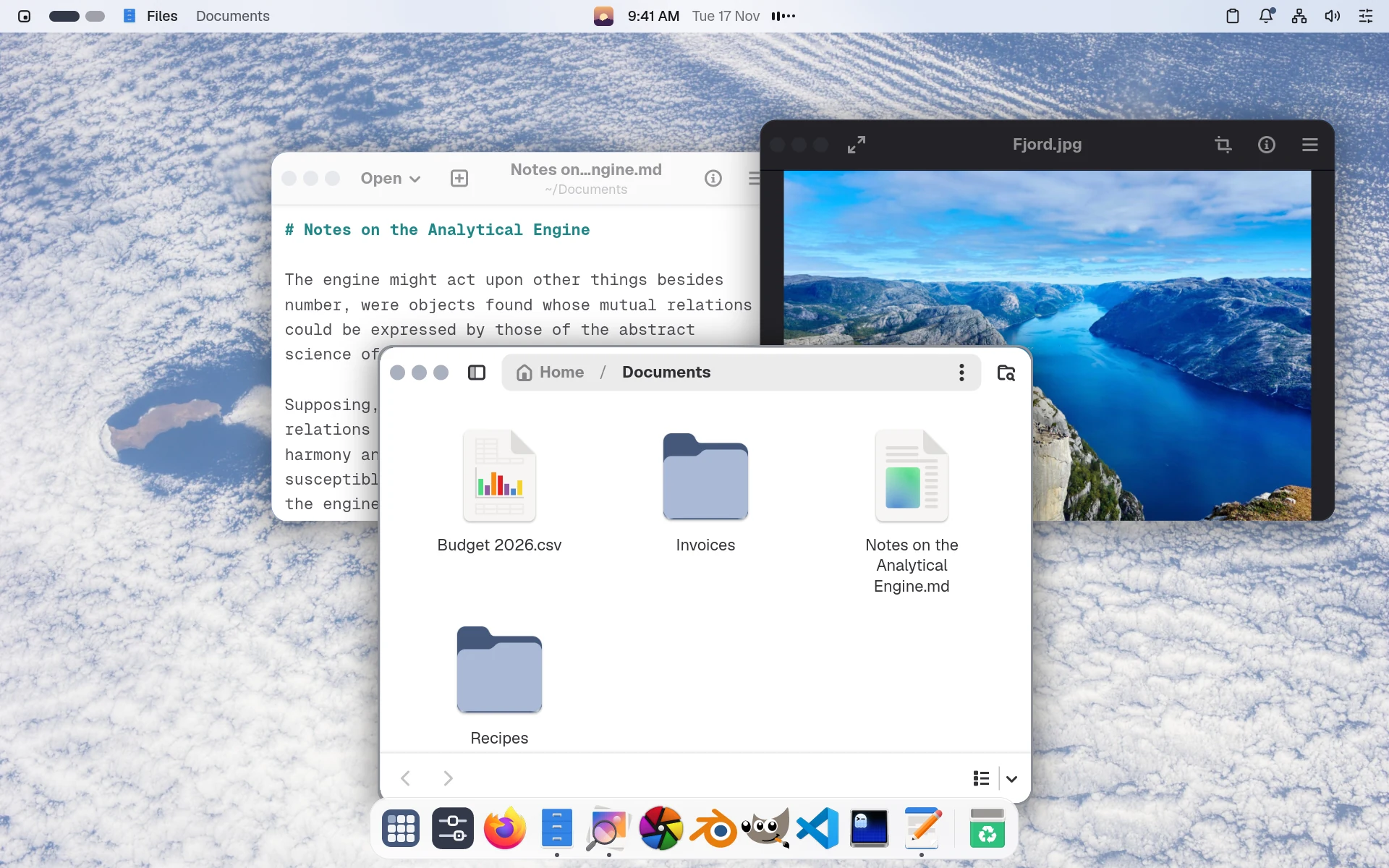
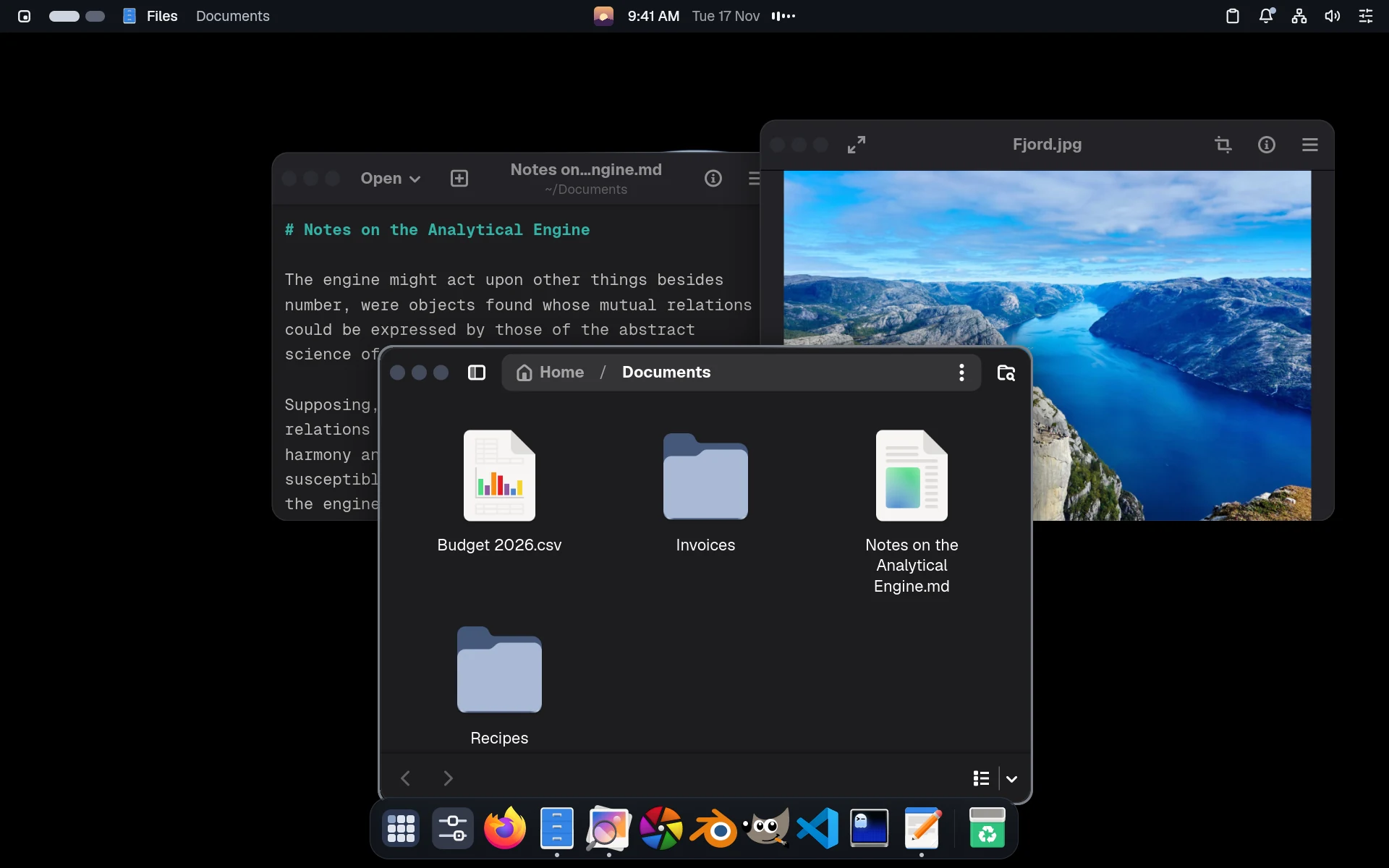
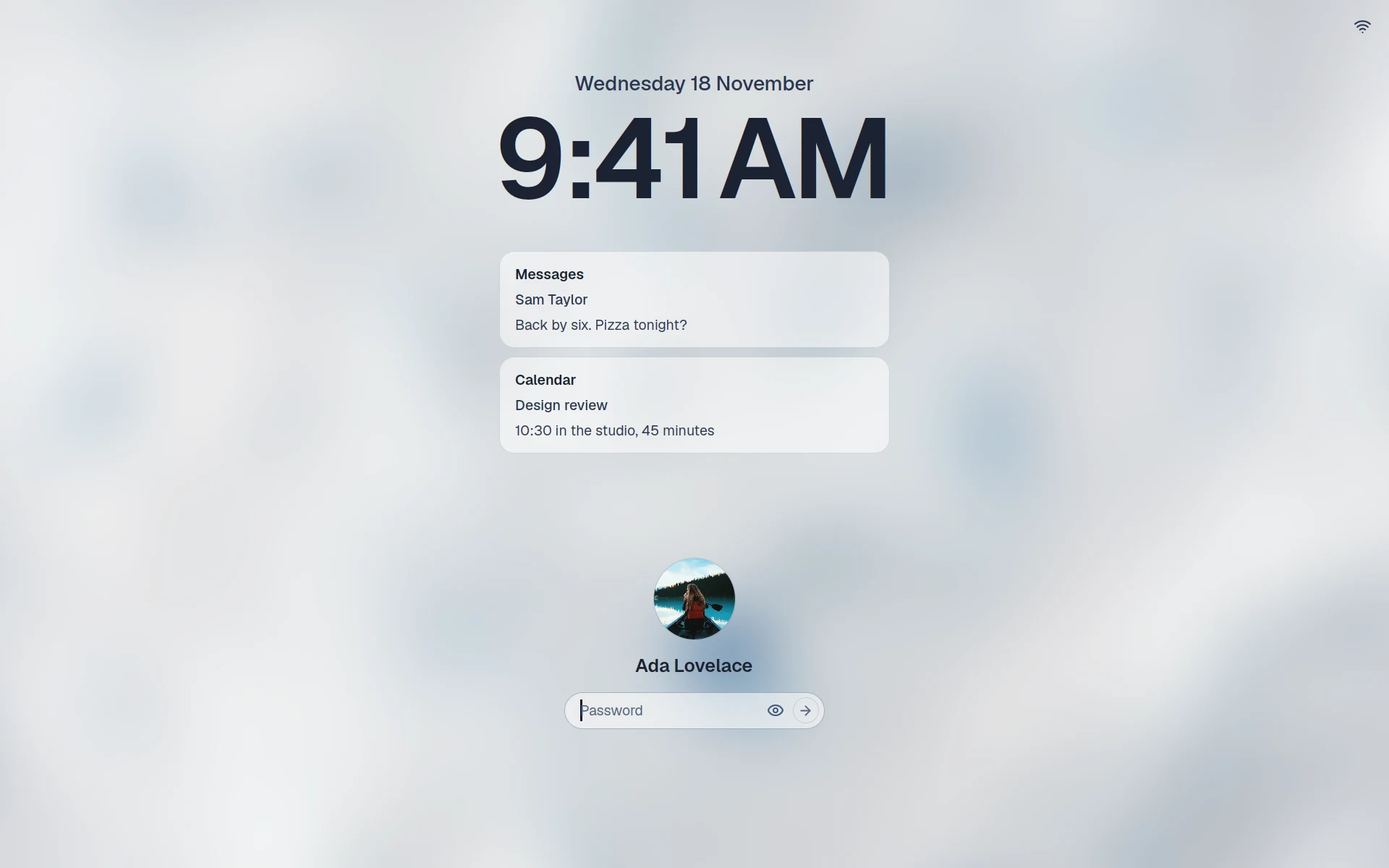
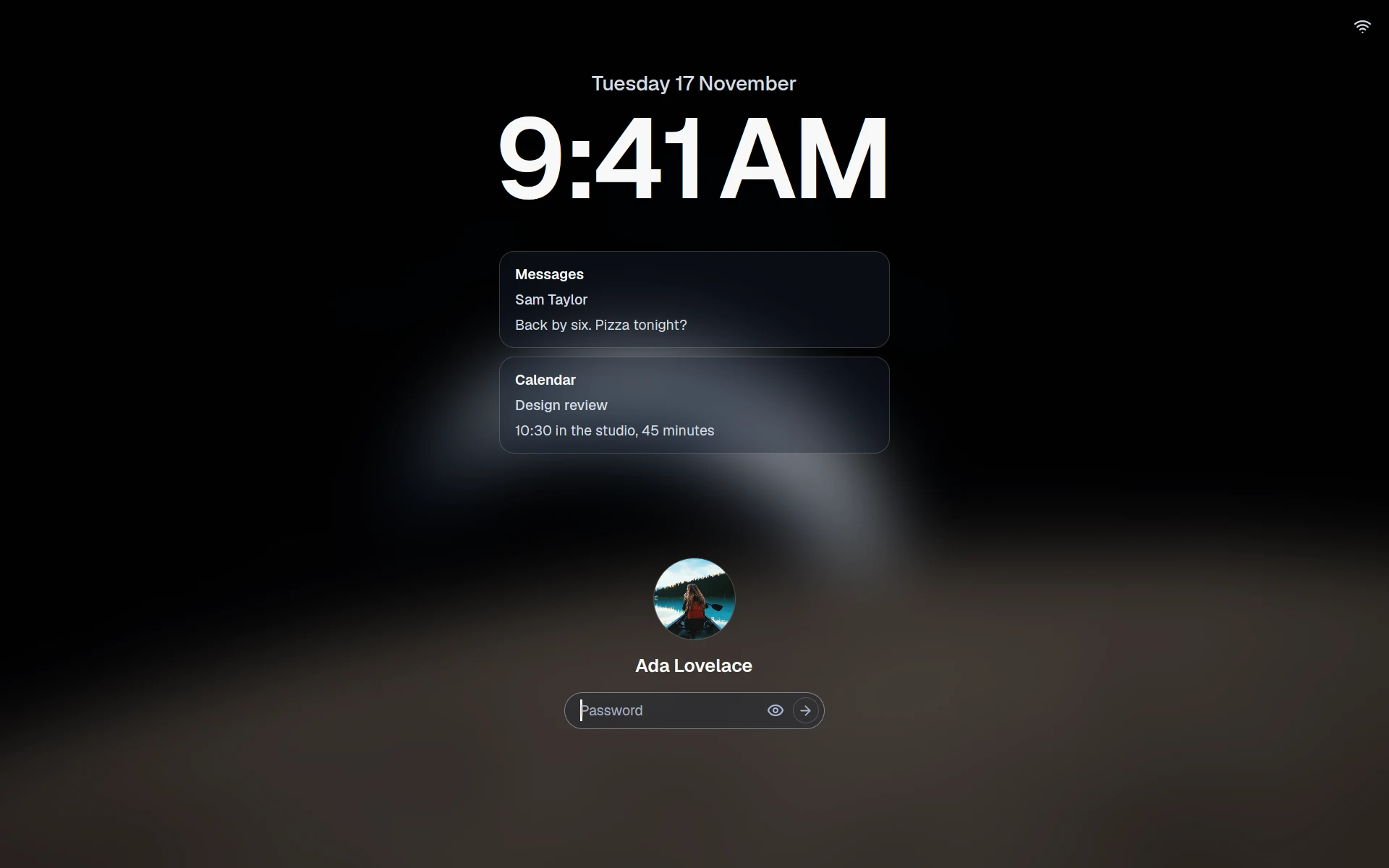
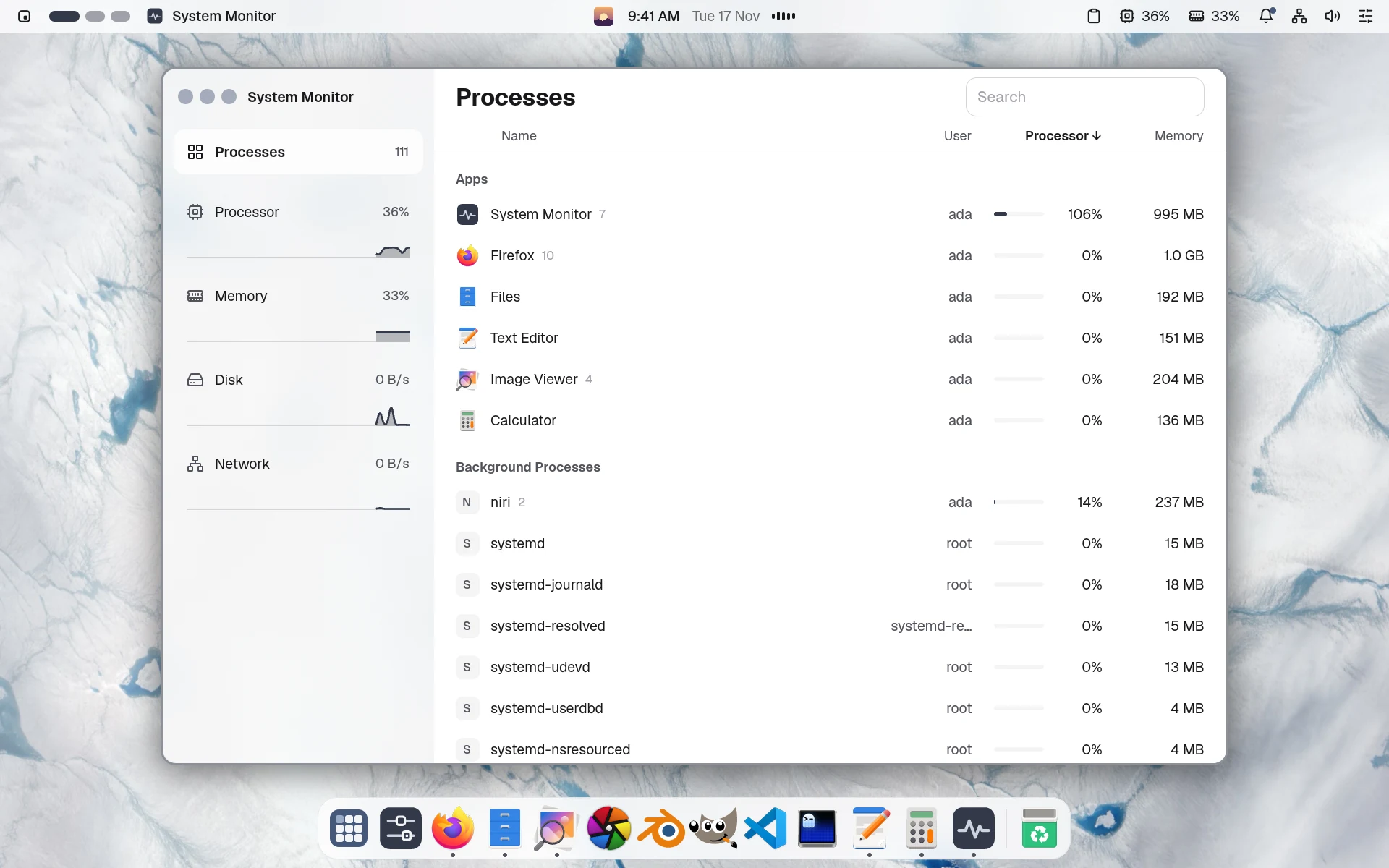
The same three windows, Files, Text Editor and Image Viewer, in a scrolling row, then tiled, then floatingThe same three windows, Files, Text Editor and Image Viewer, in a scrolling row, then tiled, then floating
~/user.nami
# Scrolling, Tiling or Floating:
# Control Center, or Super+Shift+T
namios:
  windows:
    gaps: medium
  dock:
    position: bottom
    magnification: small
namios:
  windows:
    gaps: medium
  dock:
    position: bottom
    magnification: small

namiOS 0.18.11

Declarative Linux distribution that just works.

Install it instead of Windows or next to it, and undo any change.

Free for any 64-bit PC, and you can try it before you install it.

It's all nami

The whole computer is one file.

Change a line, and nami builds the next version of your computer.

~/user.nami
# Ada's own apps and look
packages:
  - blender
  - darktable
namios:
  appearance:
    look: auto
    glass: medium
    lens: subtle
namios/package.nami
# namiOS is a package: swap any part
packages:
  - niri
  - namios-greeter
  - namios-look
  - namios-apps
  - namios-backups
  - namios-dev

Look

A desktop of its own, kept in your file.

Pick a look in Settings, and it's written to your user.nami. Try the glass.

~/user.nami
# Settings › Appearance writes it here
namios:
  appearance:
    look: auto
    accent: blue
    glass: subtle
    lens: medium
  widgets:
    items: [clock, calendar, photos]
Frosted glass
Glass
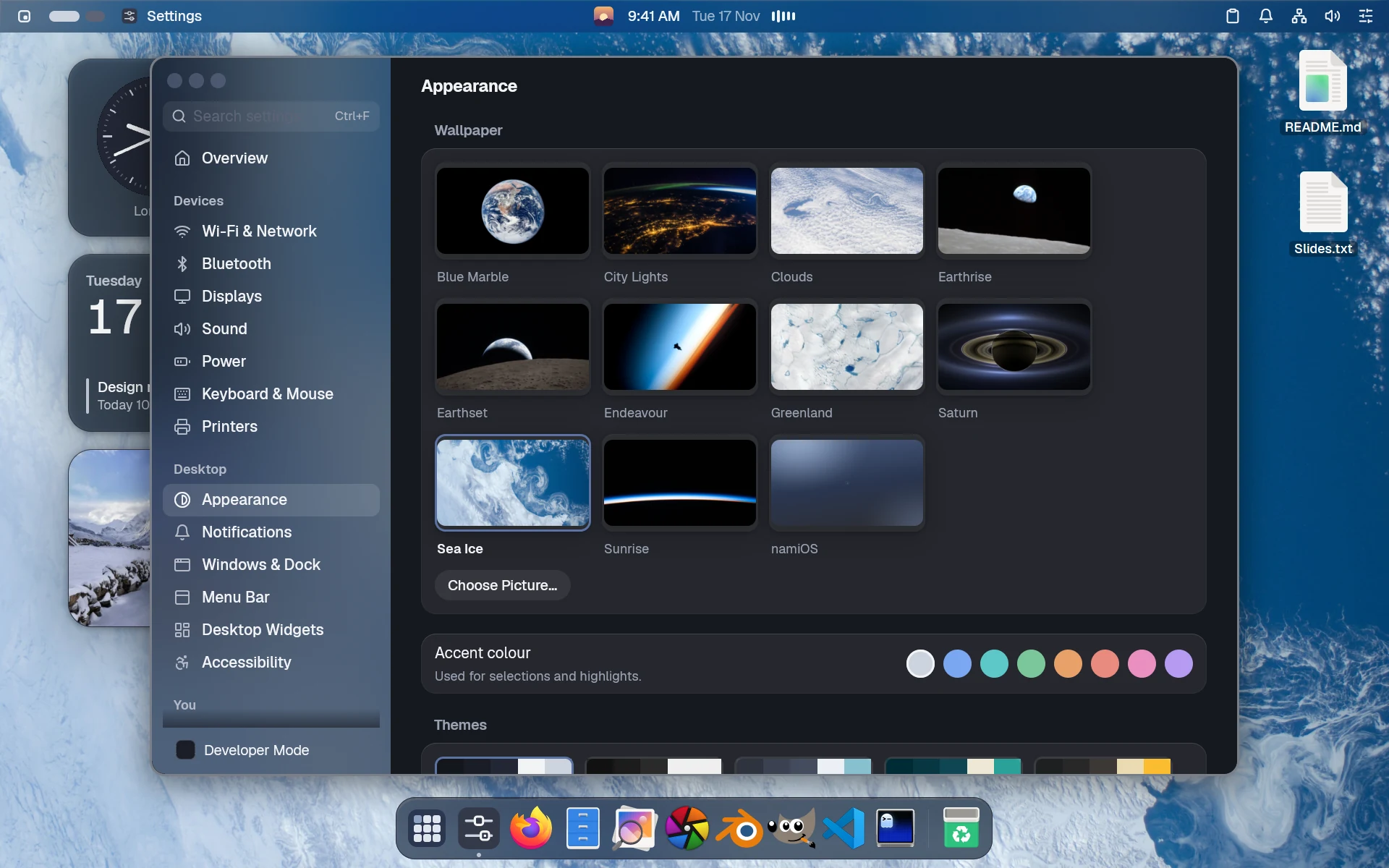
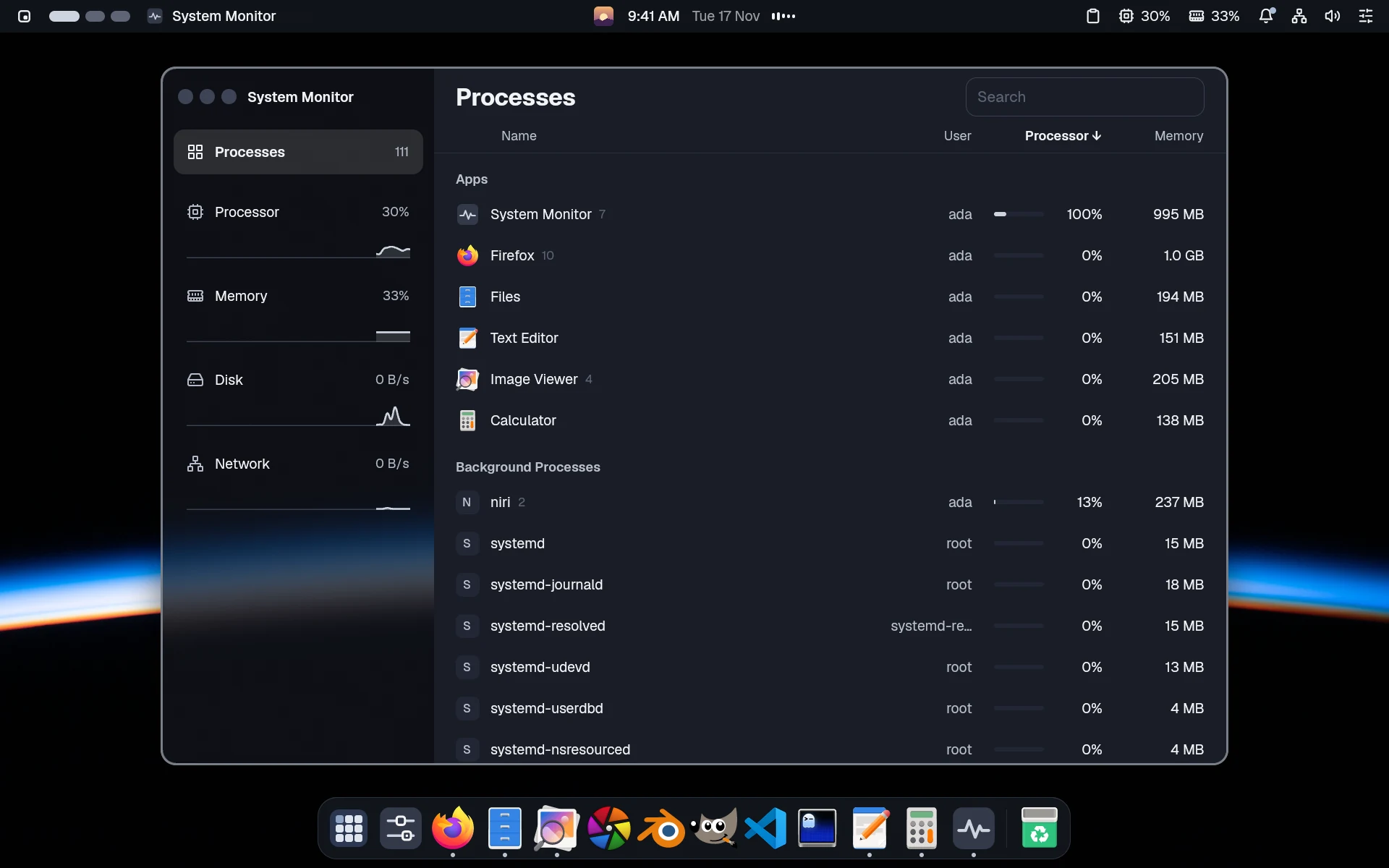
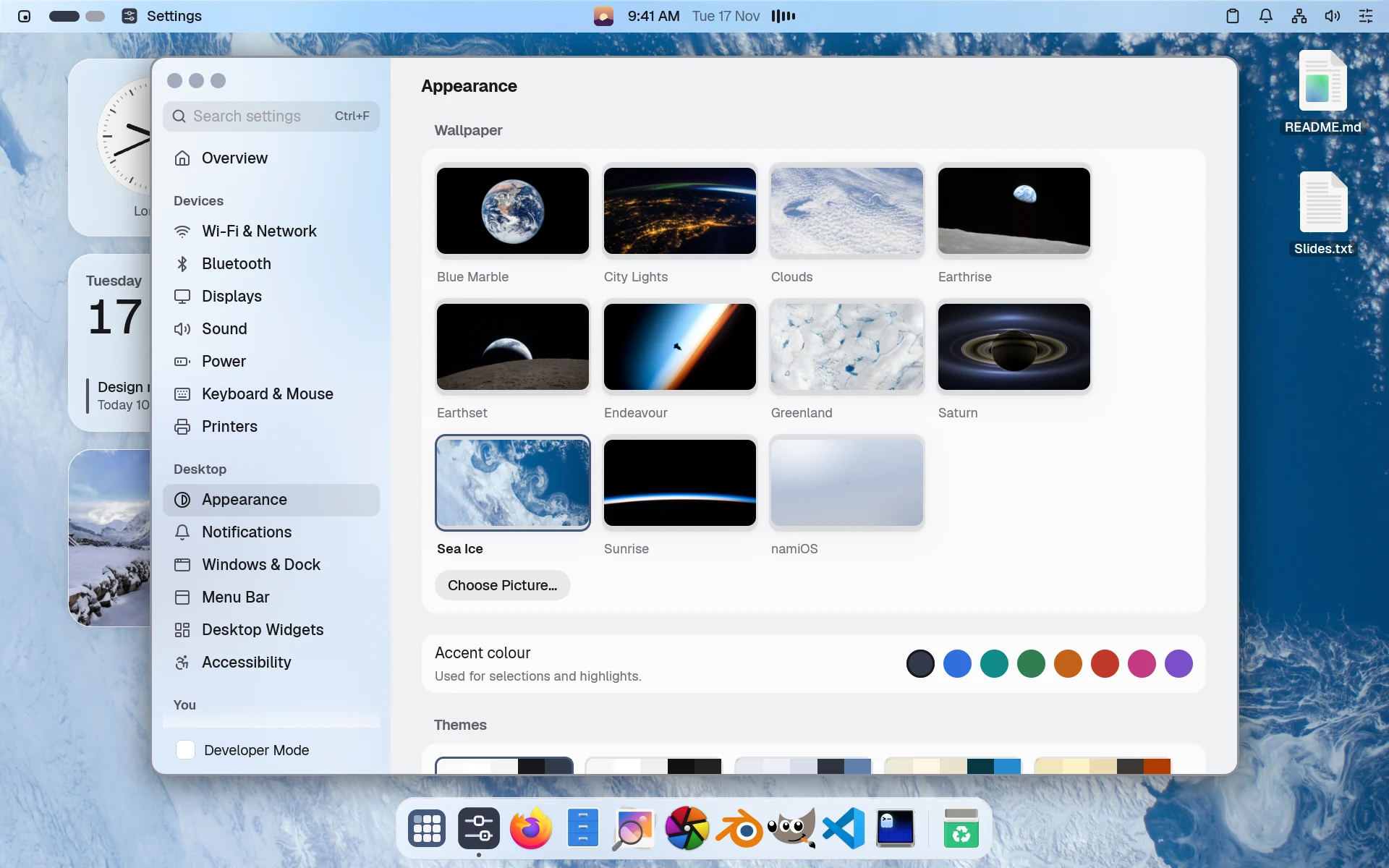
Appearance in Settings: the wallpaper, eight accent colours, themes, and light, dark or autoAppearance in Settings: the wallpaper, eight accent colours, themes, and light, dark or auto, in dark mode
Your look, in Settings.
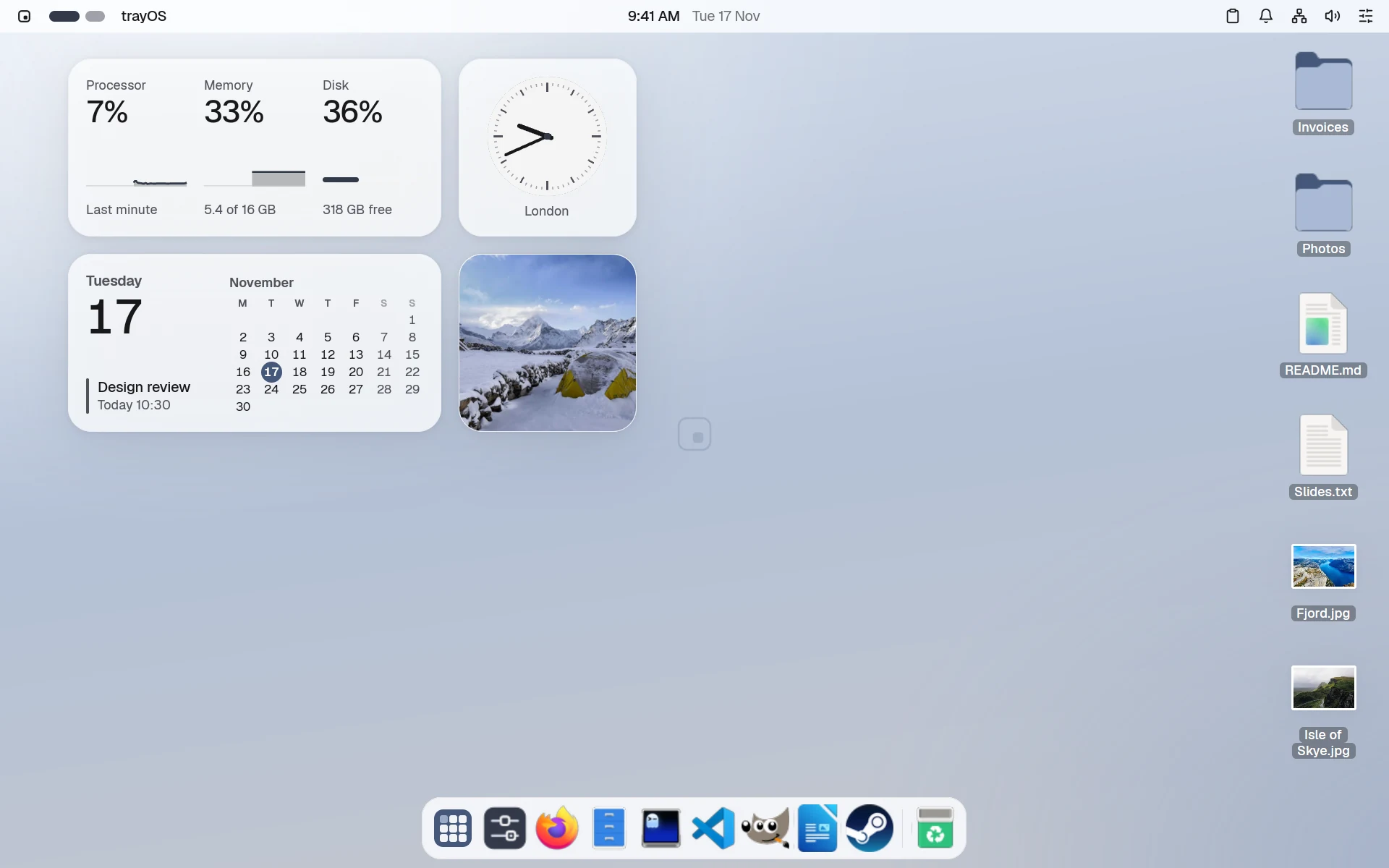
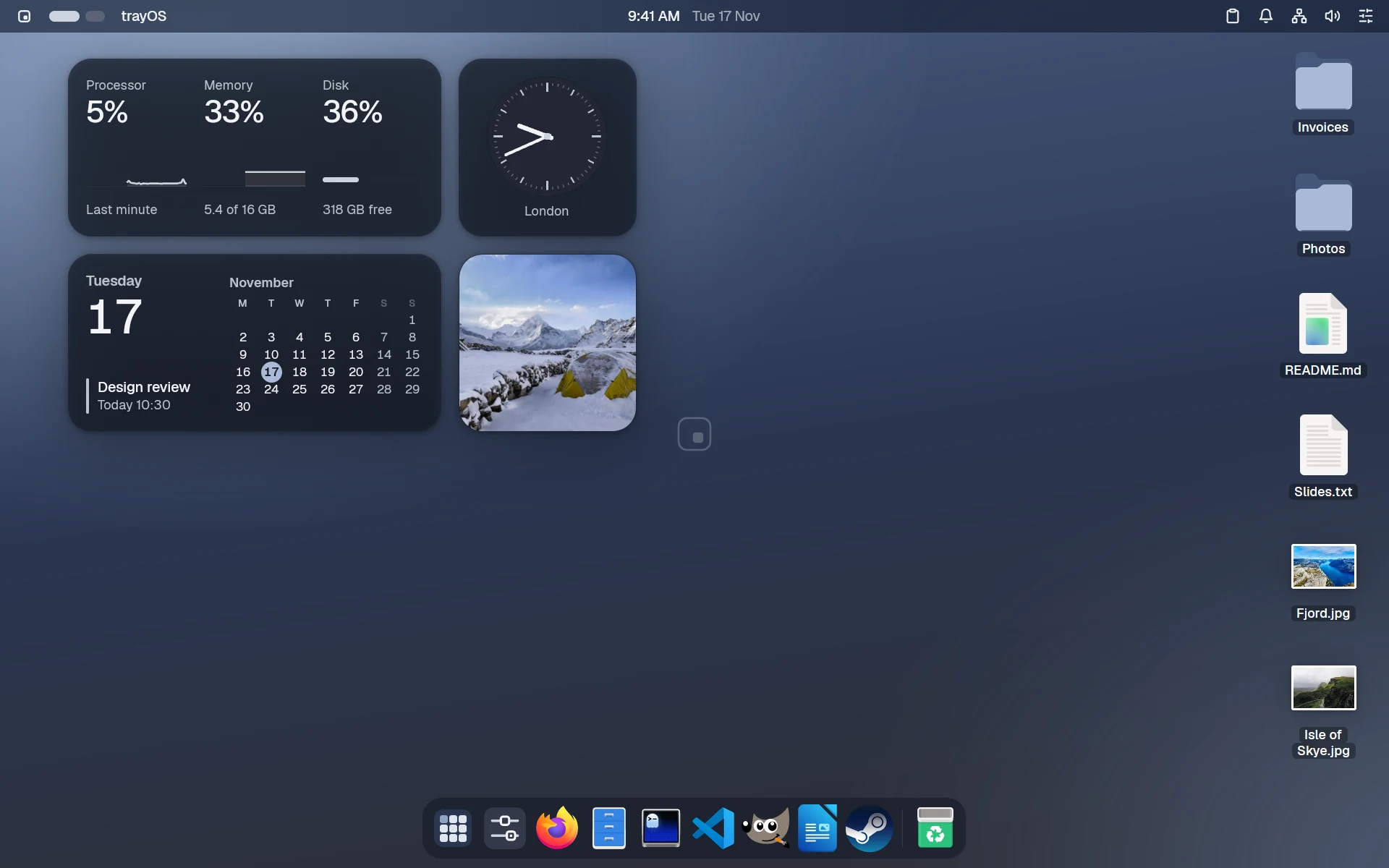
The desktop with widgets for the system, the clock, the calendar and photos, and files on the rightThe desktop with widgets for the system, the clock, the calendar and photos, and files on the right, in dark mode
Widgets on the wallpaper.
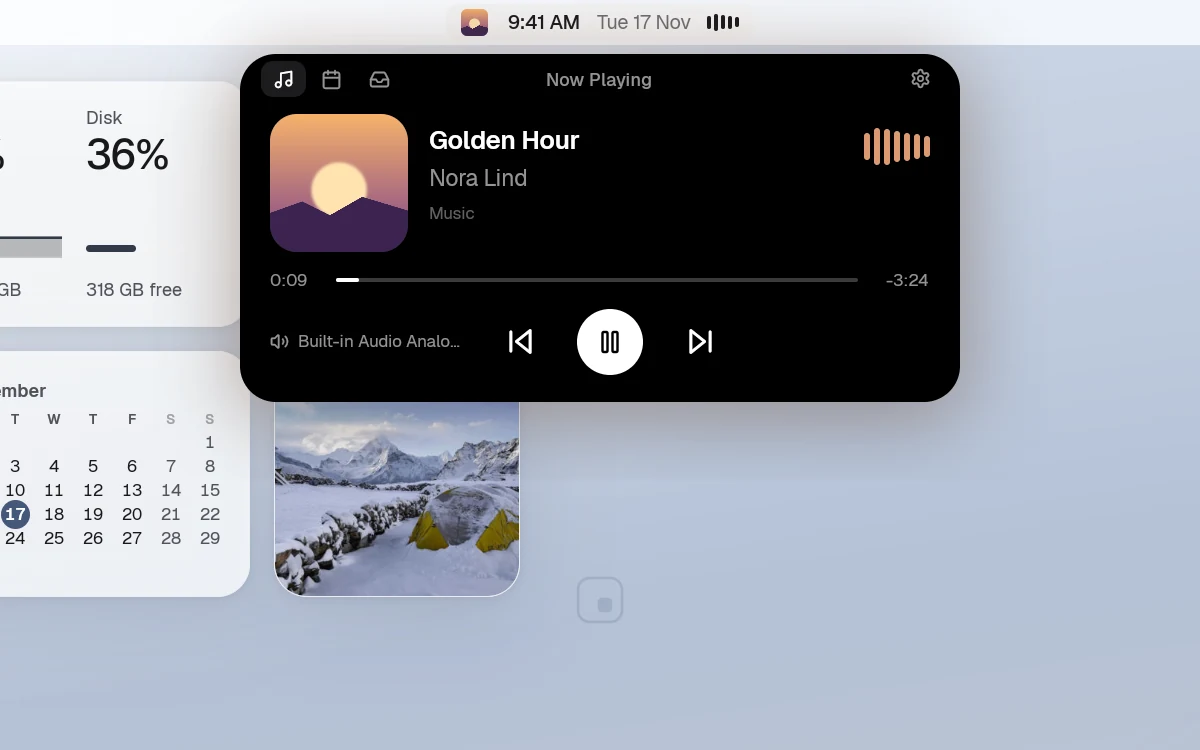
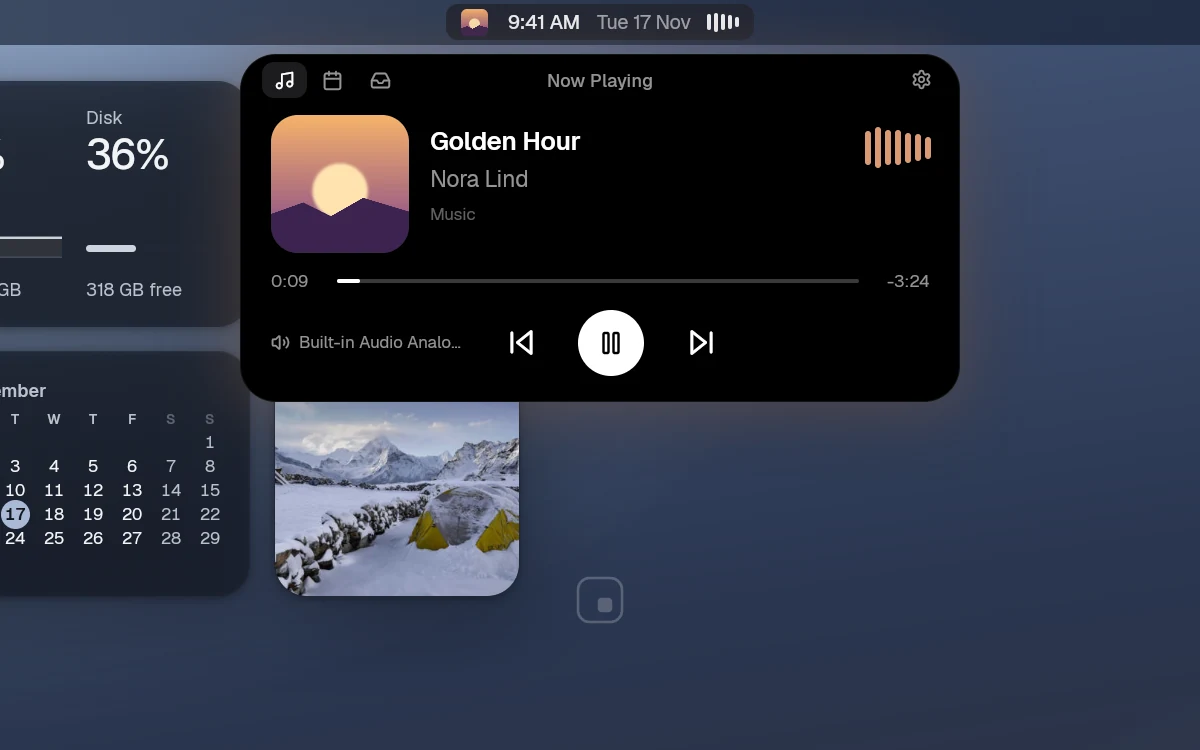
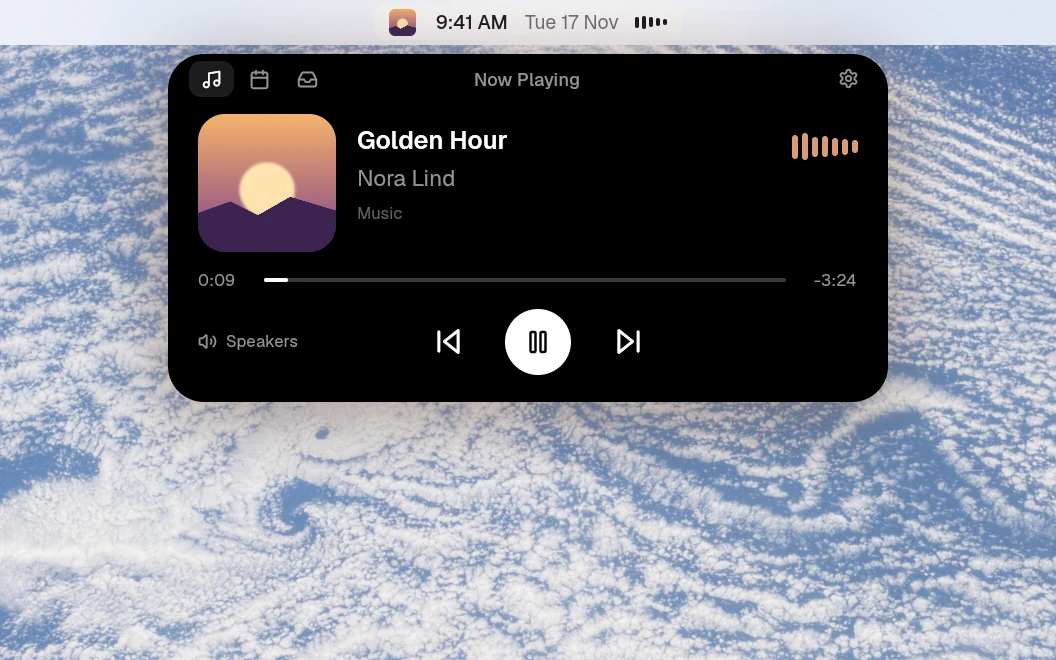
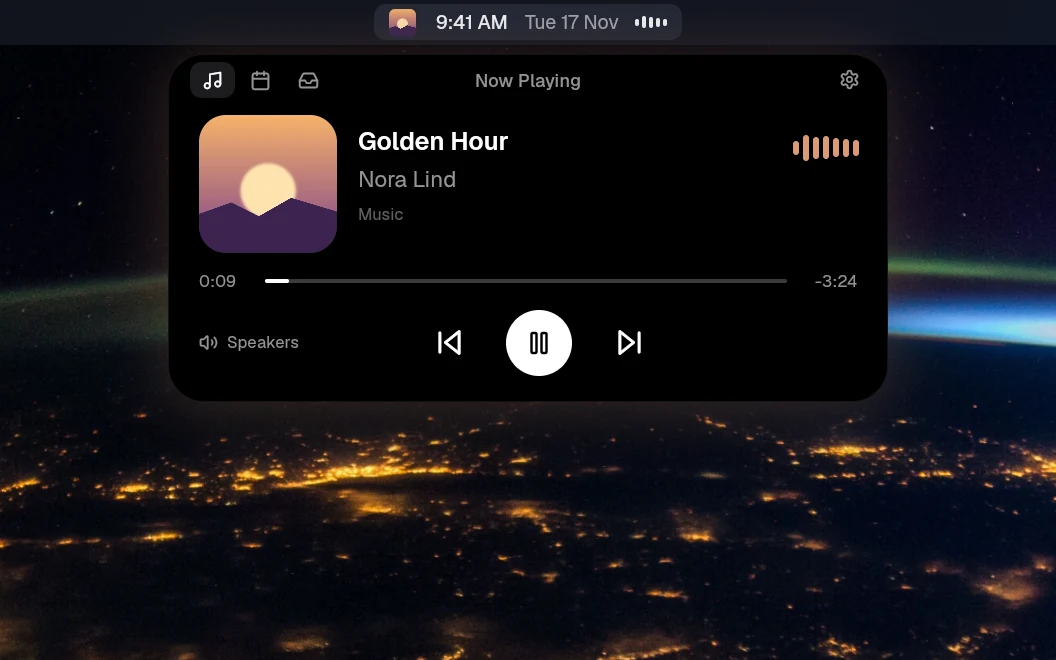
The clock in the middle of the bar, opened to show what's playing, with its cover and controlsThe clock in the middle of the bar, opened to show what's playing, with its cover and controls, in dark mode
Live, at the clock.
  • Light, dark or automatic
  • Eight accent colours
  • Widgets on the desktop
  • Files on the desktop

Work

Windows the way you work.

Scrolling, tiling or floating, from Control Center. Your Dock and folders stay in your file.

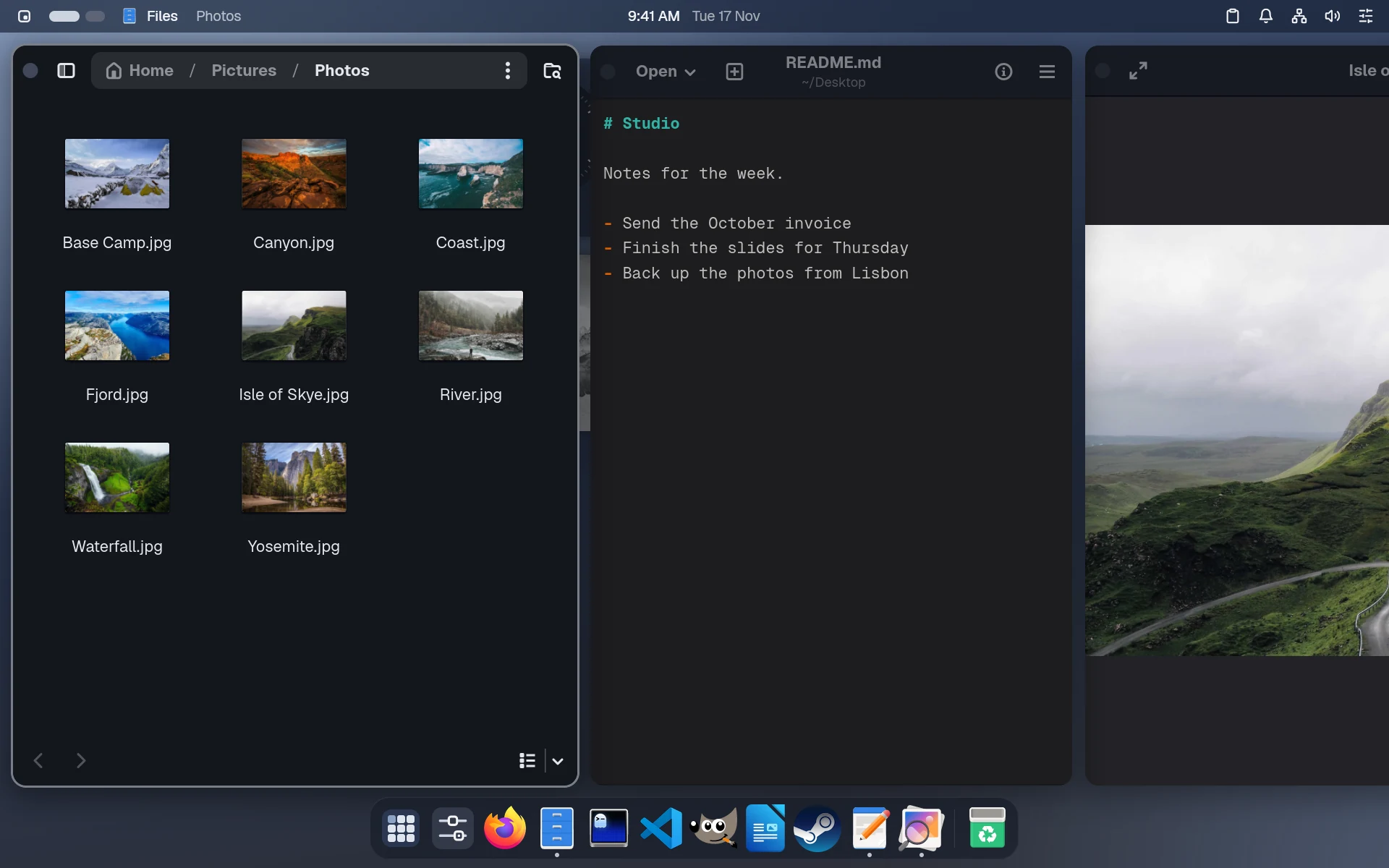
Each window is a column in a row that scrolls sideways.
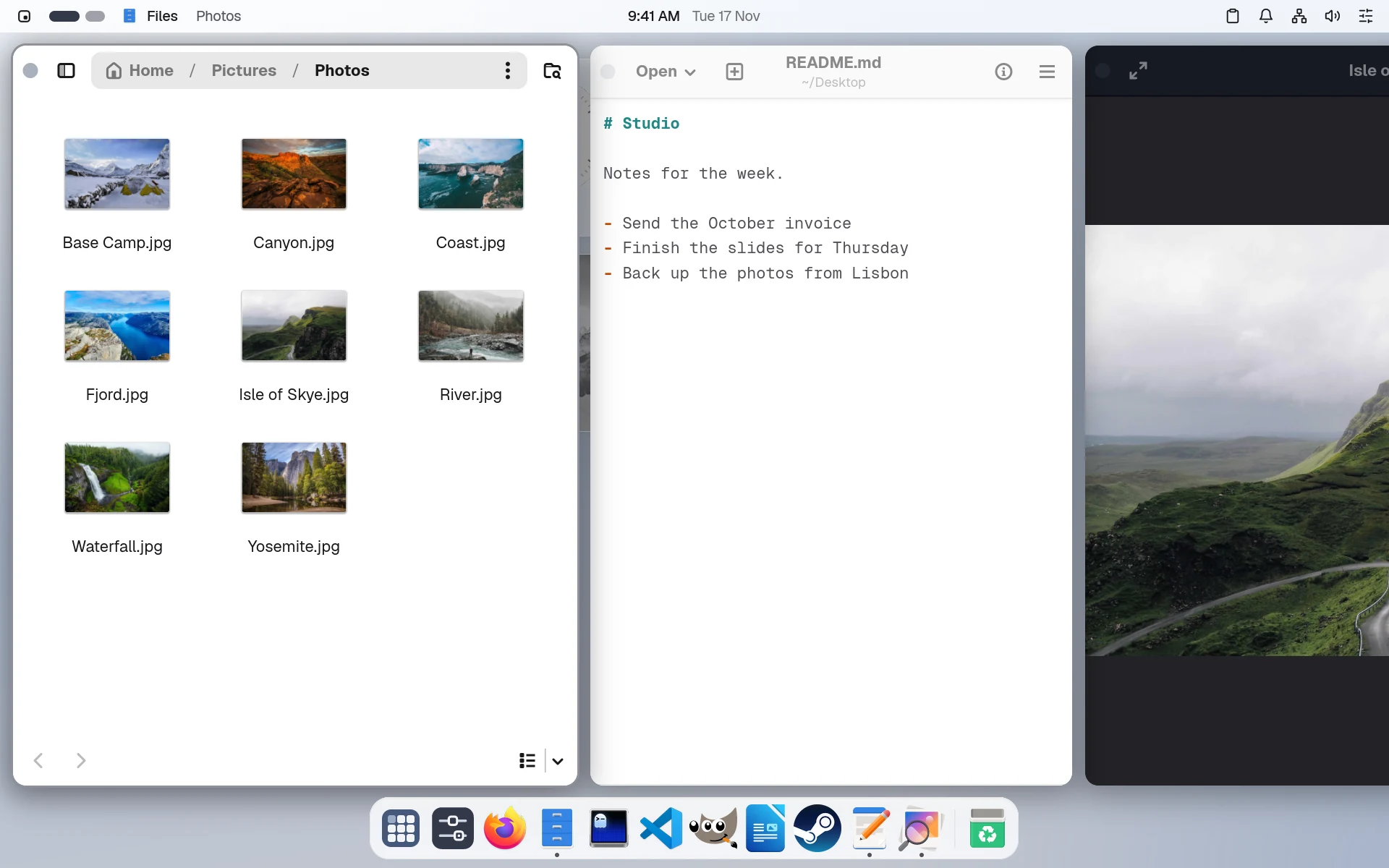
Files, Text Editor and Image Viewer side by side in a row, the last one running off the right edge of the screenFiles, Text Editor and Image Viewer side by side in a row, the last one running off the right edge of the screen, in dark mode
~/user.nami
# Settings › Windows & Dock writes it here
namios:
  dock:
    size: medium
    position: bottom
    pinned: [firefox, org.gnome.Nautilus]
  all-apps:
    folders:
      - name: Office
        apps: [writer, calc, impress]
  keyboard: { keys: mac }
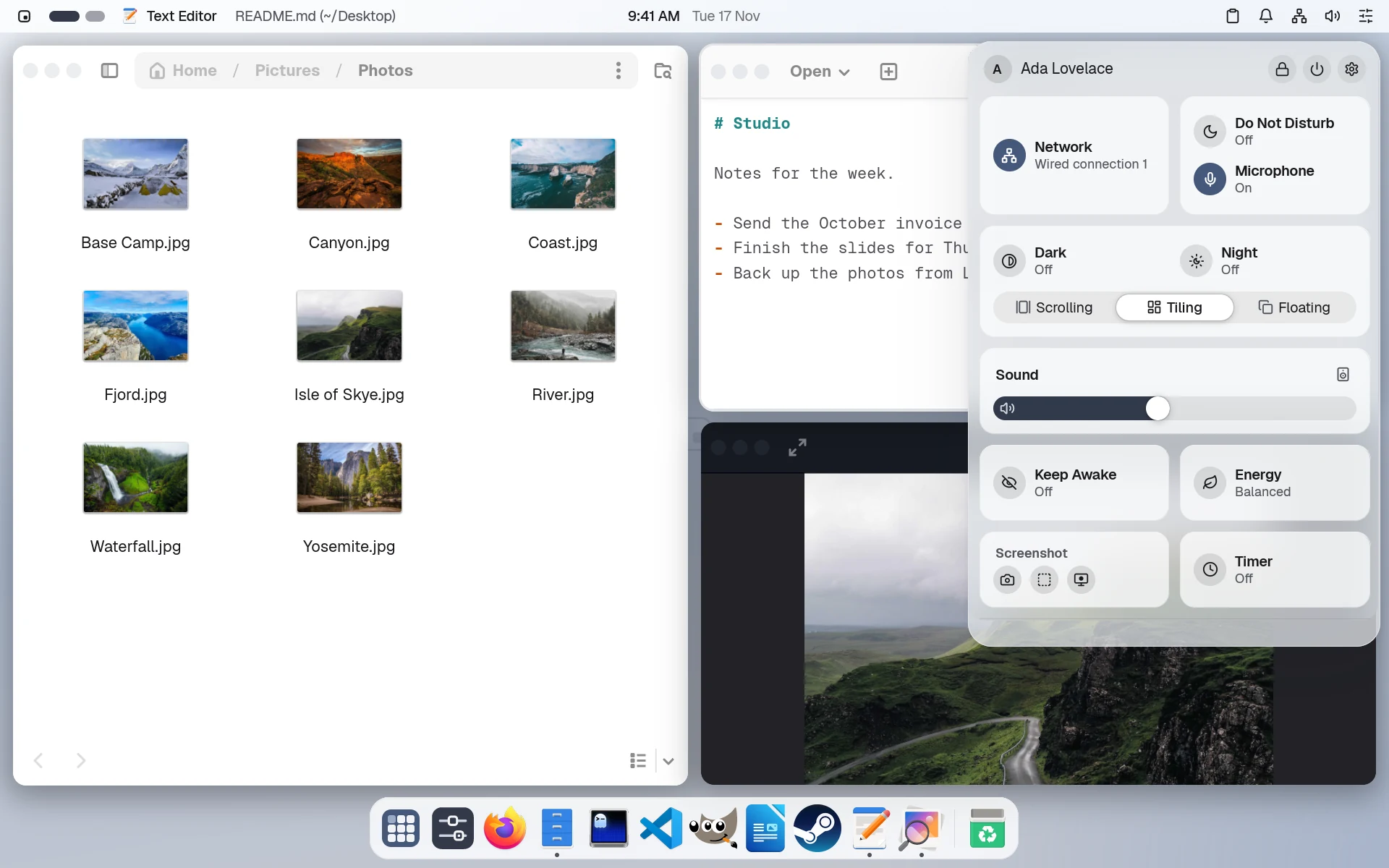
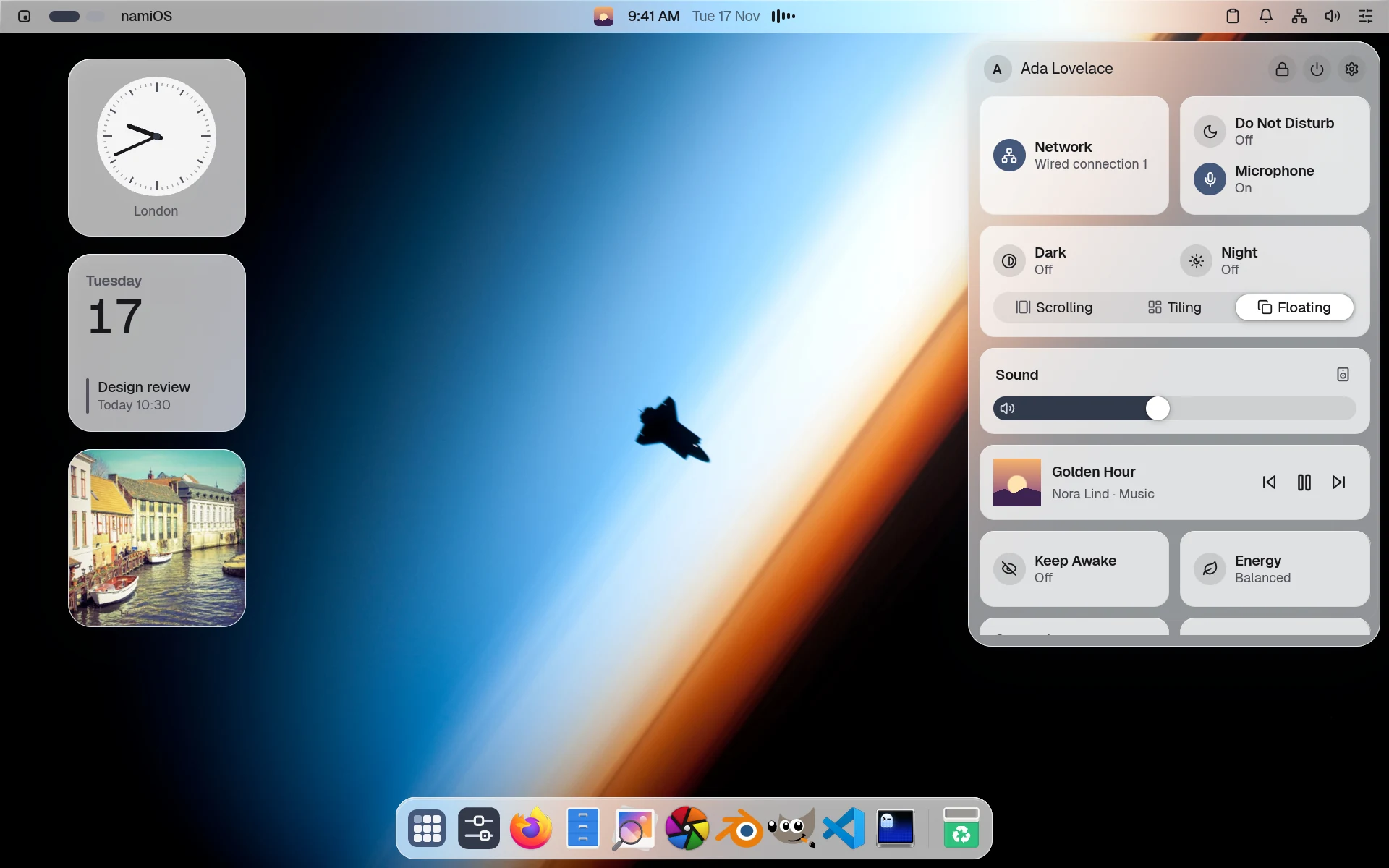
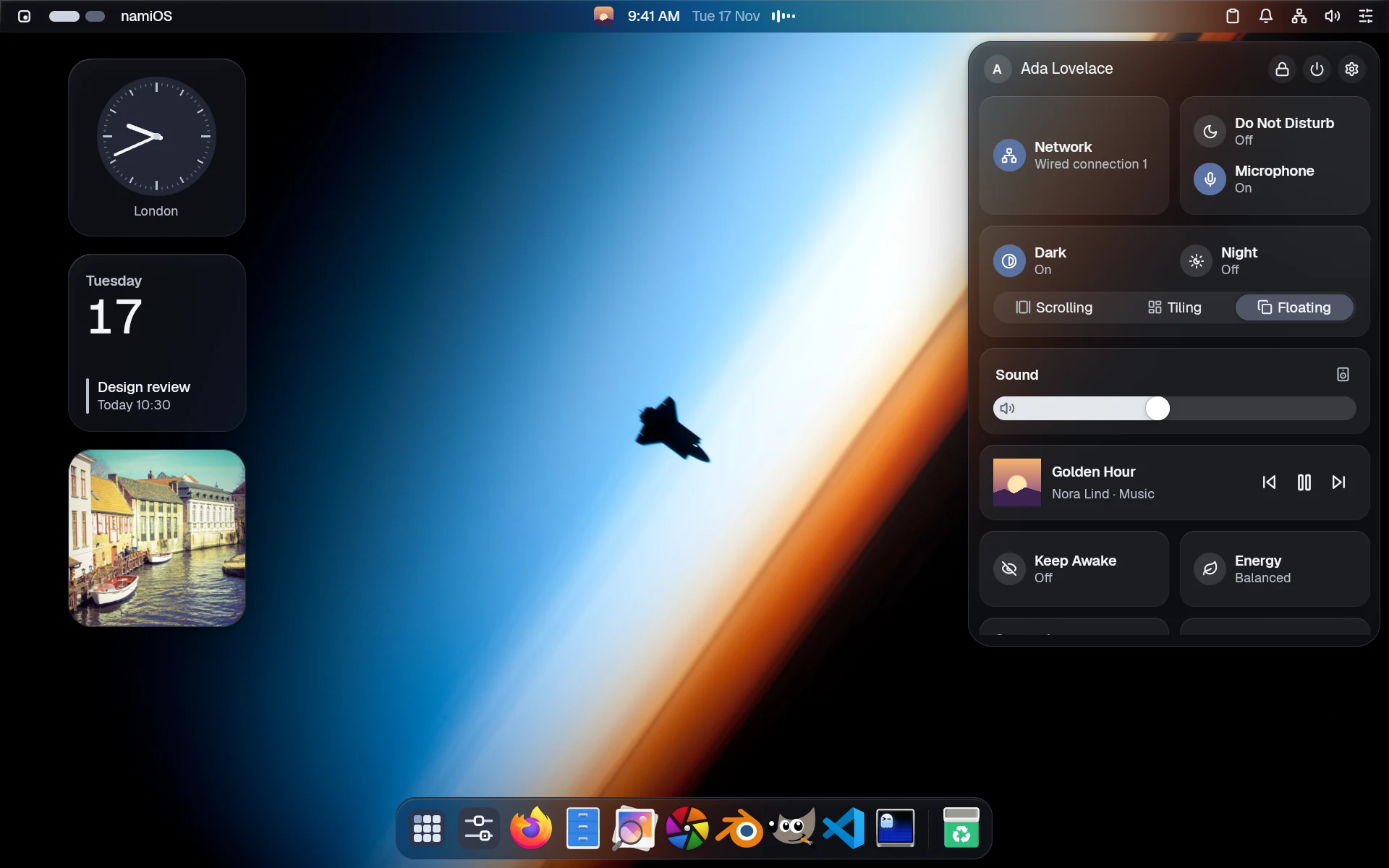
Control Center open over tiled windows: network, Do Not Disturb, Dark and Night, the window layouts, sound and moreControl Center open over tiled windows: network, Do Not Disturb, Dark and Night, the window layouts, sound and more, in dark mode
Control Center.
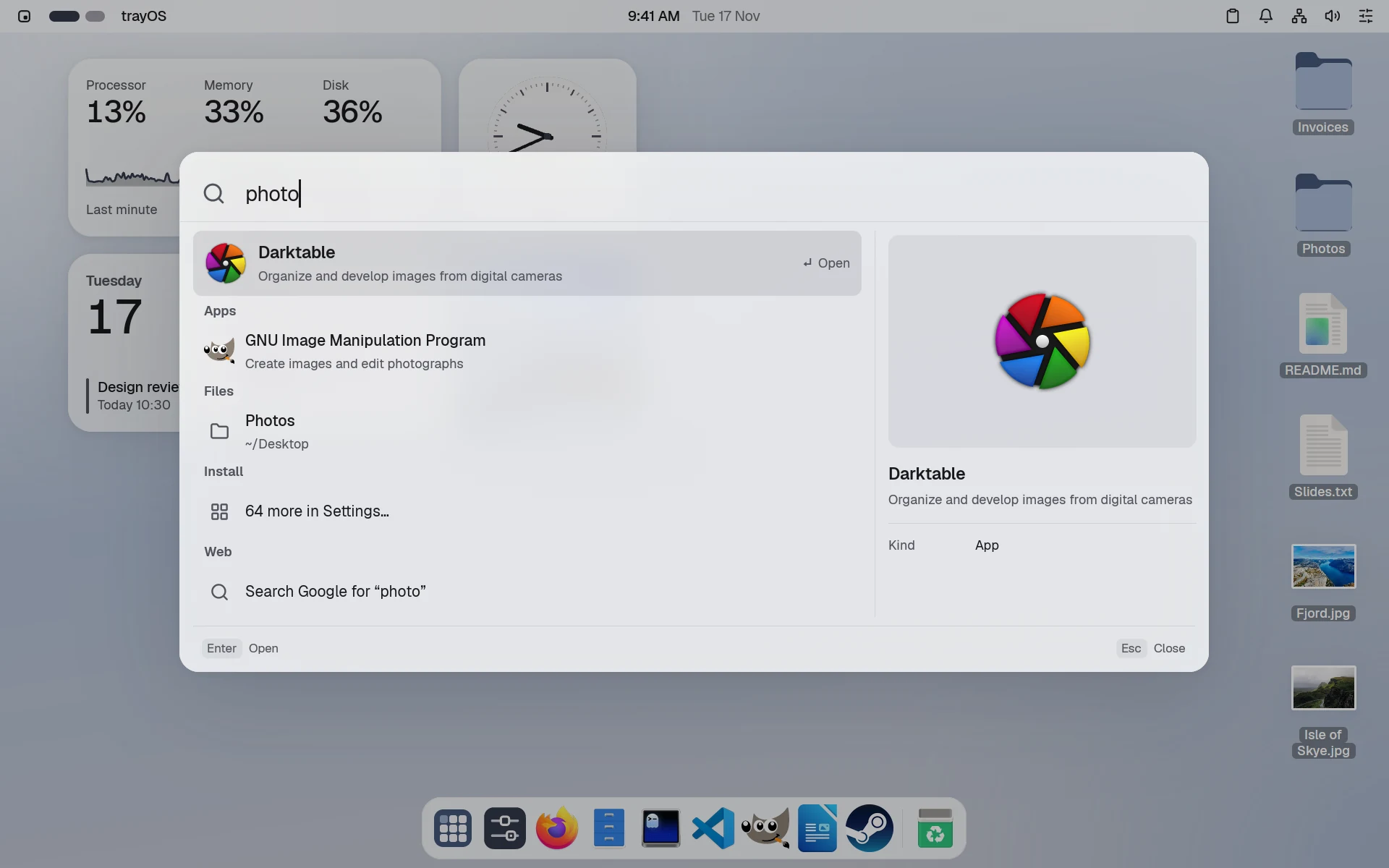
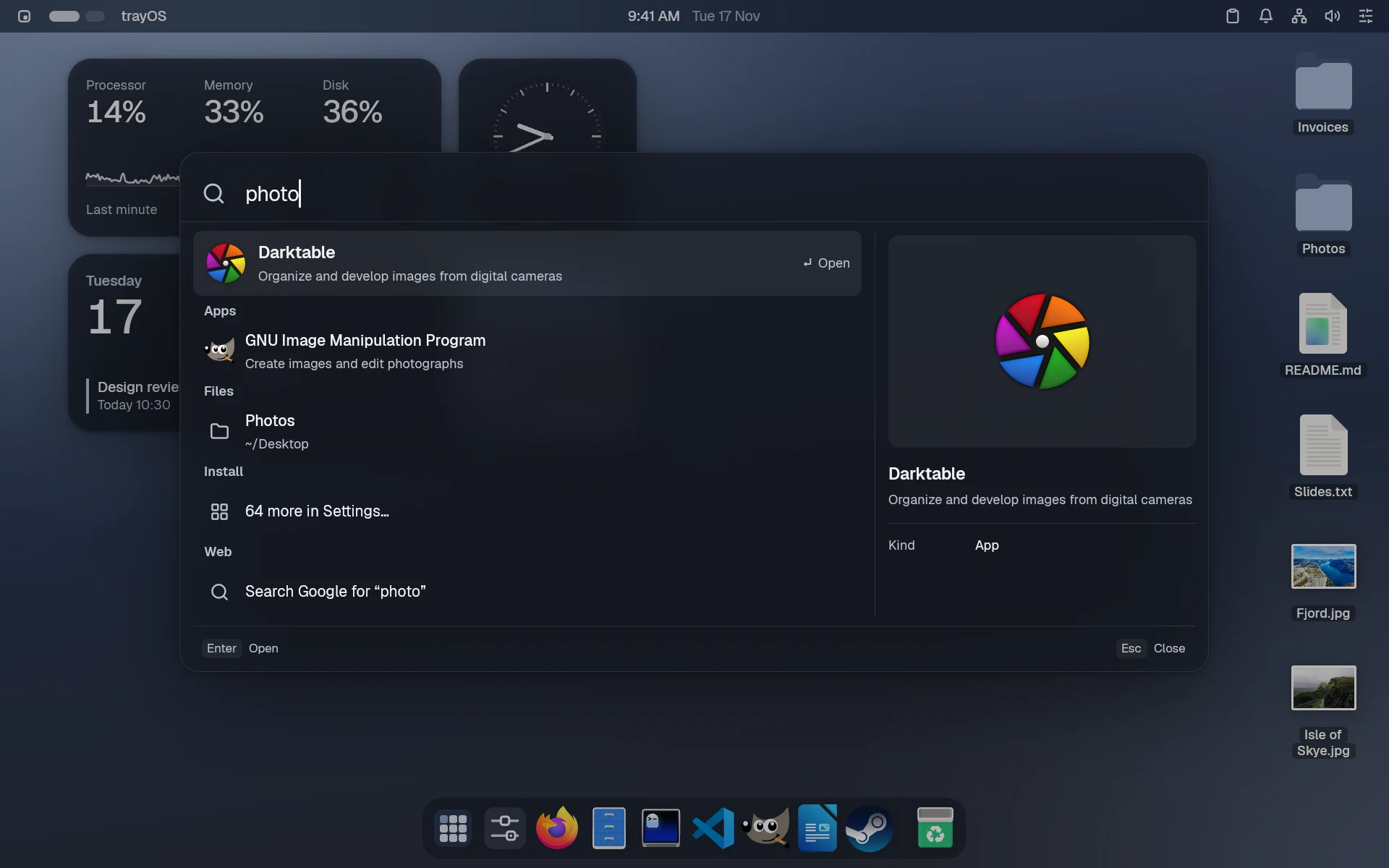
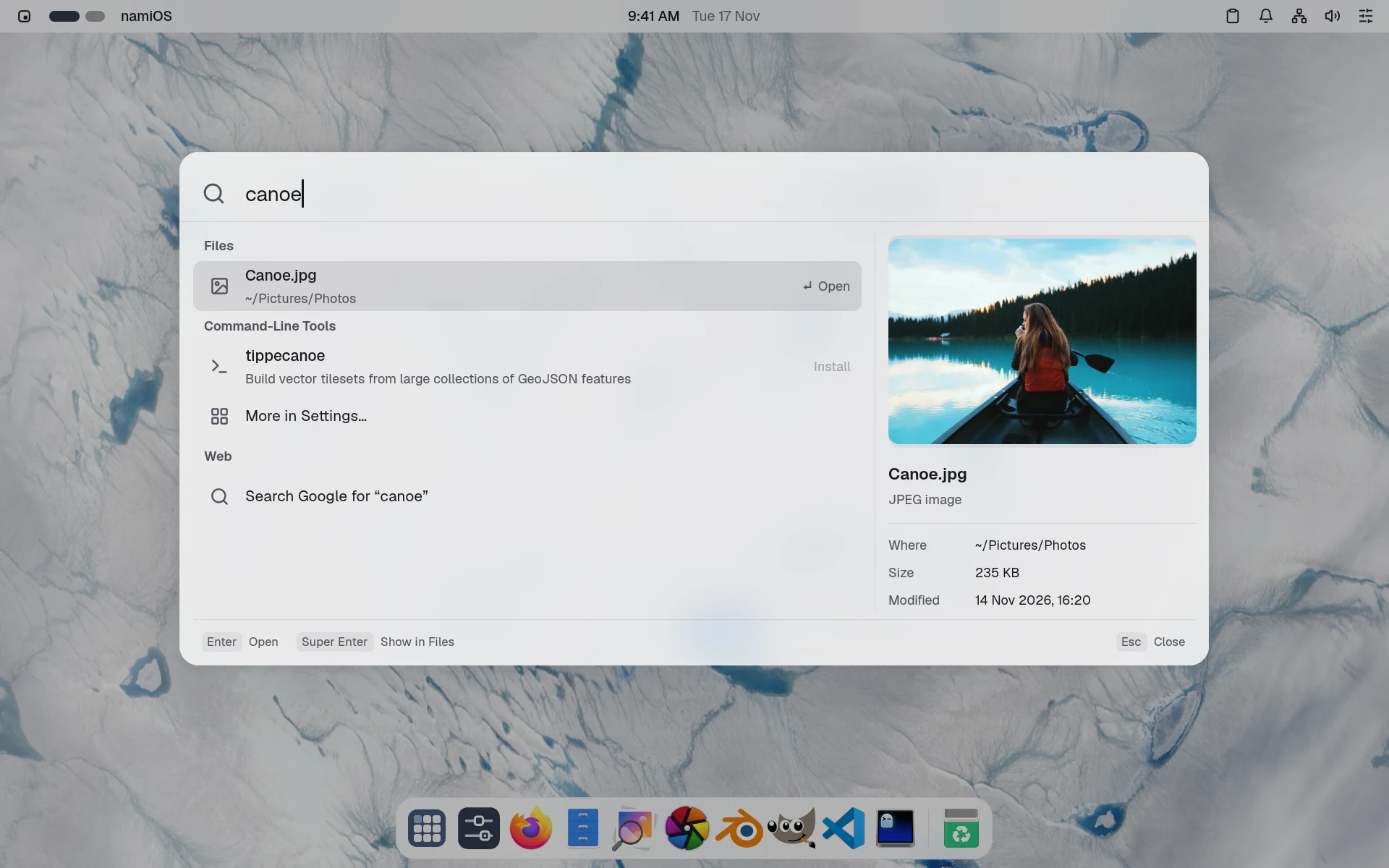
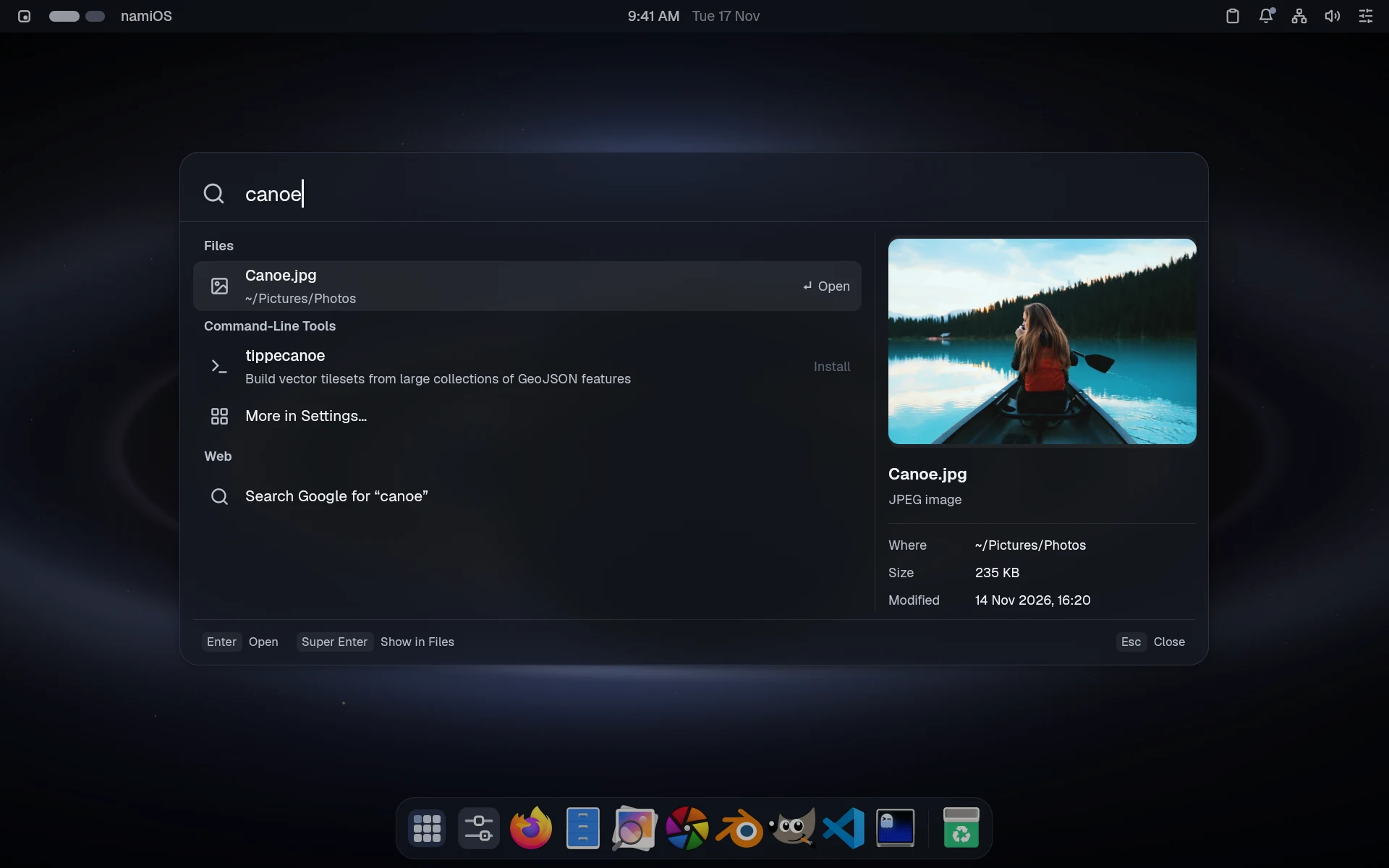
The launcher with photo typed: darktable and GIMP, the Photos folder, apps to install and a web searchThe launcher with photo typed: darktable and GIMP, the Photos folder, apps to install and a web search, in dark mode
Find anything with Super Space.
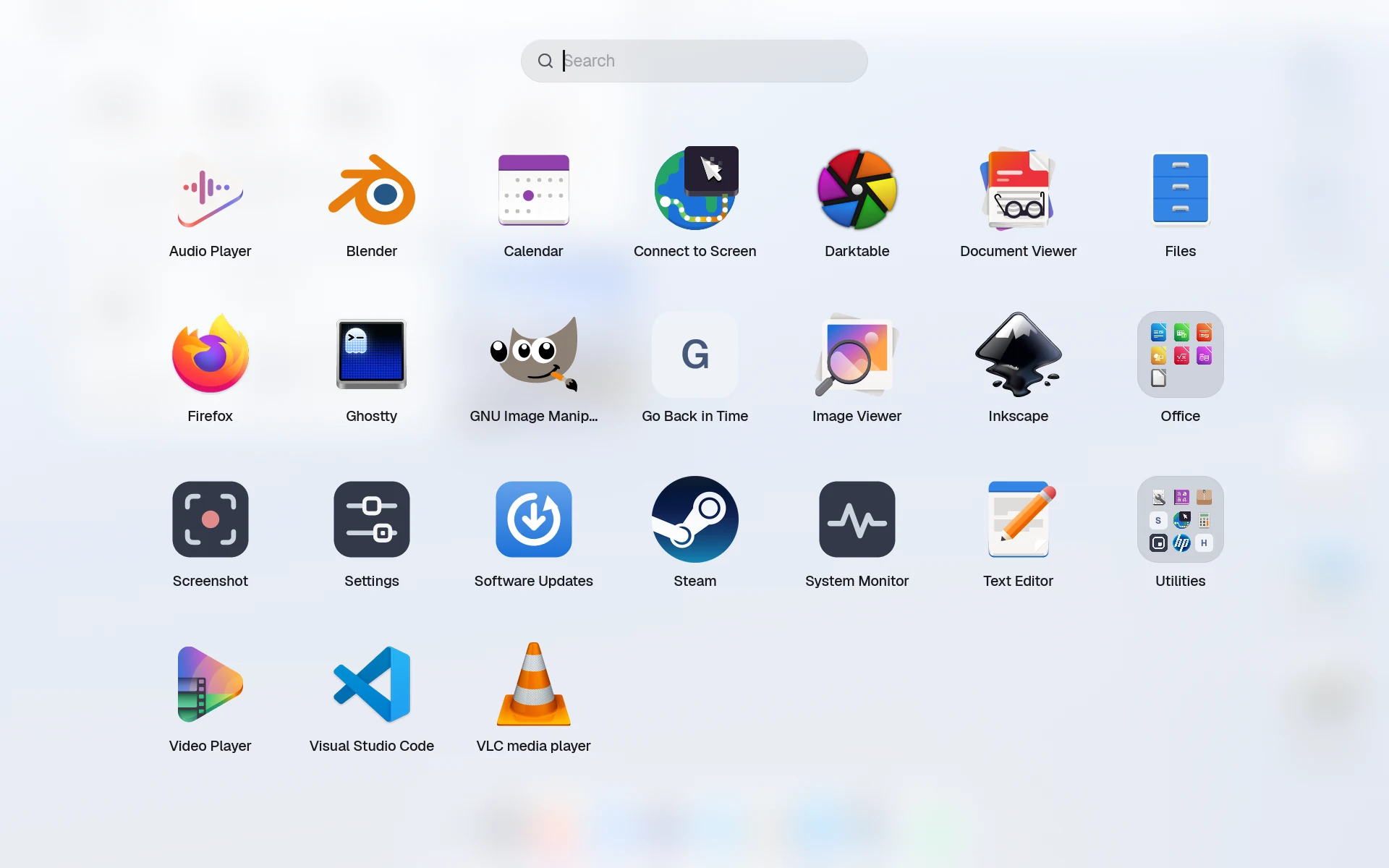
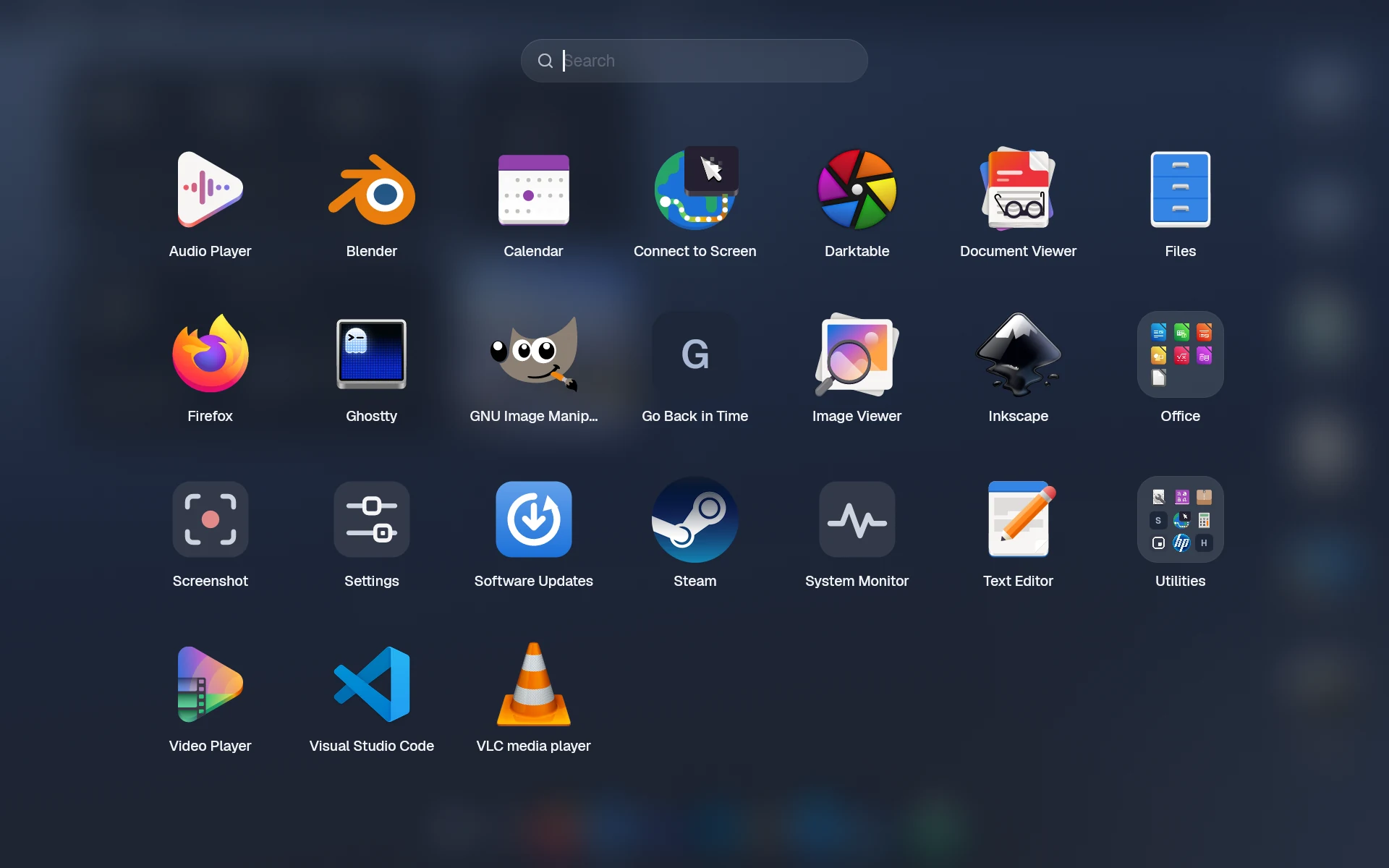
All Apps, with every app in a grid over the desktop and a folder among themAll Apps, with every app in a grid over the desktop and a folder among them, in dark mode
All Apps, with folders.
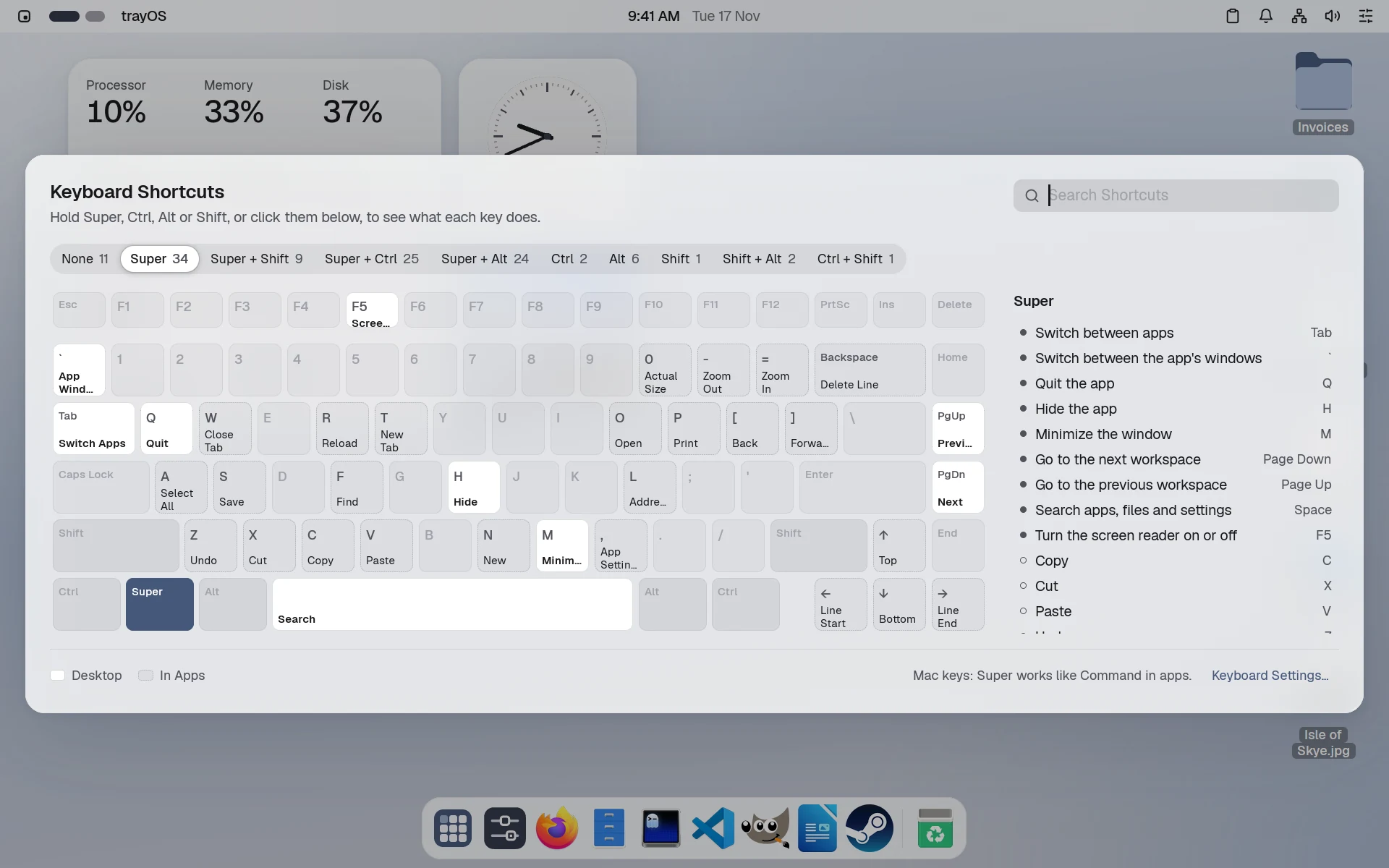
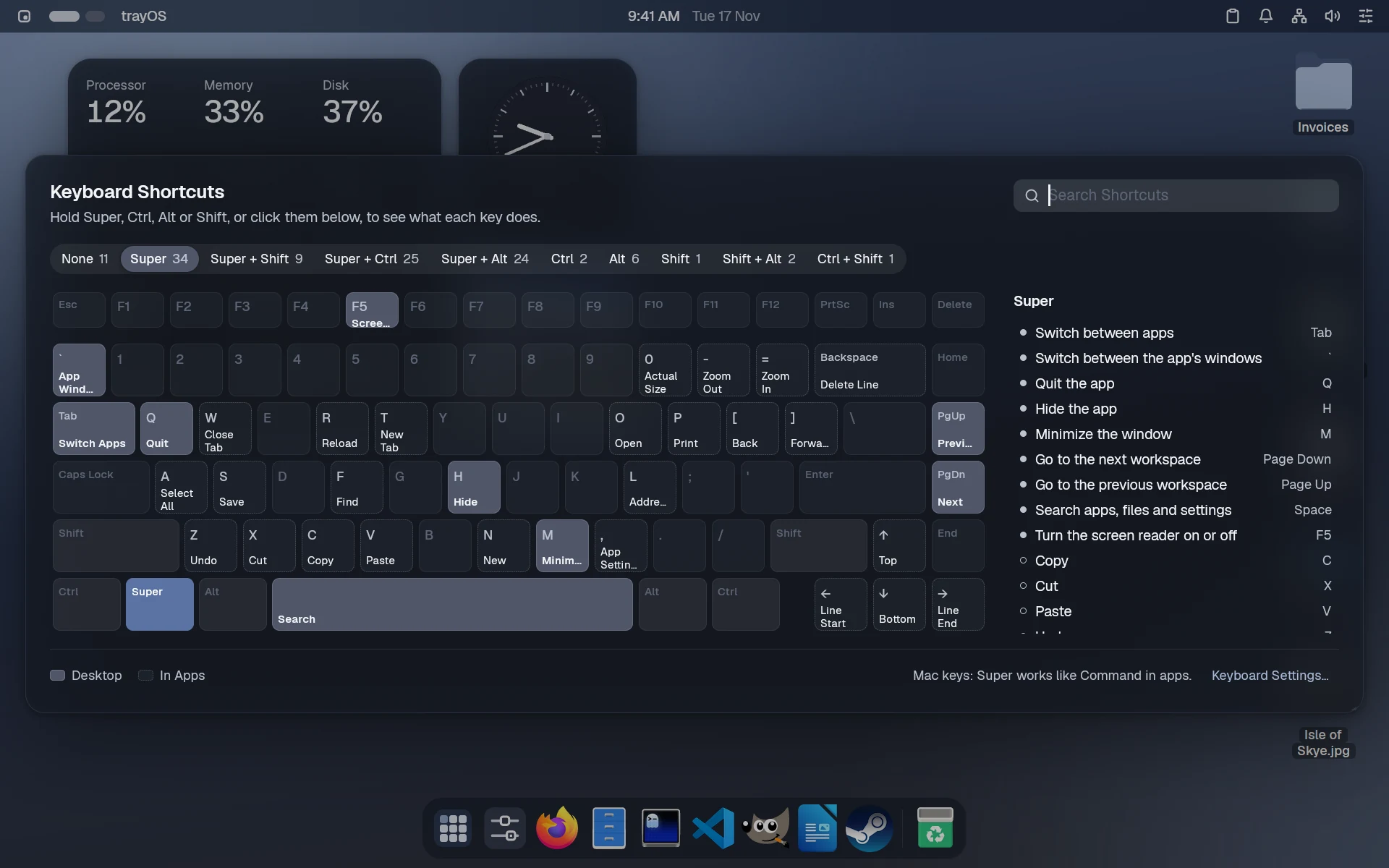
Keyboard Shortcuts, with a keyboard drawn showing the shortcut on each key, and the list beside itKeyboard Shortcuts, with a keyboard drawn showing the shortcut on each key, and the list beside it, in dark mode
Every shortcut, on your keyboard.
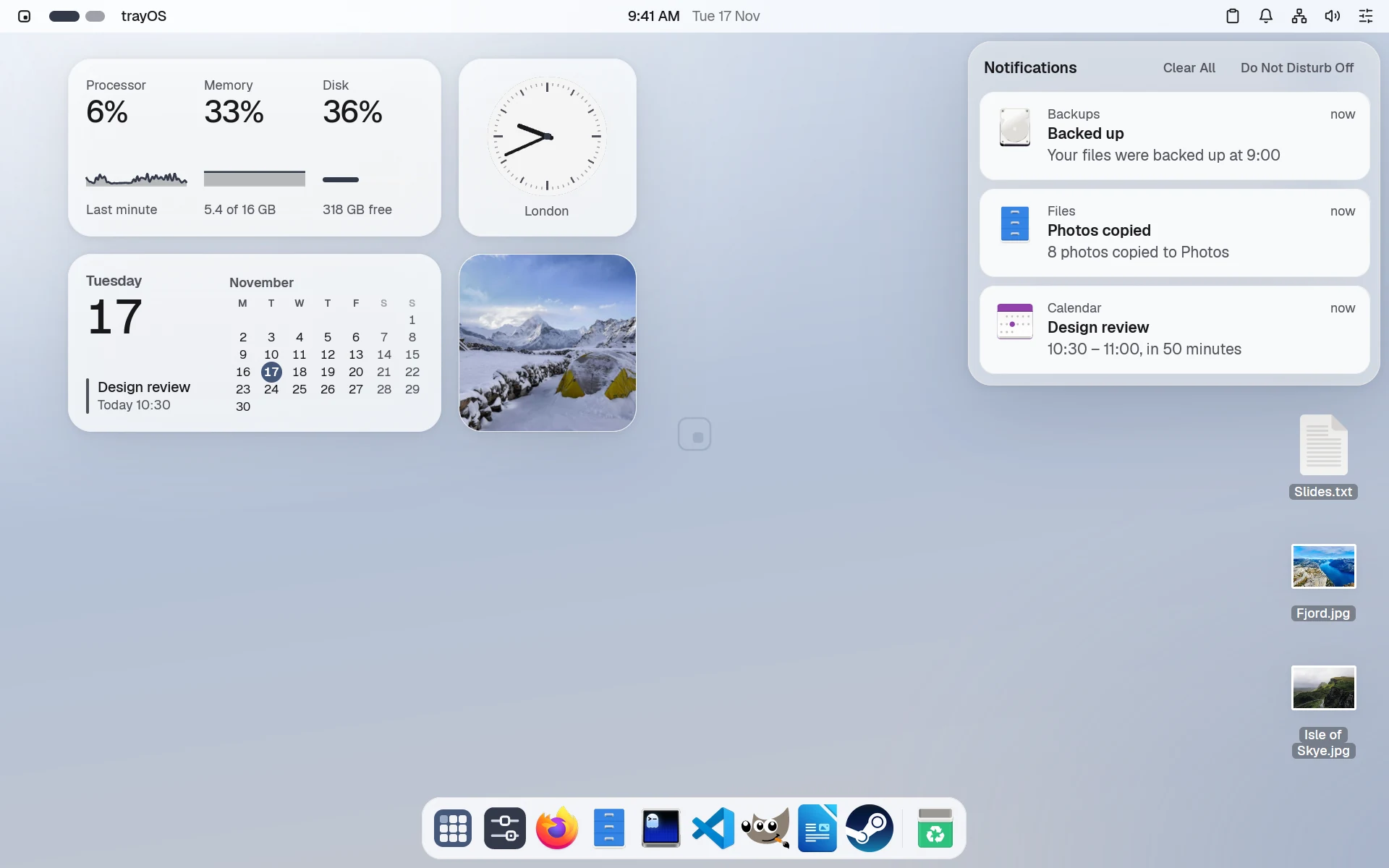
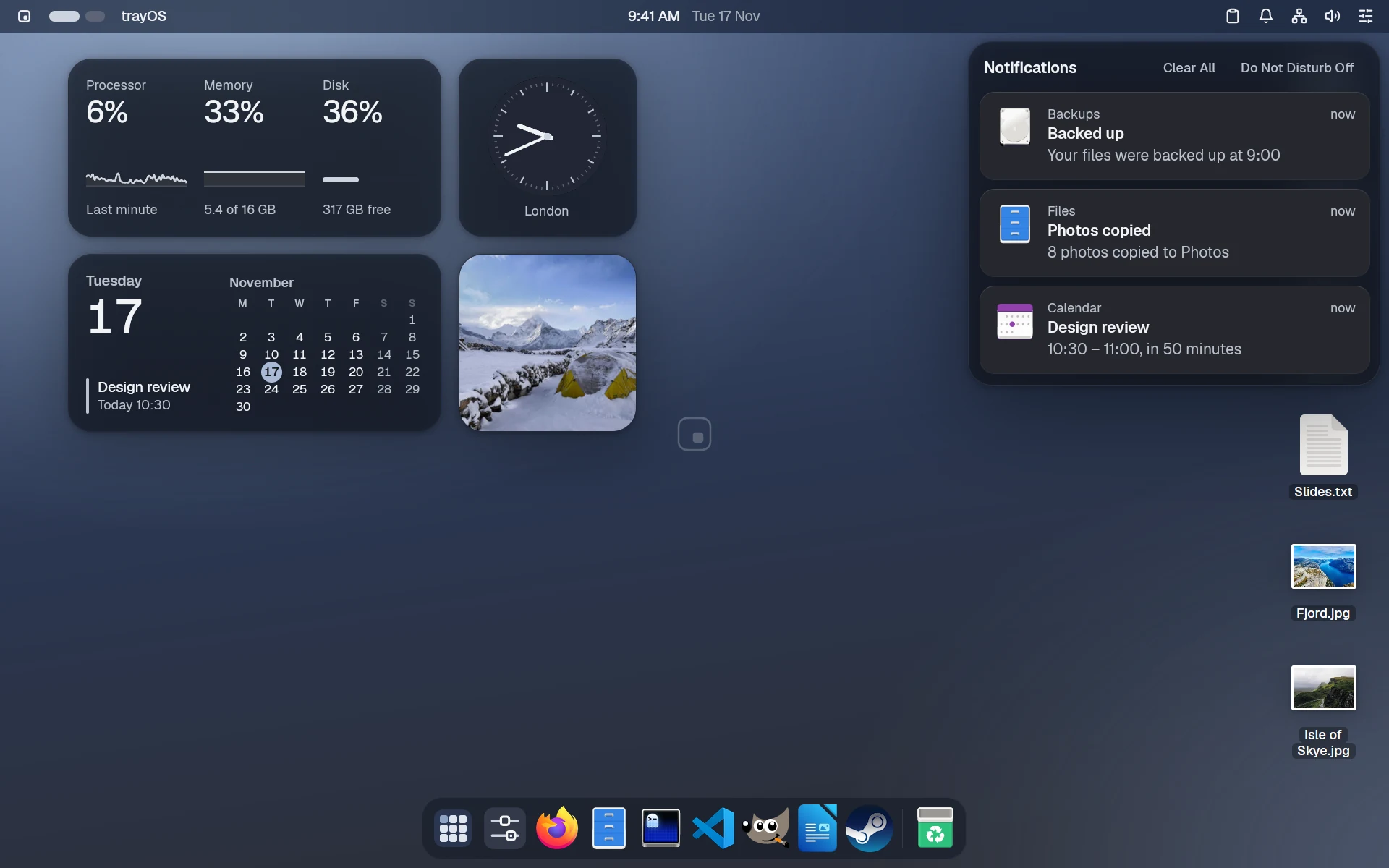
Notifications open from the bar, from Backups, Files and Calendar, over the desktopNotifications open from the bar, from Backups, Files and Calendar, over the desktop, in dark mode
Notifications, at a glance.
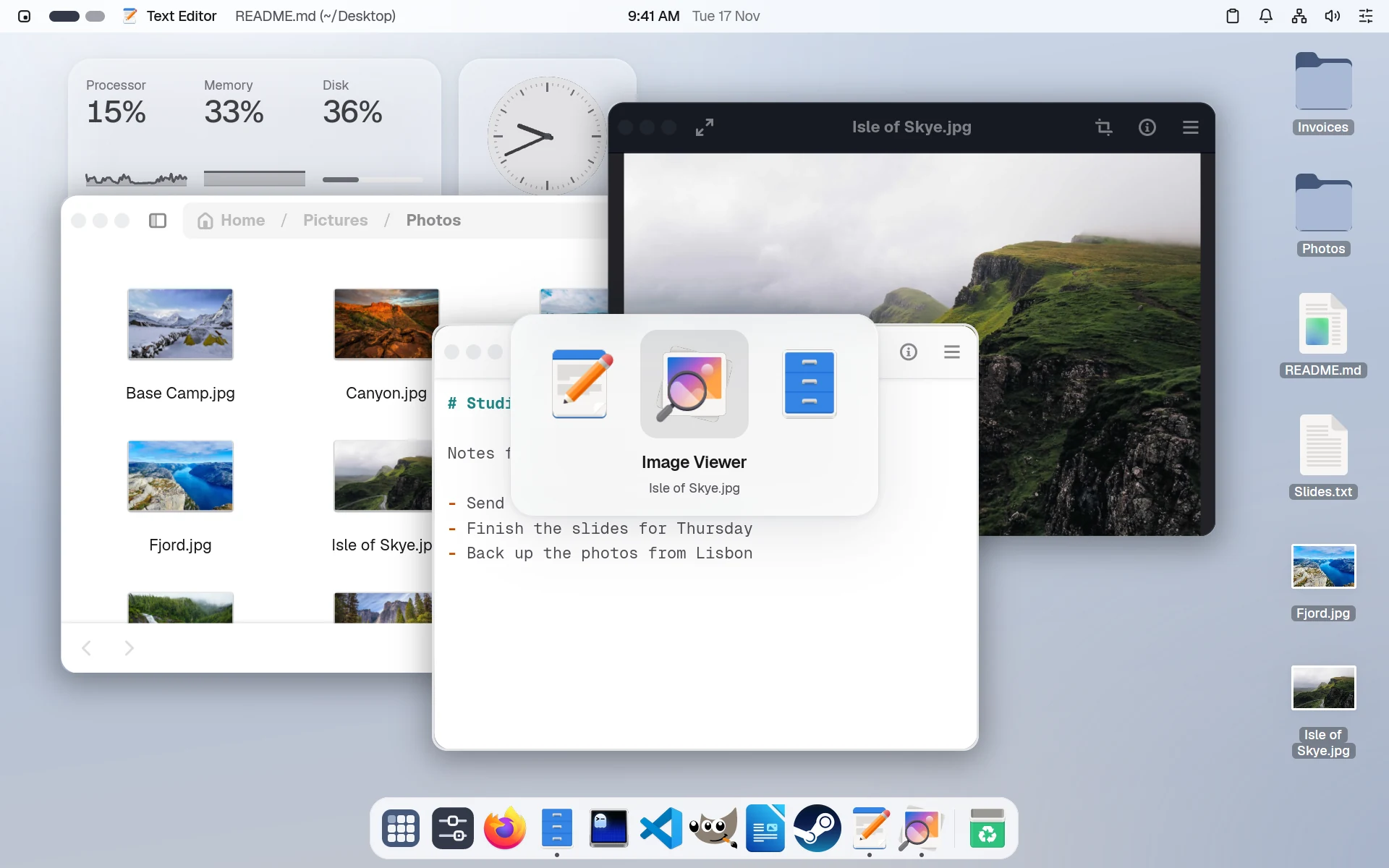
The app switcher in the middle of the screen, the most recent app firstThe app switcher in the middle of the screen, the most recent app first, in dark mode
Switch apps with Super Tab.
  • Mac or Linux shortcuts
  • Do Not Disturb
  • Night light
  • Clipboard history
  • Chinese, Japanese, Korean typing
  • Printers and scanners
  • Bluetooth headphones
  • Braille displays

Apps

One good app for each job, already there.

Any other is a line in your file, or a click in Discover: from nixpkgs or Flathub, in the version you want.
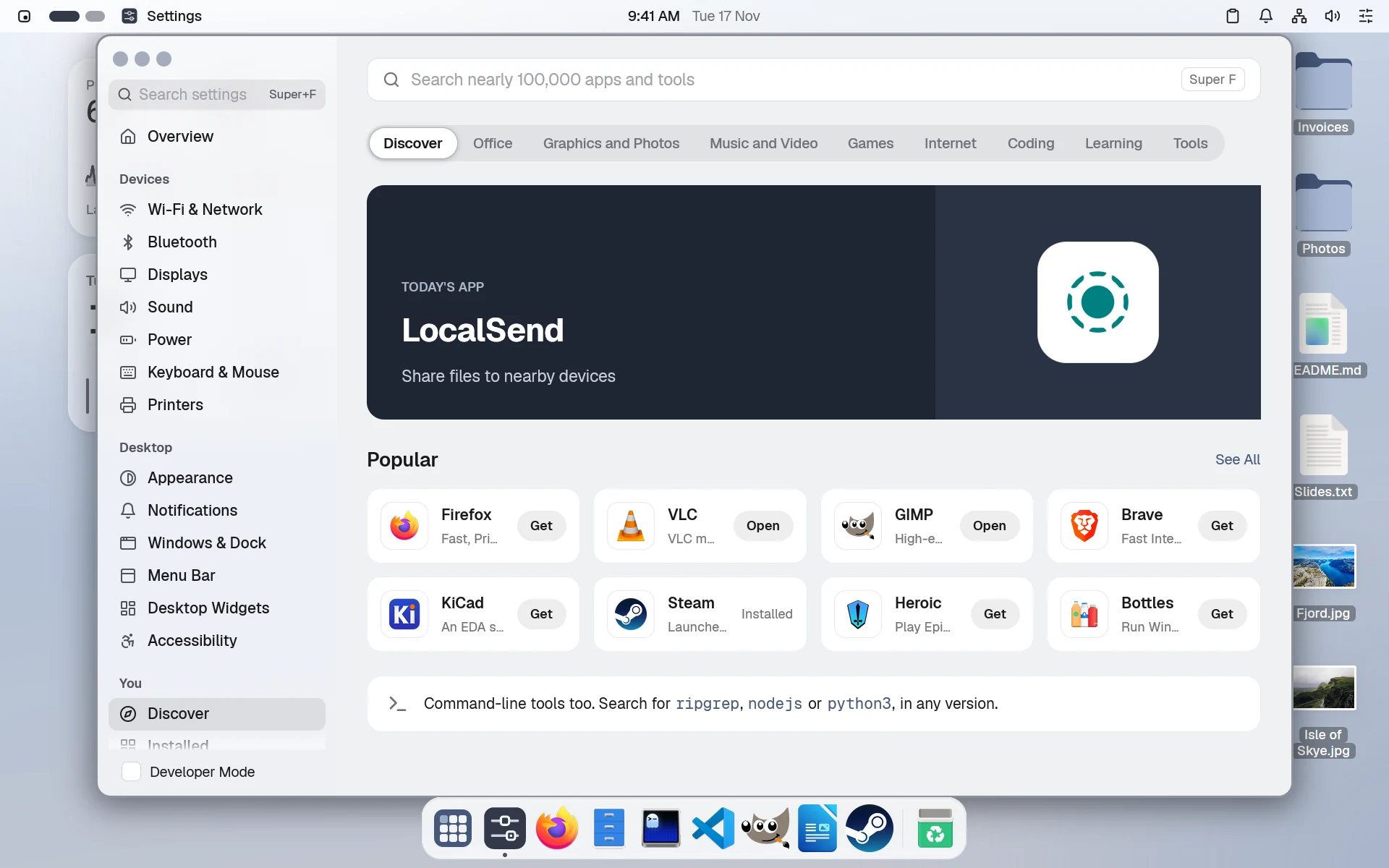
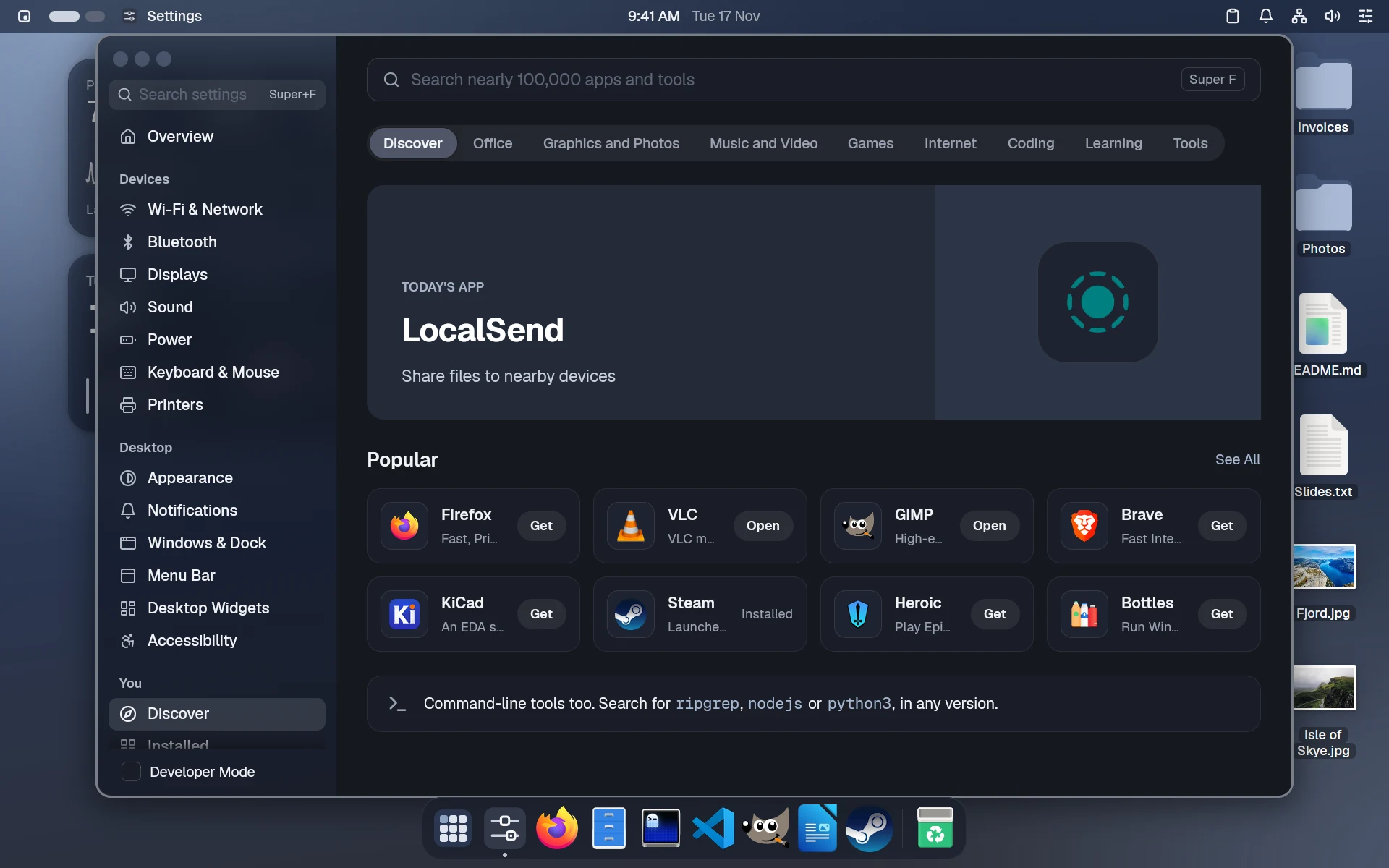
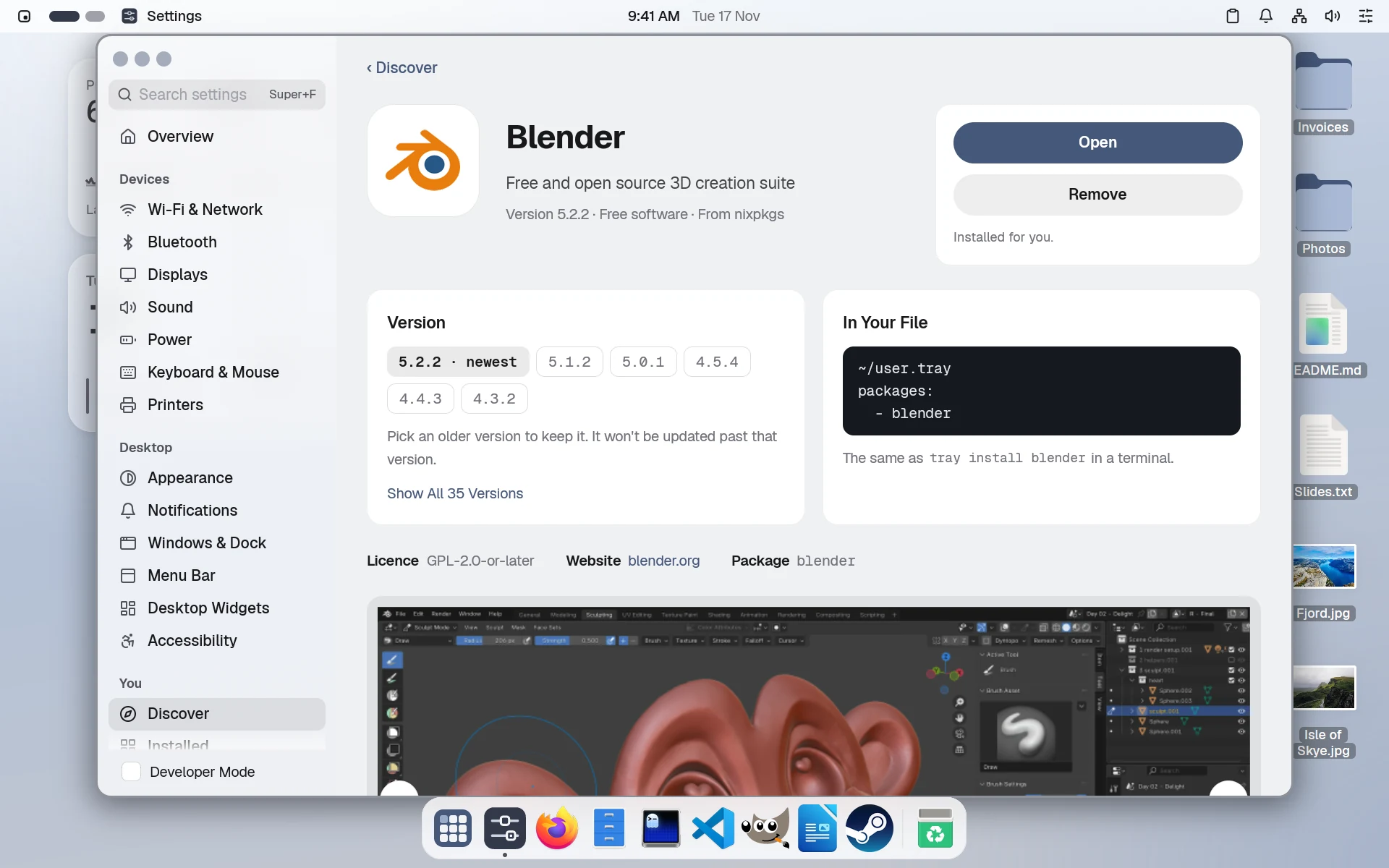
Discover in Settings, with today's app, popular apps and categoriesDiscover, nami's app store, in dark mode
~/user.nami
# One line an app
packages:
  - darktable
  - nodejs: '22'
  - flathub:com.spotify.Client

  • Firefox
  • Files
  • Text Editor
  • Image Viewer
  • Videos
  • Documents
  • Calendar
  • Calculator
  • File Roller
  • Disks
  • Ghostty
  • nami
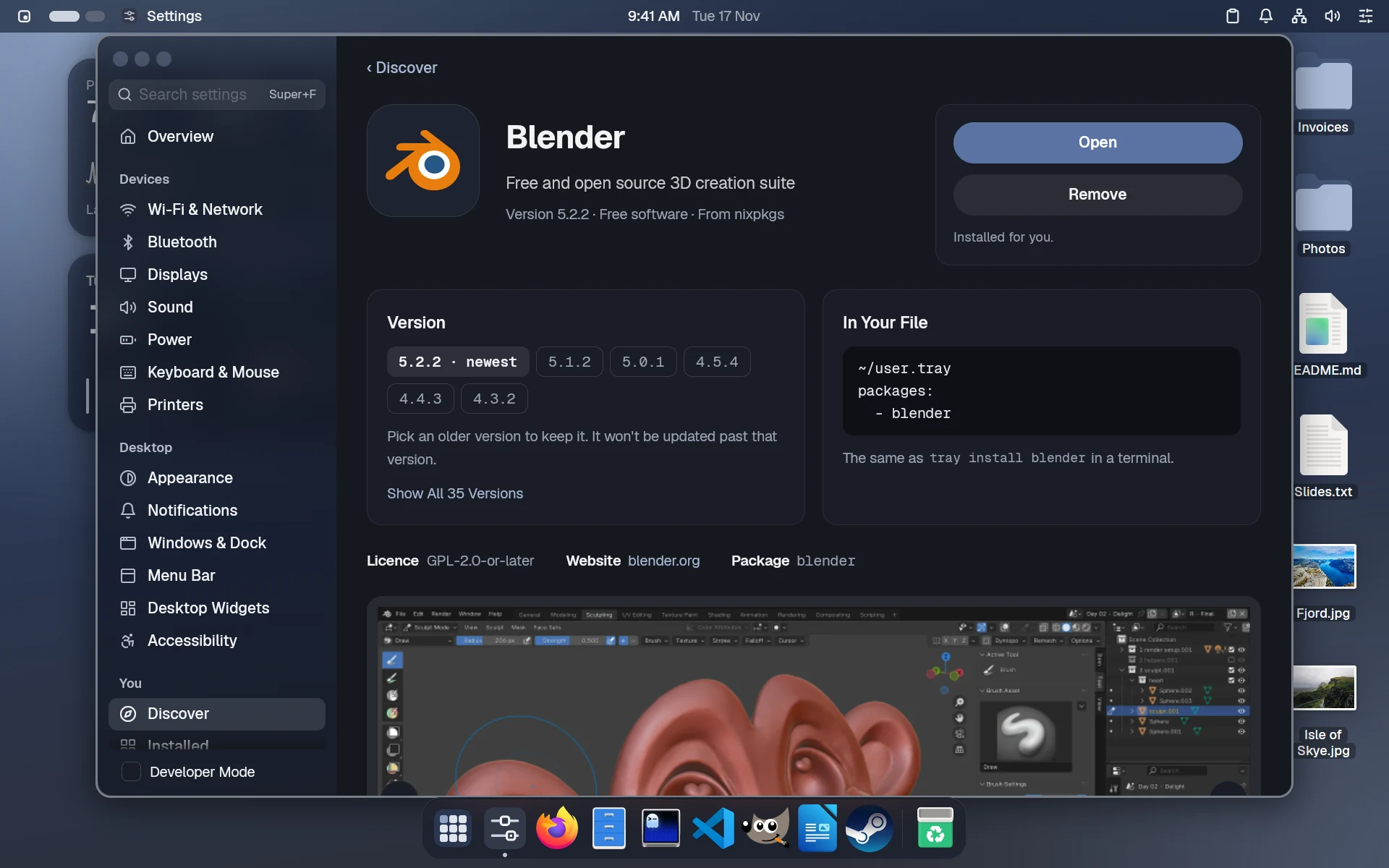
Blender's page in Discover: the versions to pick from, the line it is in your file, and a screenshotBlender's page in Discover: the versions to pick from, the line it is in your file, and a screenshot, in dark mode
Every app, a click away.
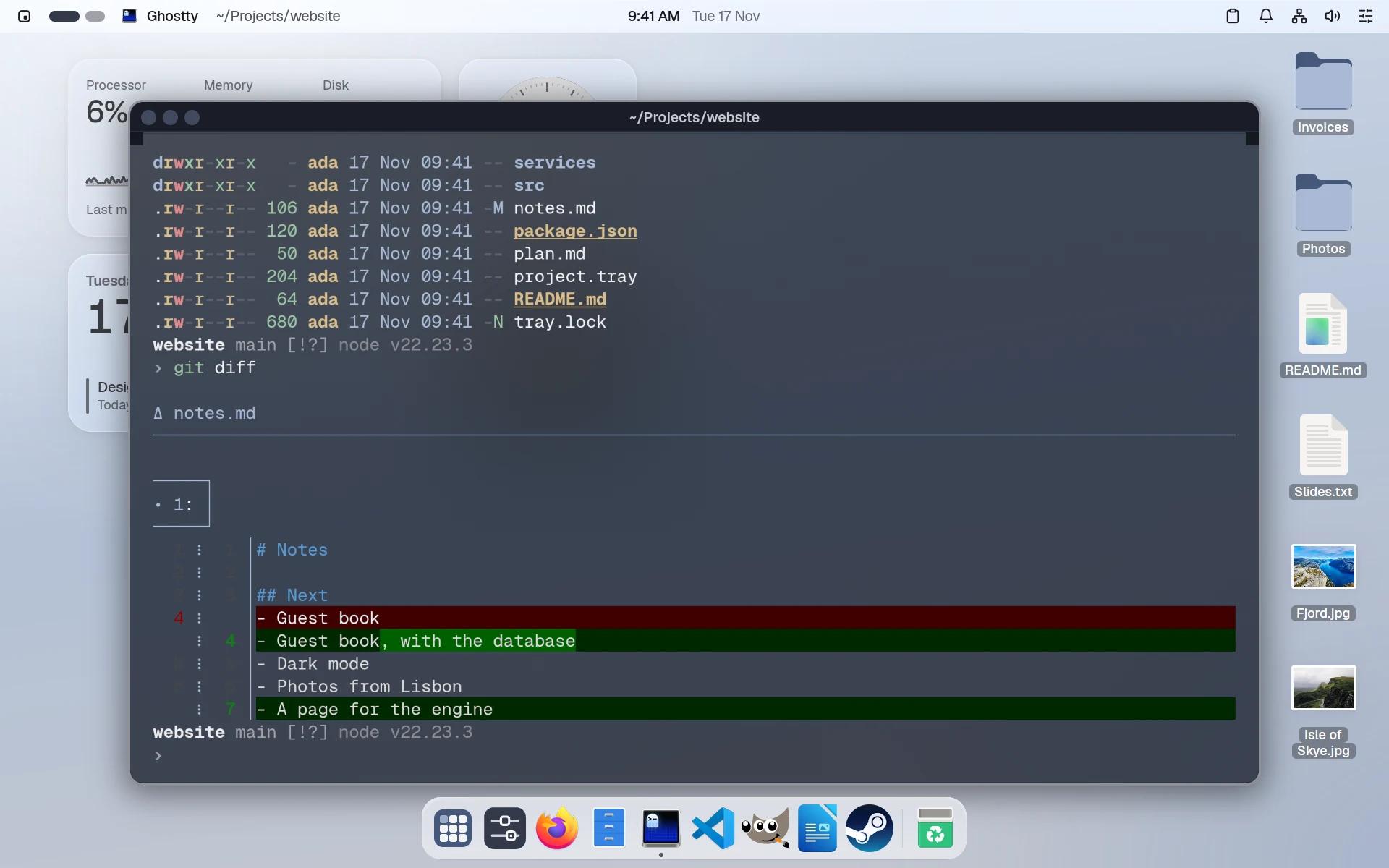
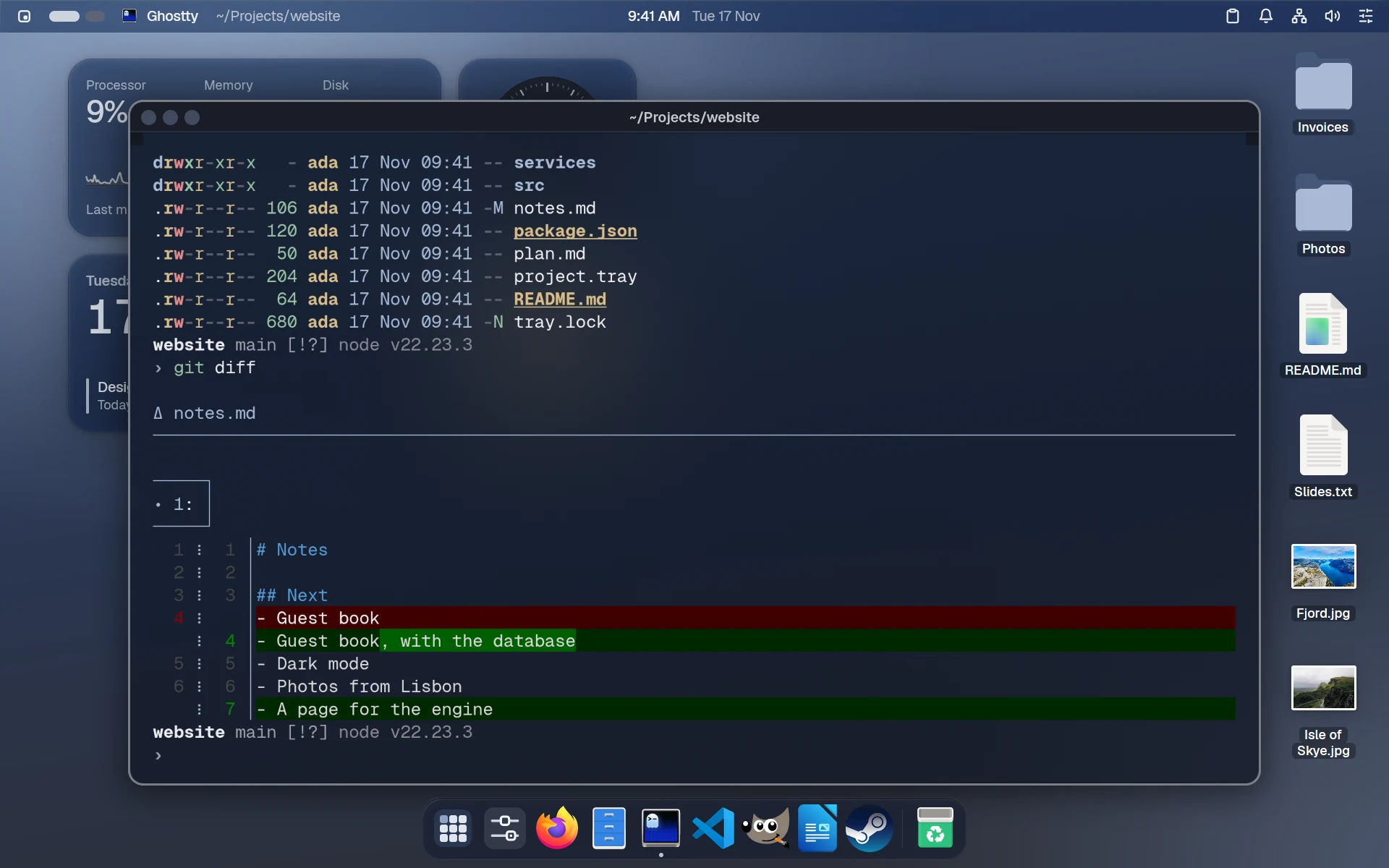
Ghostty in a project folder, with a prompt showing the branch and Node.js version, a listing and a git diffGhostty in a project folder, with a prompt showing the branch and Node.js version, a listing and a git diff, in dark mode
A terminal set up for coding.
  • Flathub, built in
  • Any version of an app
  • .deb, .rpm and AppImage
  • Steam and GameMode
  • NVIDIA driver
  • Docker, as an add-on
  • Developer Mode
  • Apps for one or for everyone

Your stuff, safe

Undo any change.

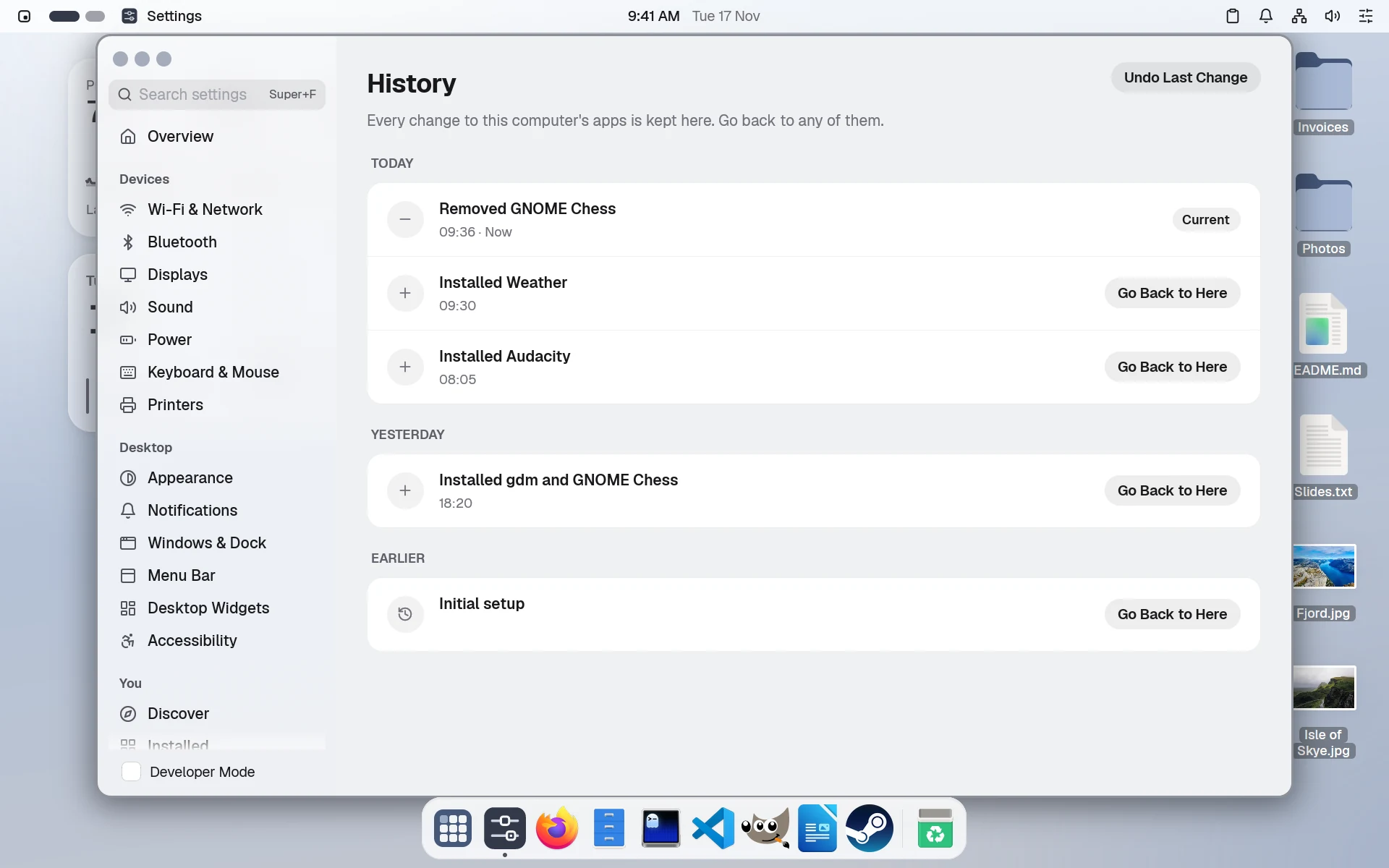
Each change to the file is a version you can go back to. Your files are backed up every hour.
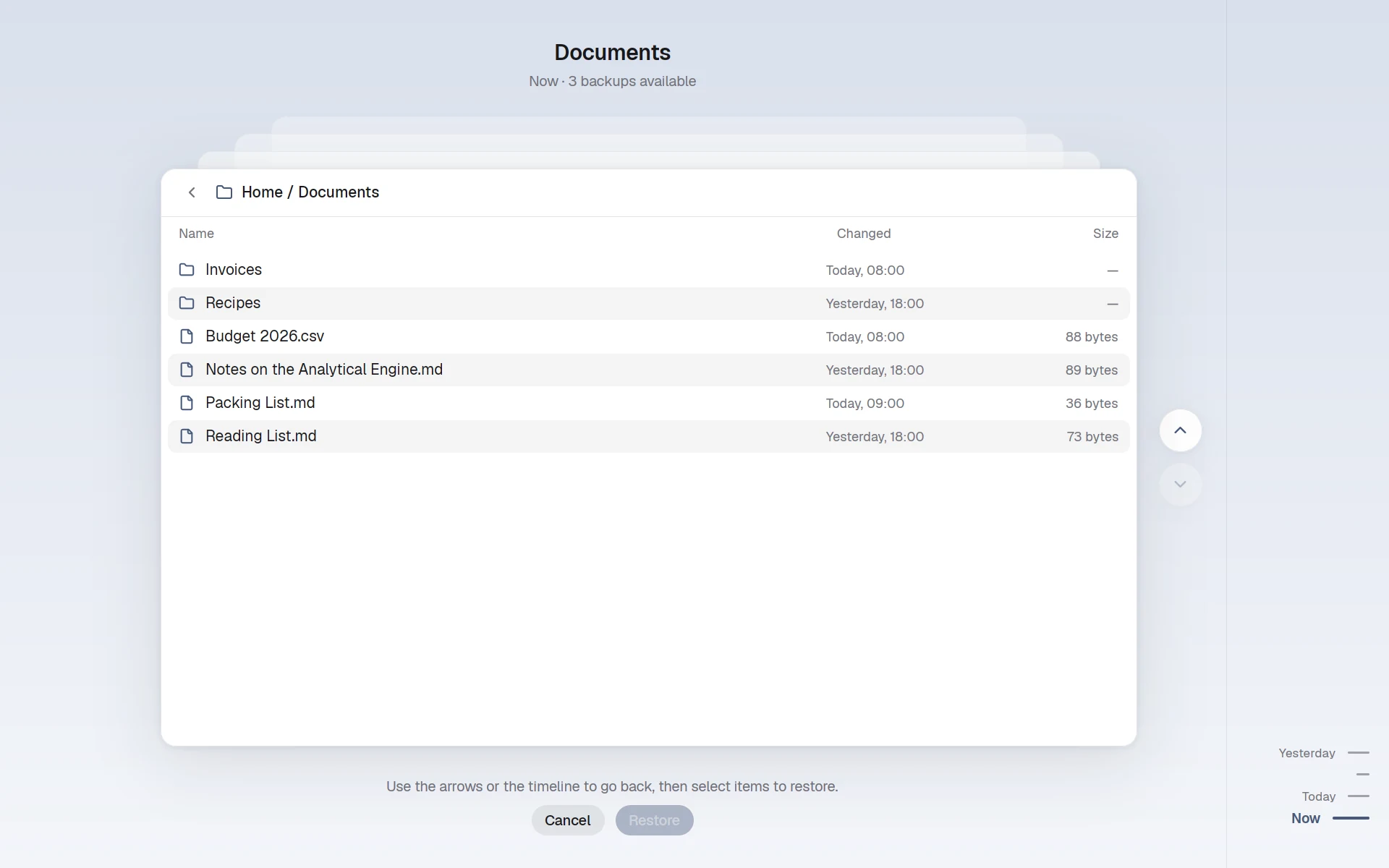
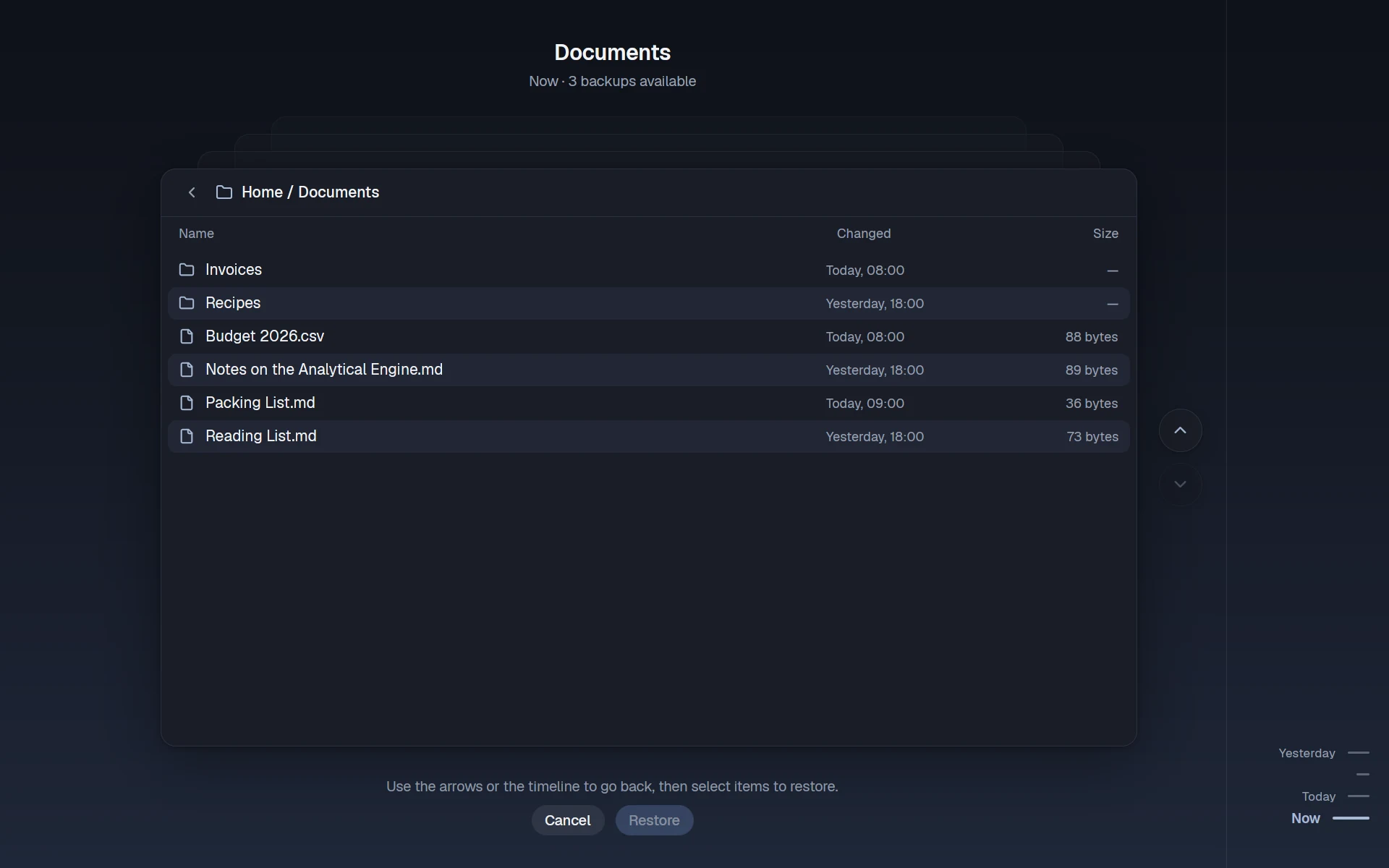
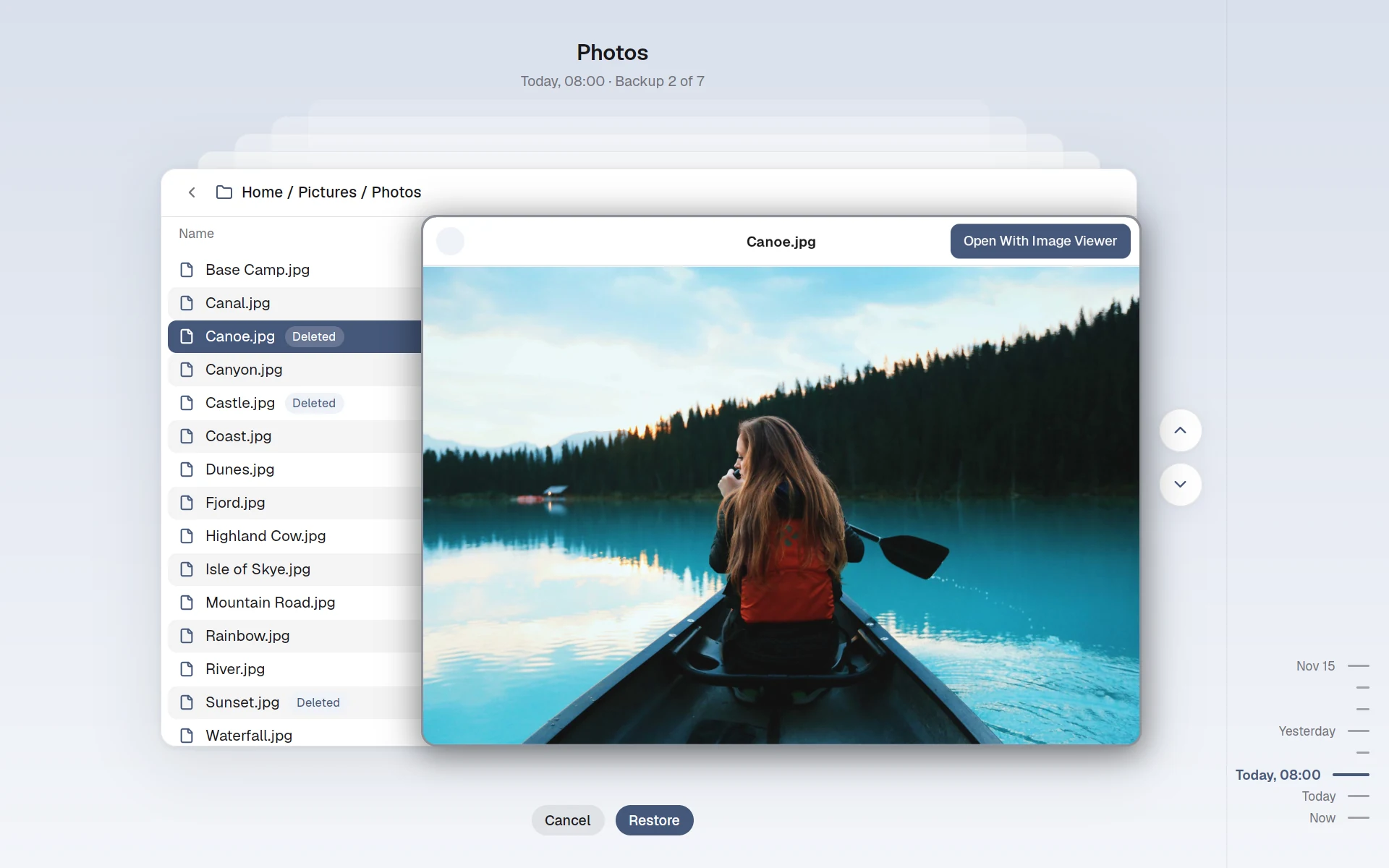
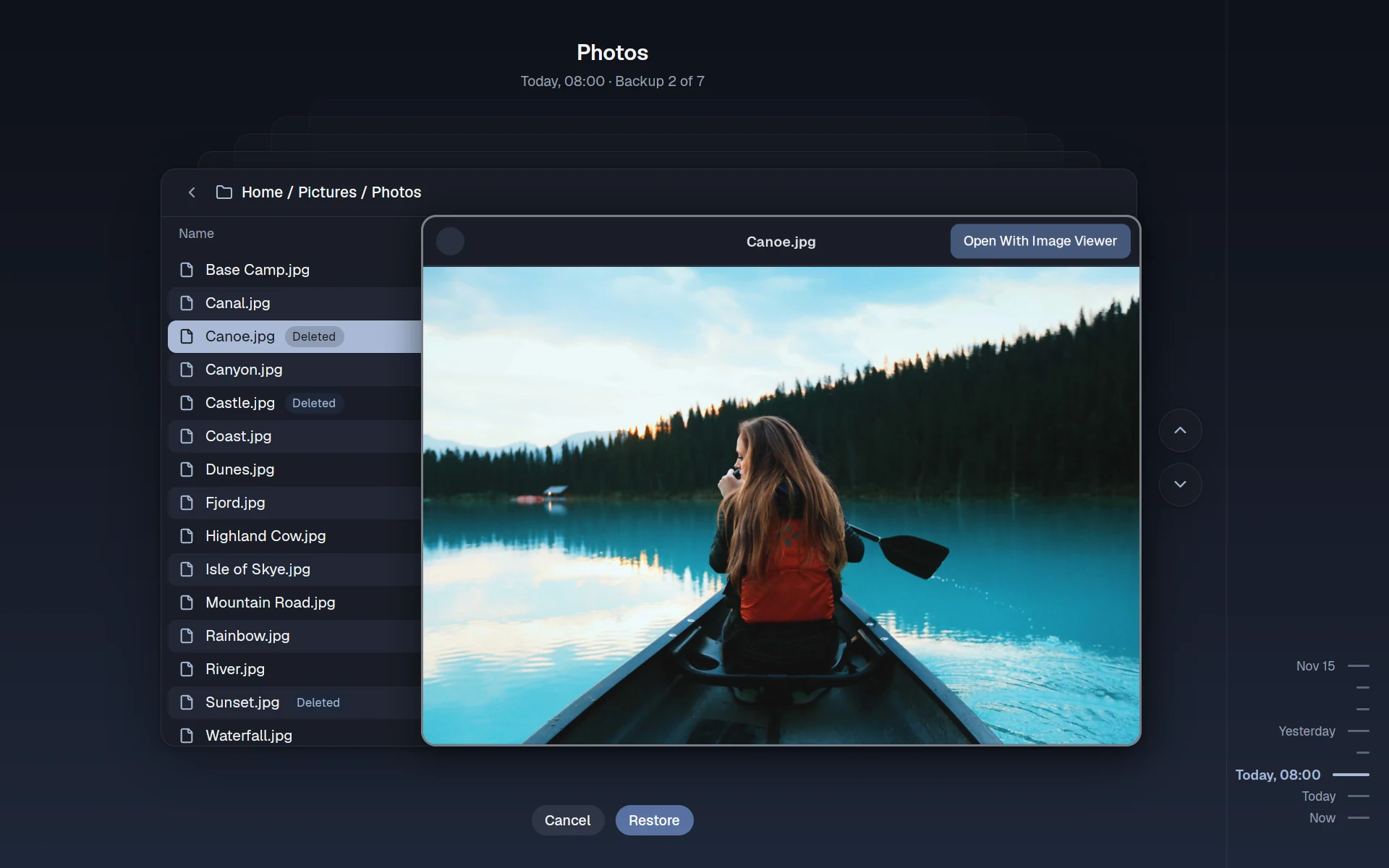
Go Back in Time, with the Documents folder as it is now, its earlier backups stacked behind it, and a timeline at the sideGo Back in Time in dark mode
~/user.nami
# Your home, every hour
namios:
  backups:
    on: true
    to: disk:Backup
    leave-out: [Downloads]
# The last 10 changes, to go back to
history: 10
Every houryour files, backed up
Every changea version to go back to
Every versionin the boot menu
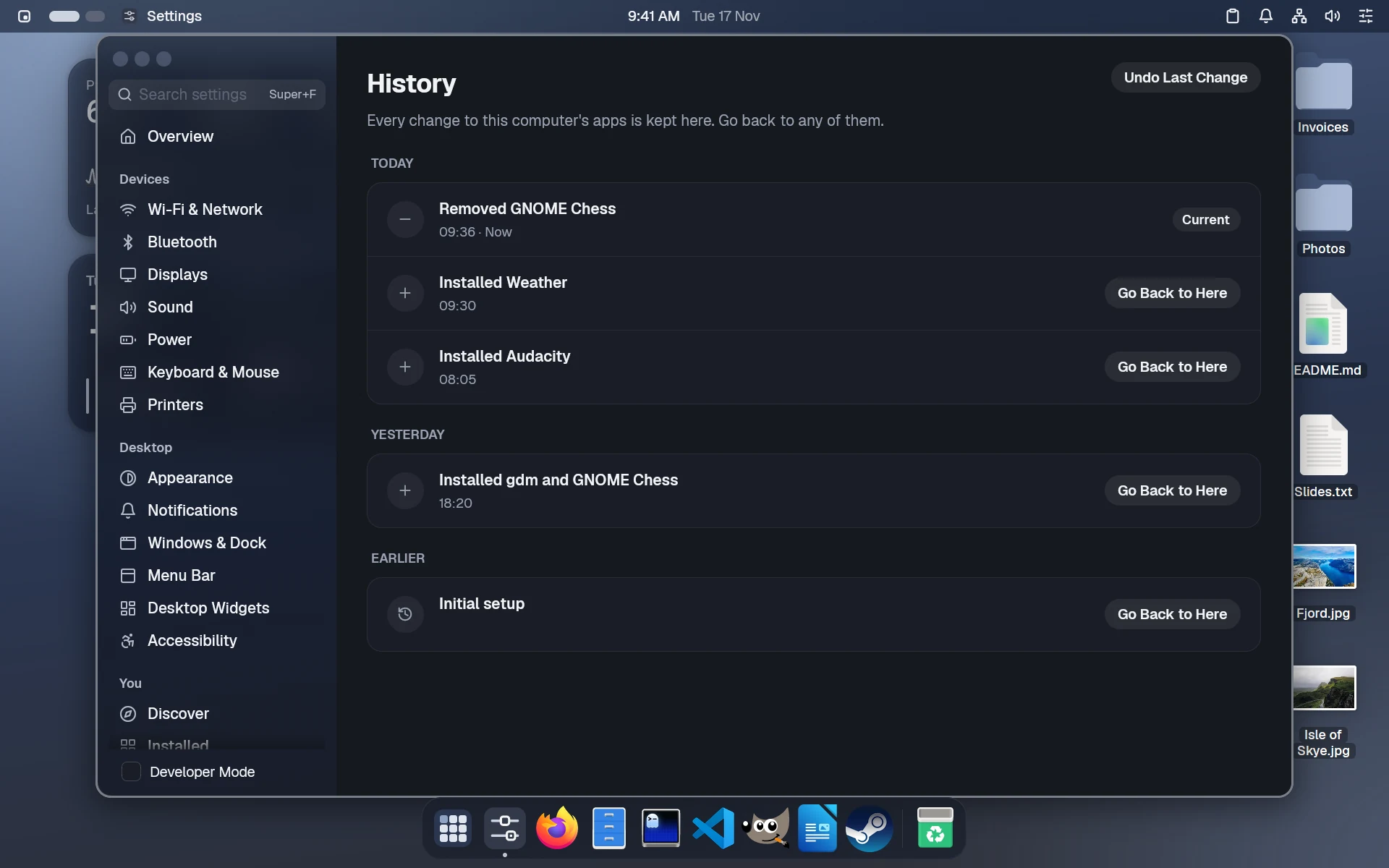
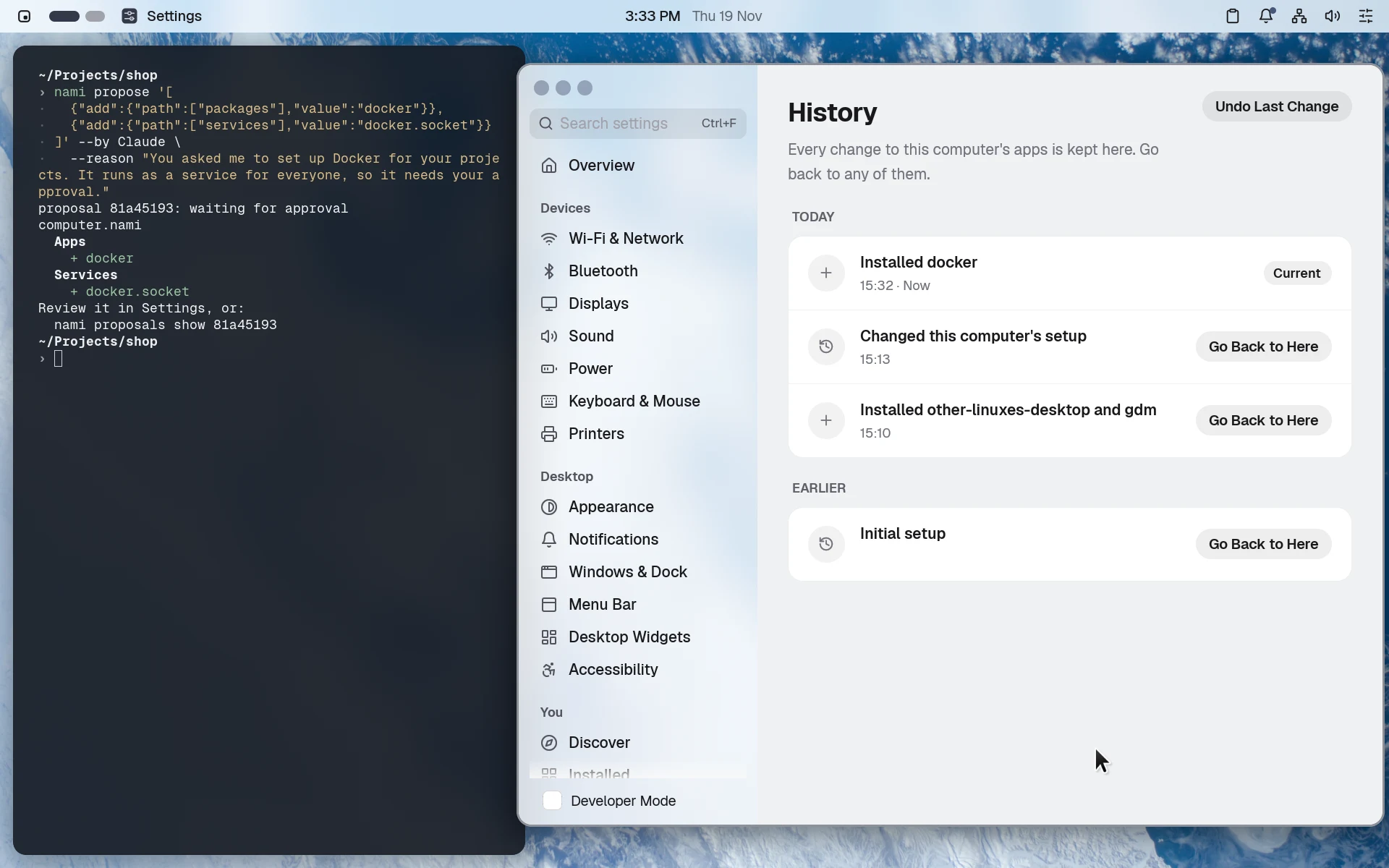
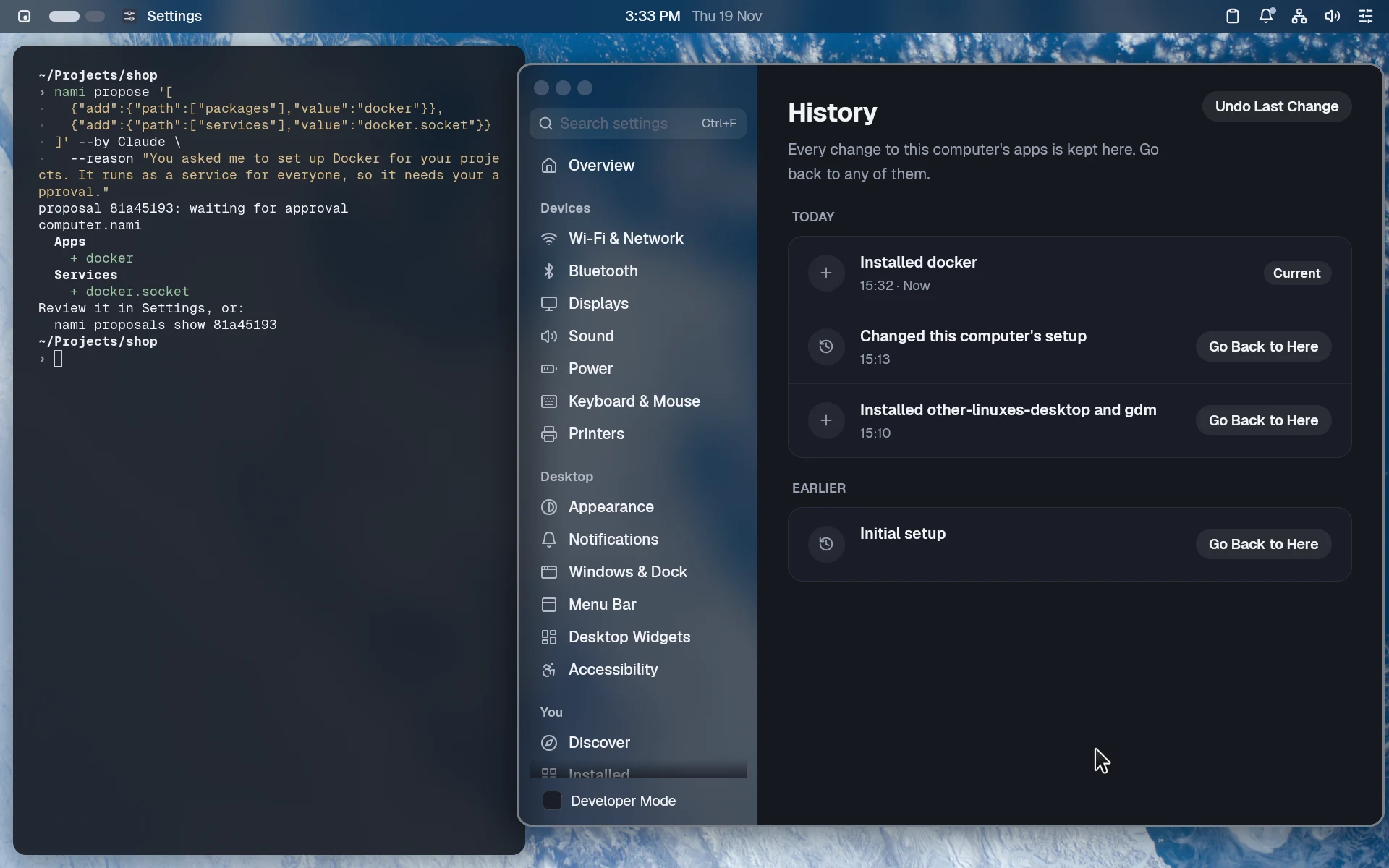
History in Settings: each change to the computer's apps, today and yesterday, with Go Back to Here beside eachHistory in Settings: each change to the computer's apps, today and yesterday, with Go Back to Here beside each, in dark mode
Every change, undone in a click.
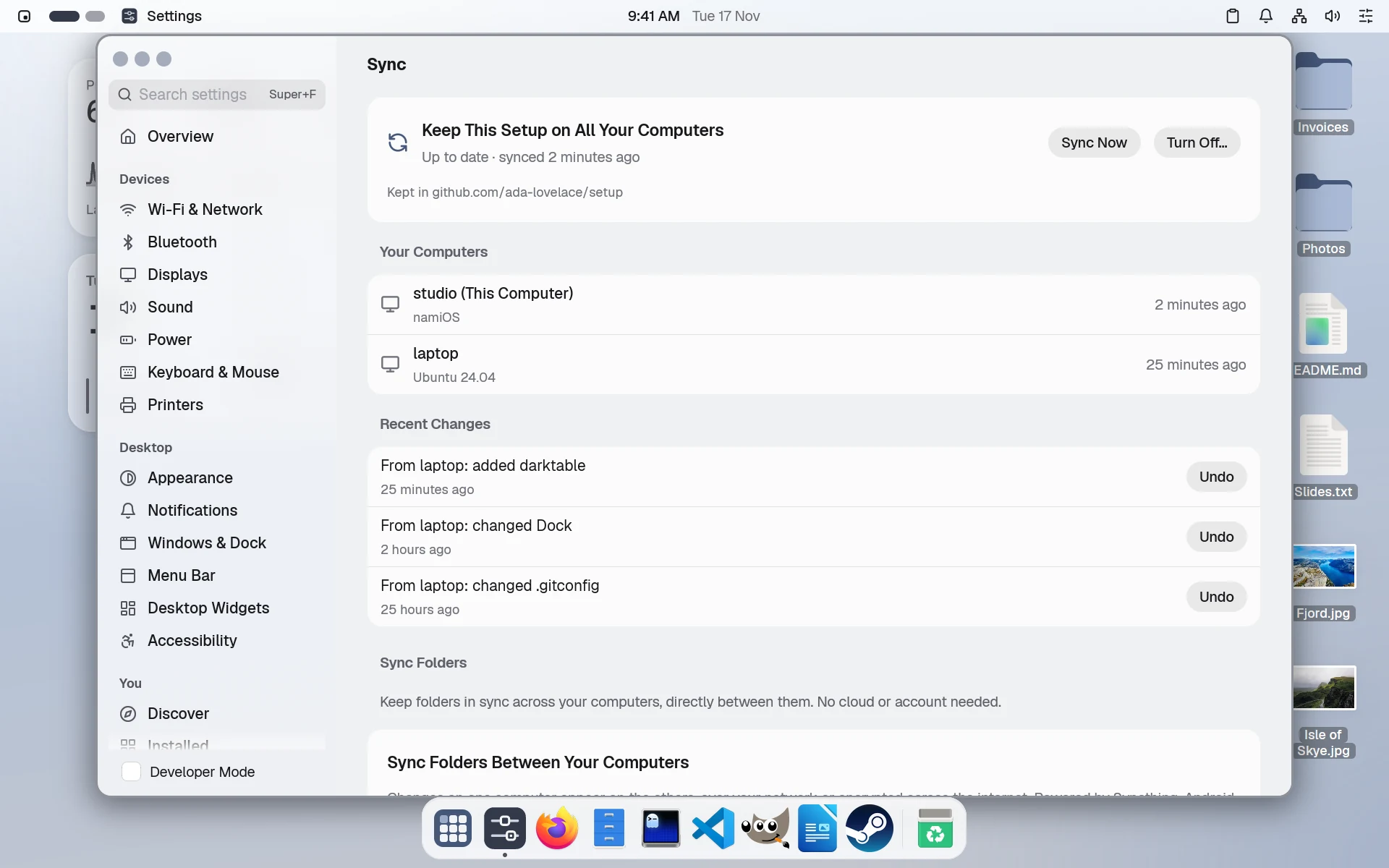
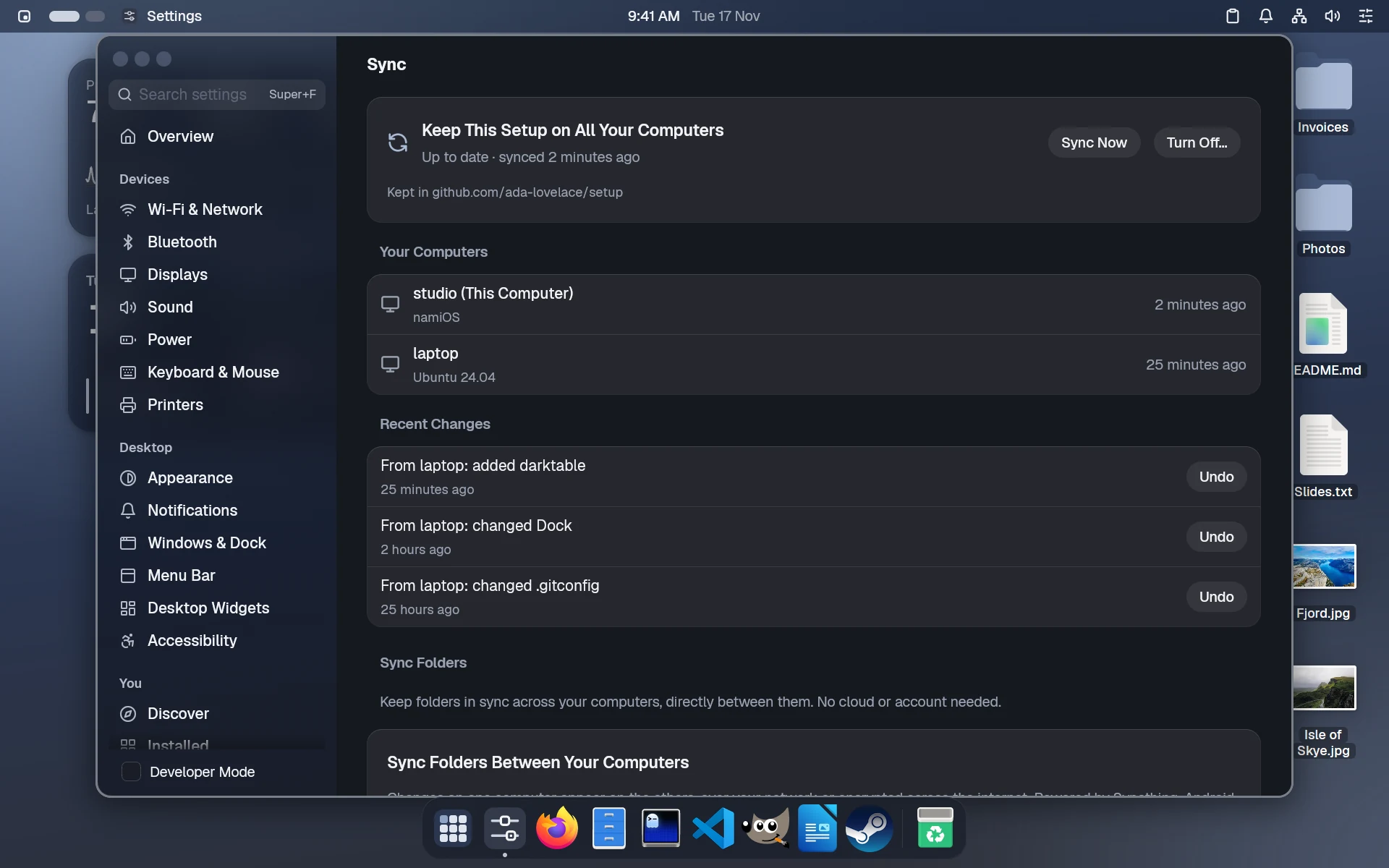
Sync, with the computer named studio on namiOS, a laptop on Ubuntu, and an app that came from the laptopSync, with the computer named studio on namiOS, a laptop on Ubuntu, and an app that came from the laptop, in dark mode
Your setup, on every computer.
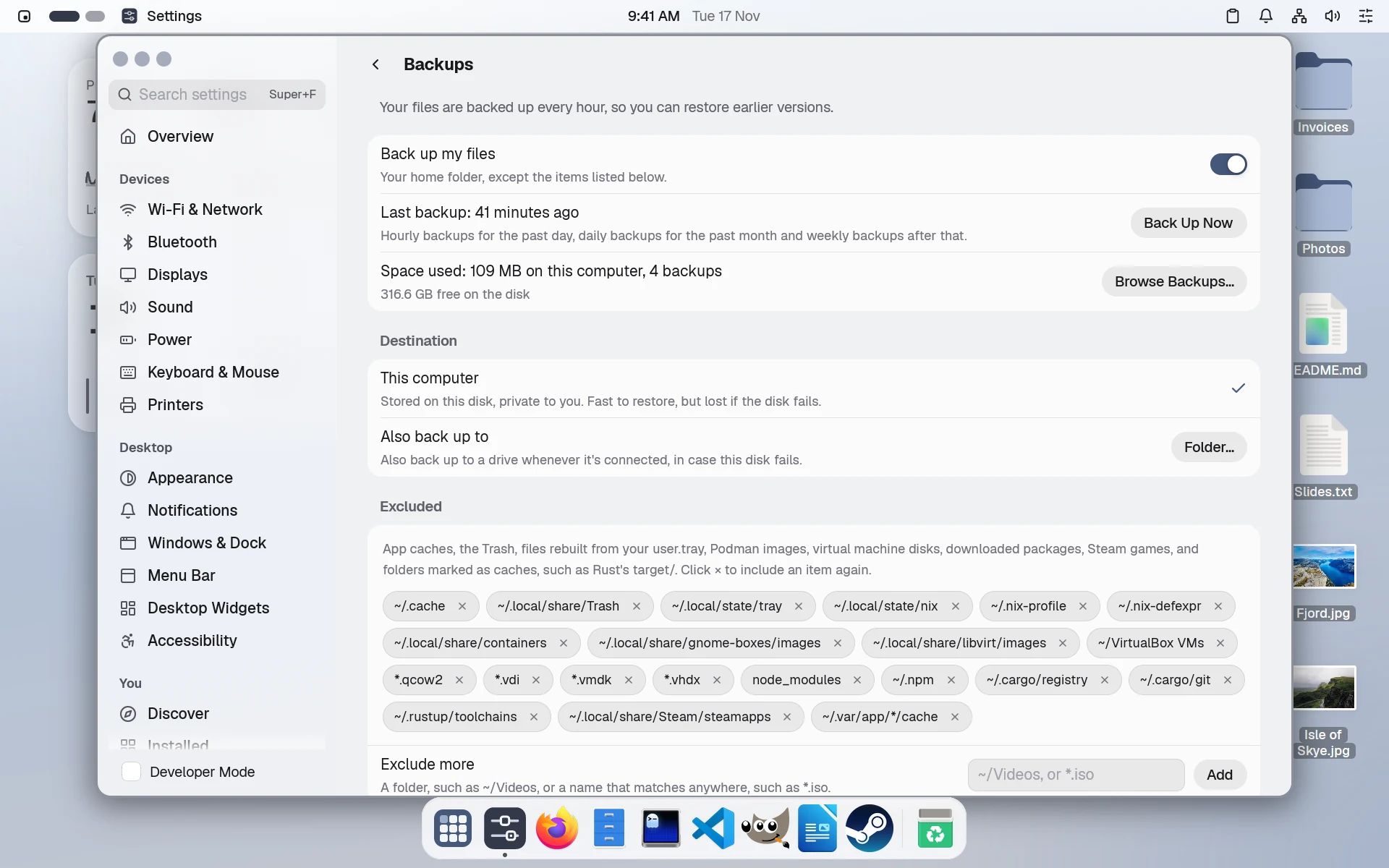
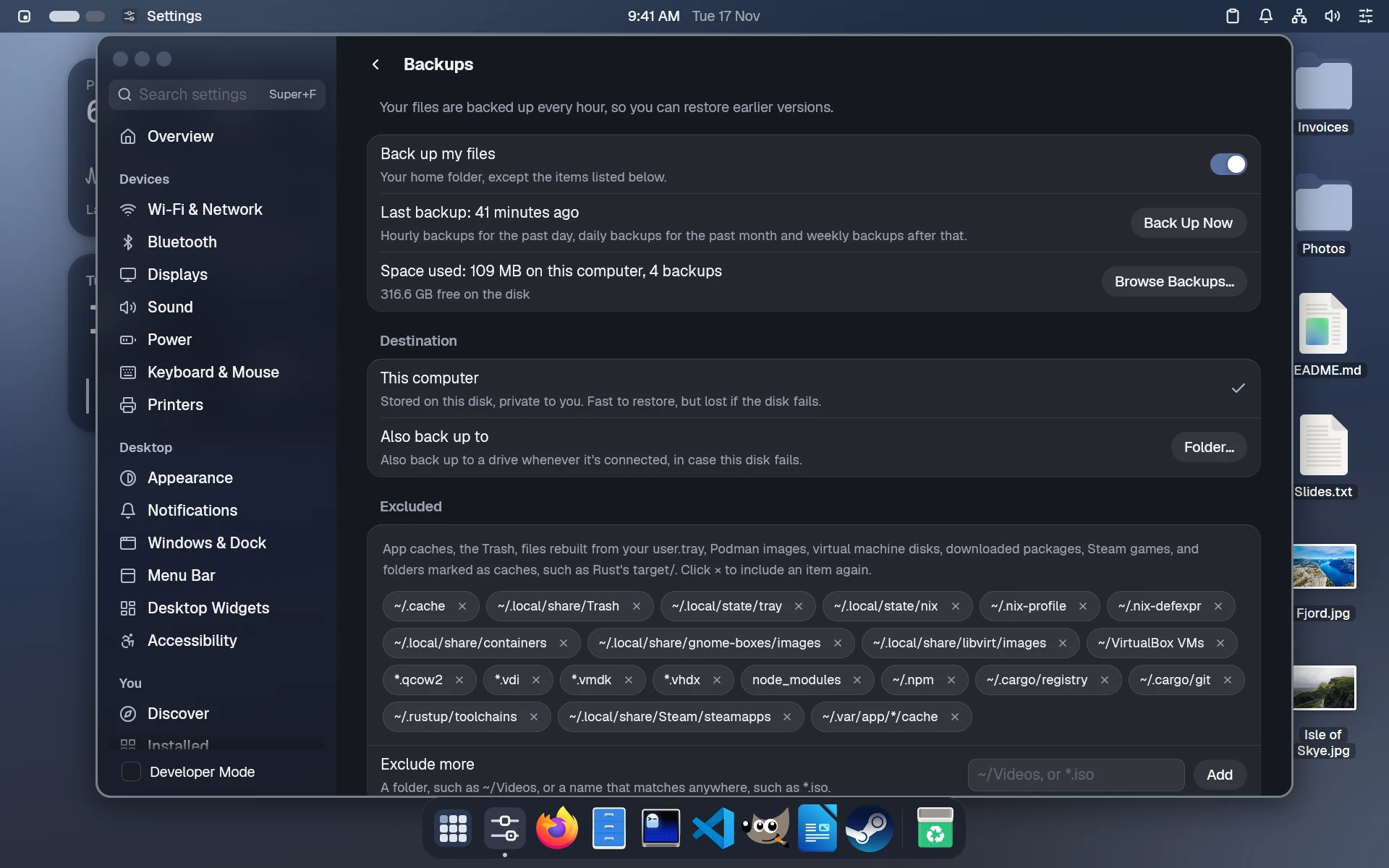
Backups in Settings: your home folder backed up every hour, the last one 41 minutes ago, and what's left outBackups in Settings: your home folder backed up every hour, the last one 41 minutes ago, and what's left out, in dark mode
Backups, set in Settings.
  • Updates by itself
  • Start an earlier version
  • Back up the whole computer
  • Bring back one file
  • Secrets, sealed in the file
  • Sync through your own repo

Agents

Let an agent set up your computer.

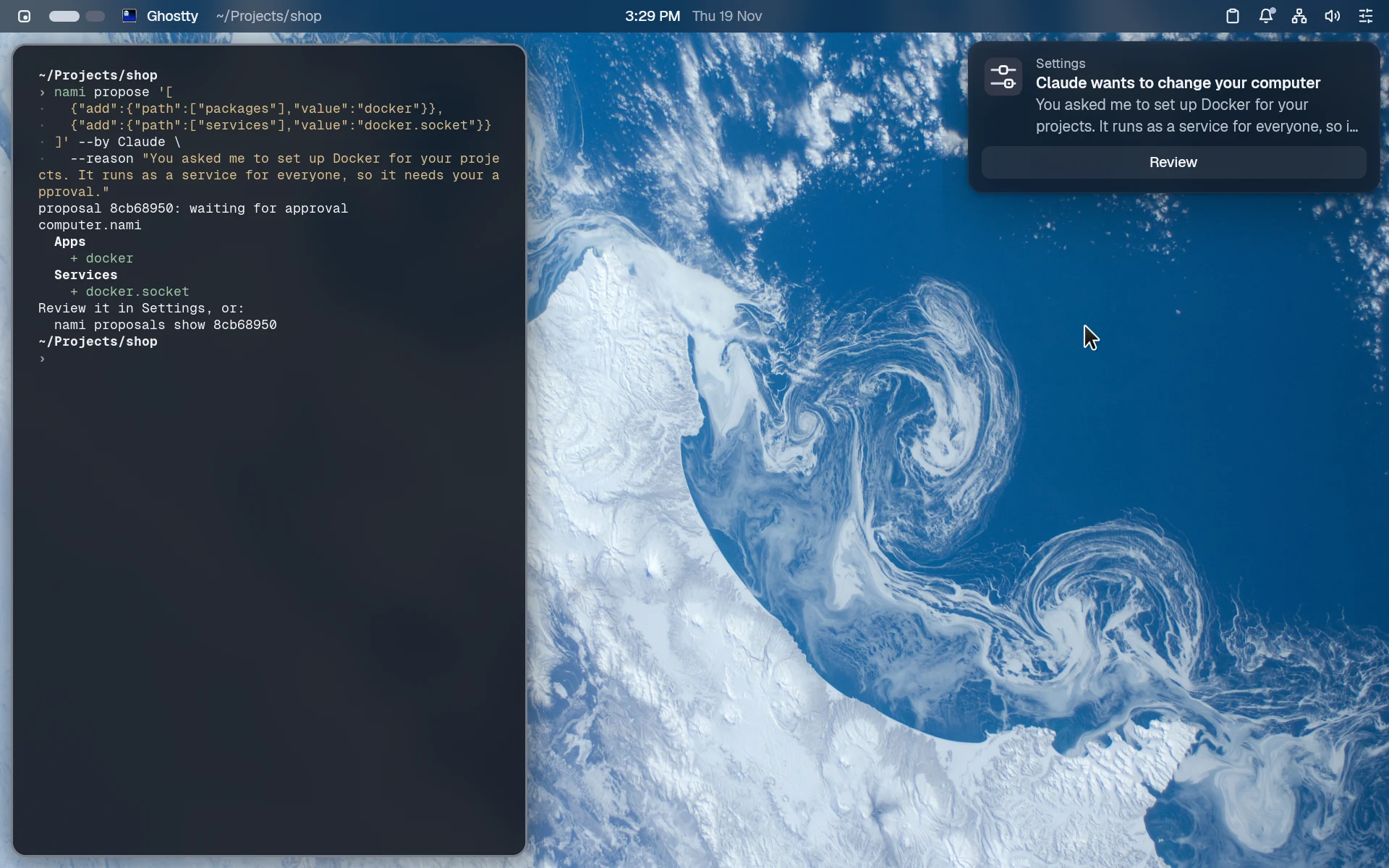
Claude, or any agent you use, can change your computer for you. You approve every change, and you can undo any of them.
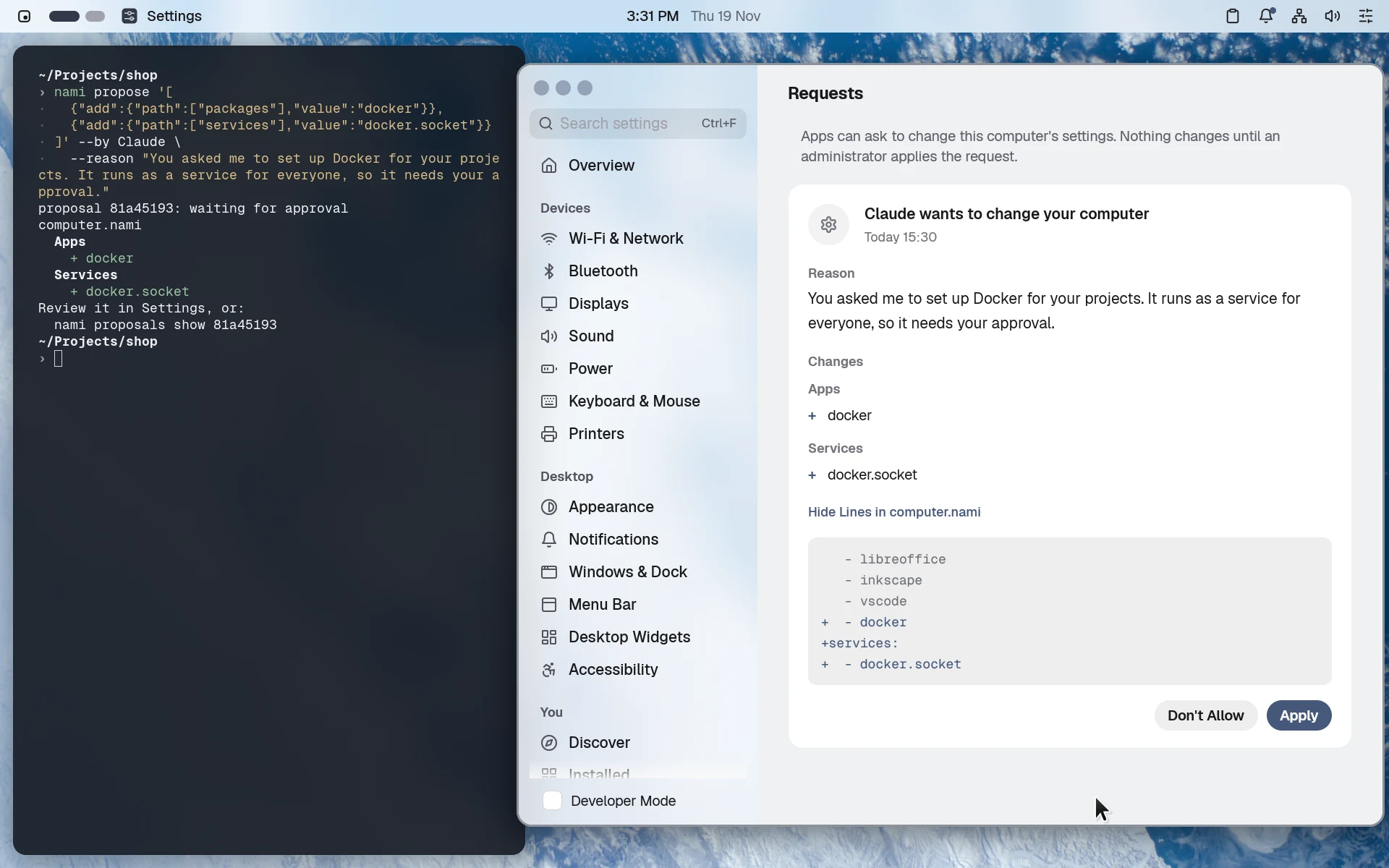
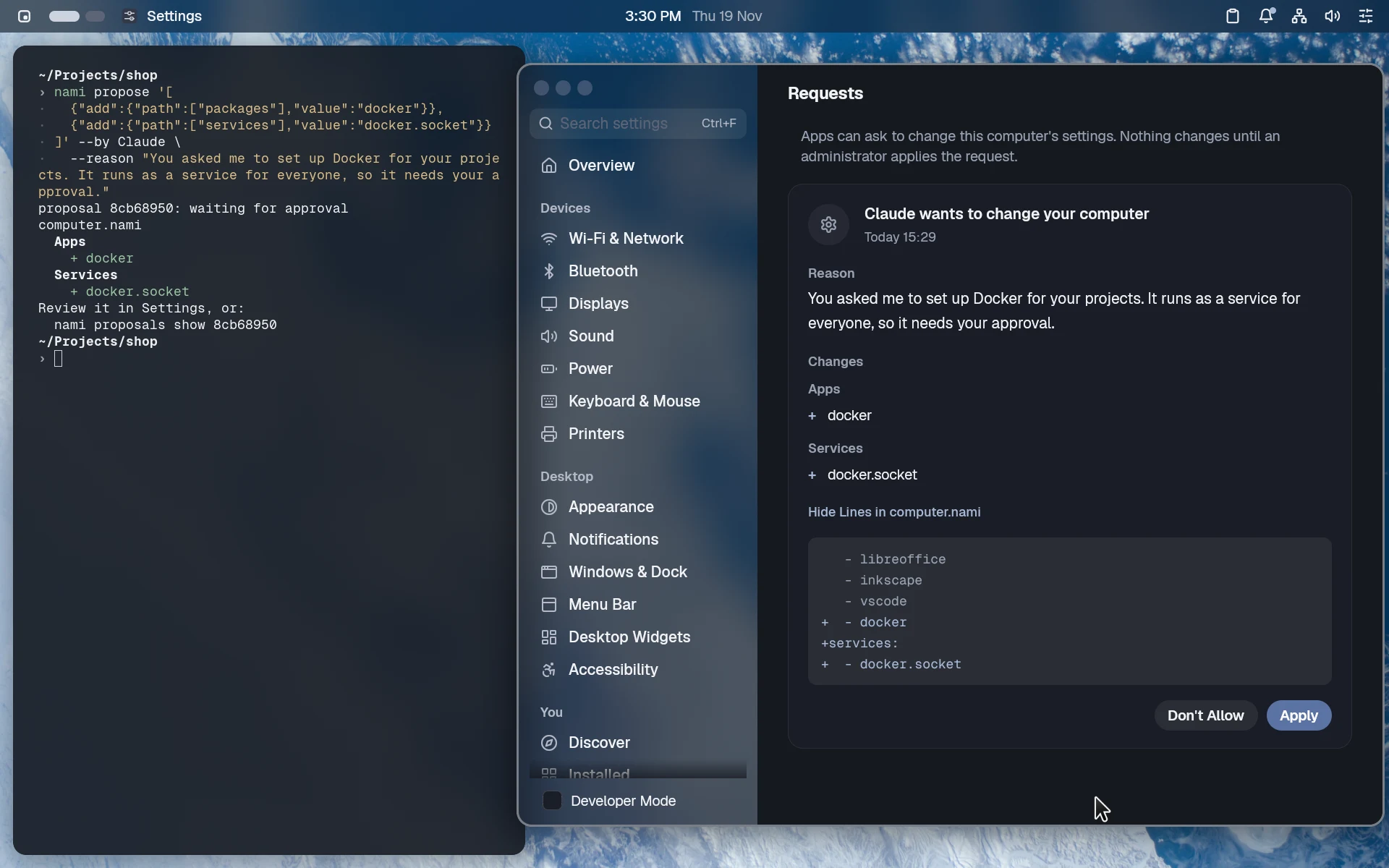
A terminal where Claude asked to set up Docker, and Settings showing the request: the reason, Docker added to Apps and its service, the lines in computer.nami, and Don't Allow and ApplyThe same request in dark mode
/etc/nami/computer.nami
# Claude asked, you clicked Apply
packages:
  - docker
services:
  - docker.socket
Your approvalfor every change to the computer
One undofor anything an agent did
Any agentthrough MCP: claude mcp add nami -- nami mcp
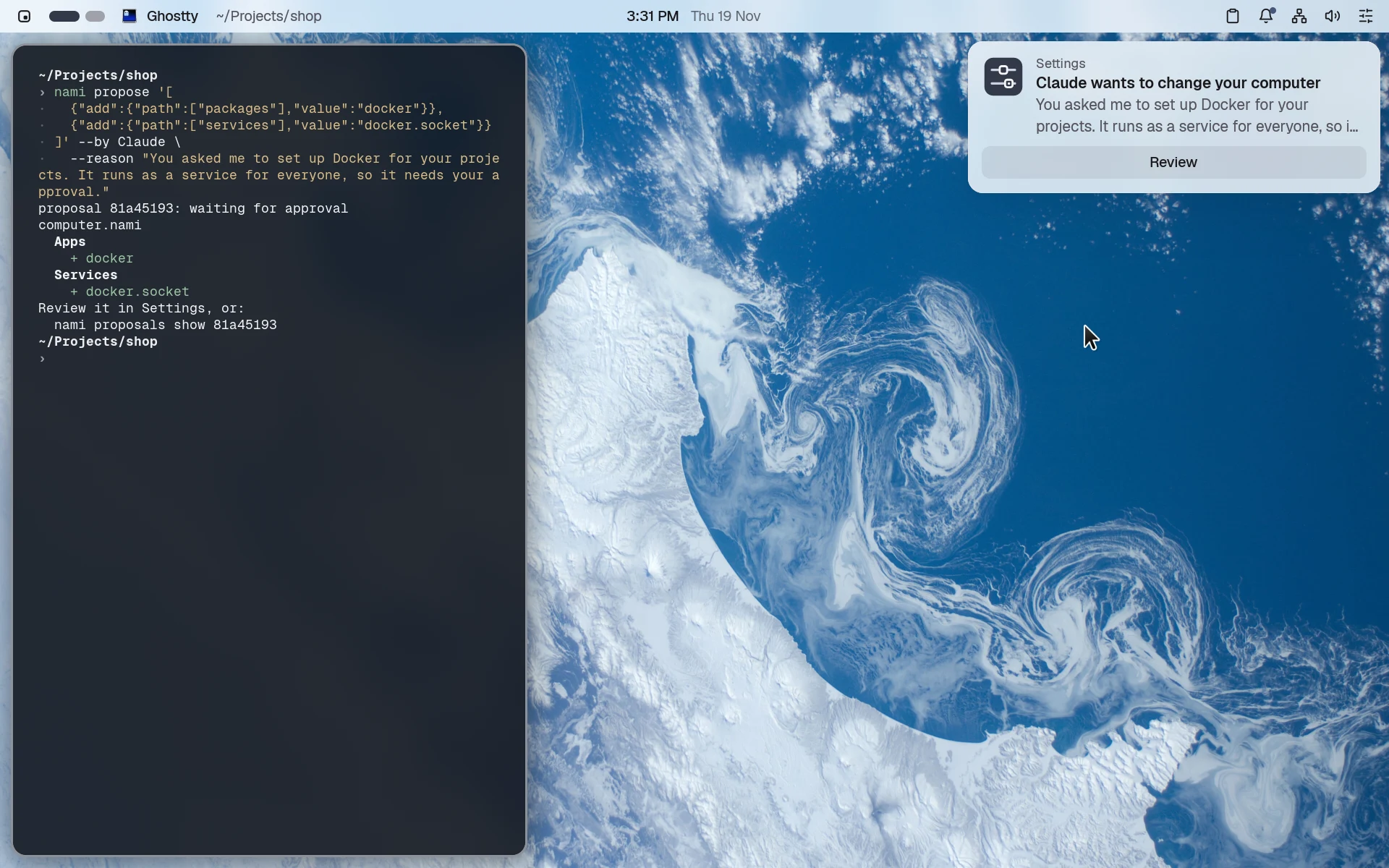
A notification over the desktop: Claude wants to change your computer, with a Review buttonA notification over the desktop: Claude wants to change your computer, with a Review button, in dark mode
A notification when an agent asks.
History in Settings after the change: Installed docker, with Undo Last ChangeHistory in Settings after the change: Installed docker, with Undo Last Change, in dark mode
Undo what an agent did, in a click.
  • Ask in your own words
  • Checked before you see it
  • Your password stays with you
  • Everything a click can do
  • Answers in JSON
  • Works with any MCP agent

People and sharing

Everyone on the computer, in one file.

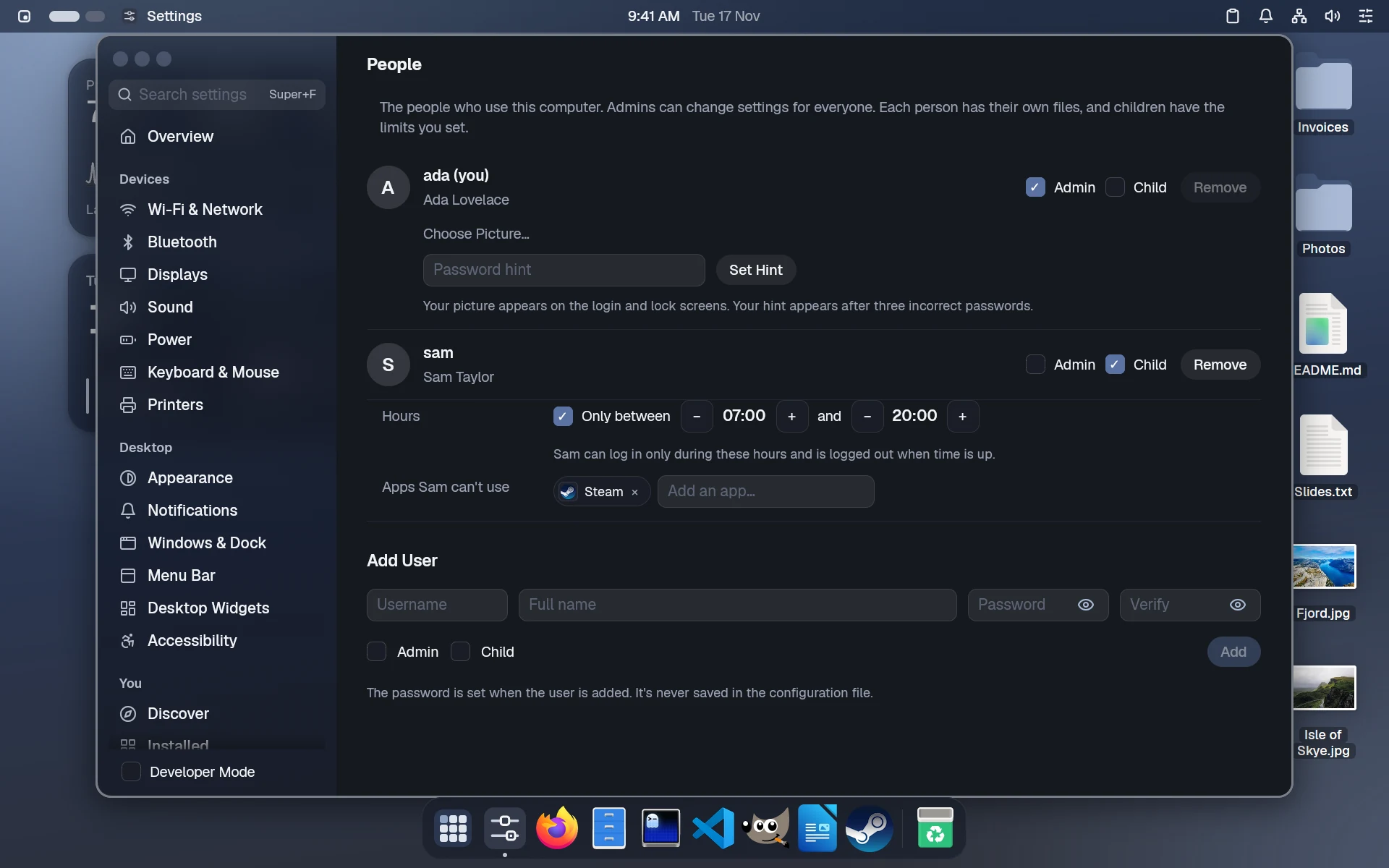
Each person gets their own login, apps and look. A child gets hours.
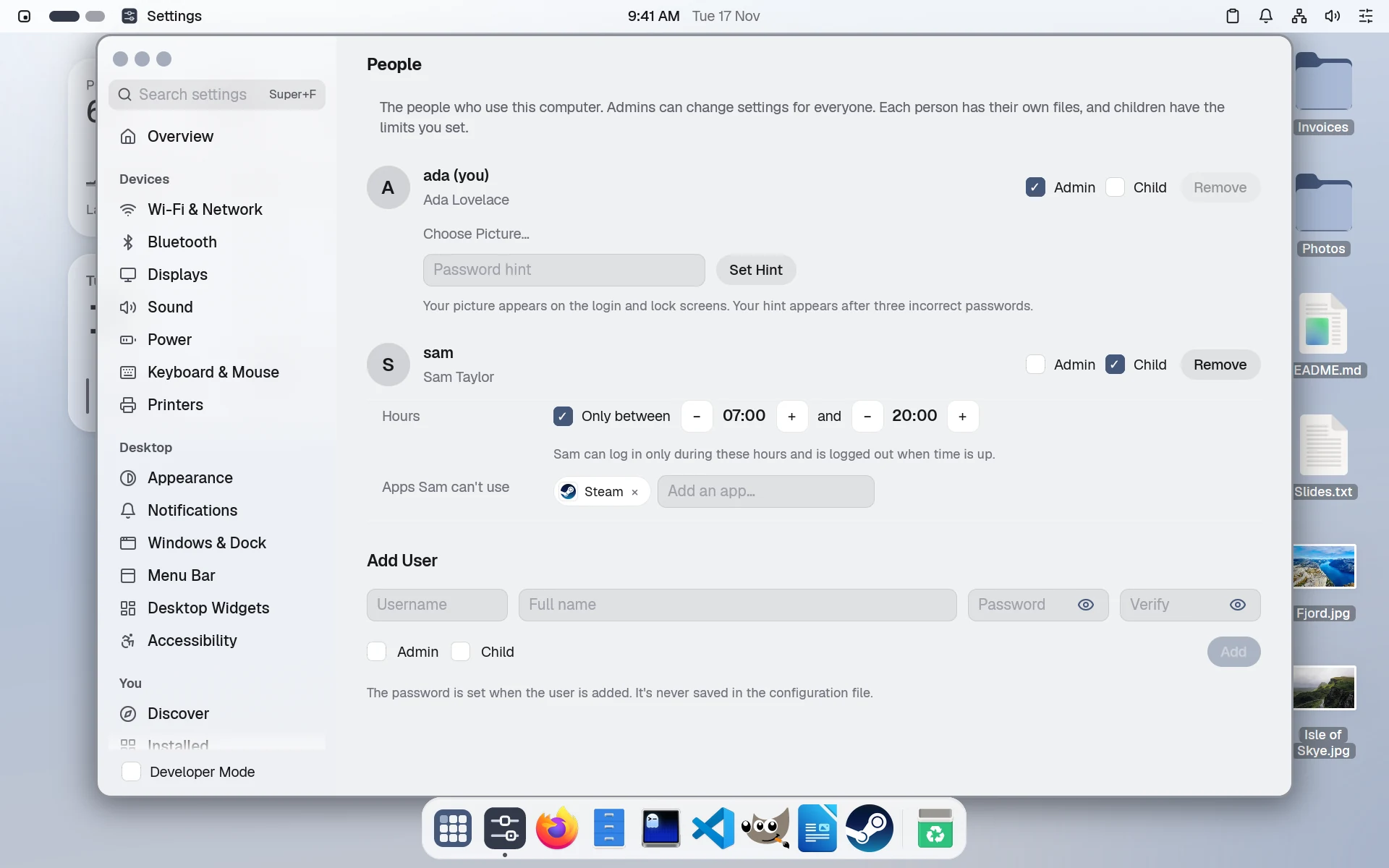
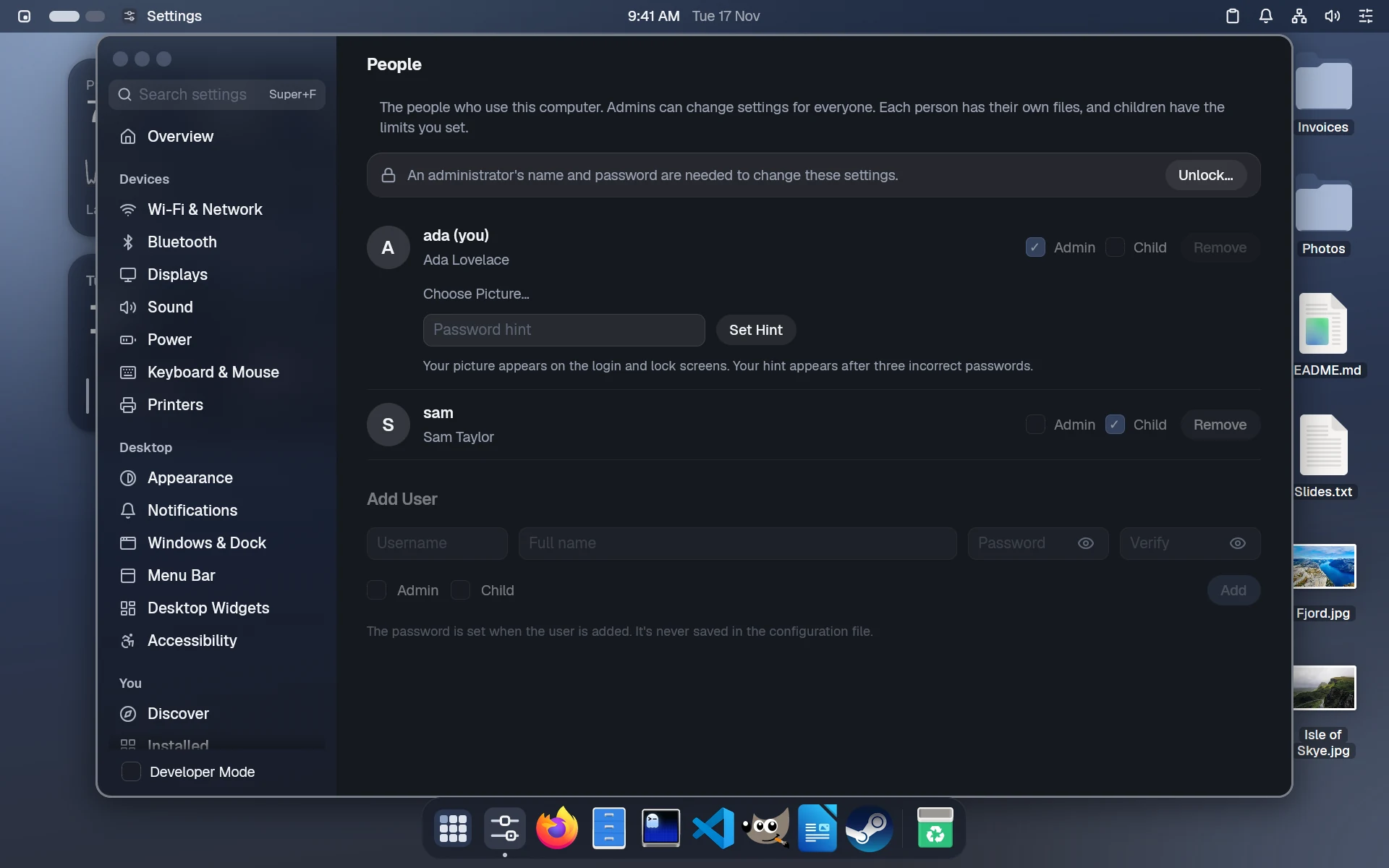
People in Settings: Ada an admin, Sam a child who may use the computer from 07:00 to 20:00, without SteamPeople in Settings, in dark mode
/etc/nami/computer.nami
# Settings › People writes it here
users:
  ada: { name: Ada Lovelace, admin: true }
  sam:
    name: Sam Taylor
    child: true
    hours: 07:00-20:00
    without: [steam]
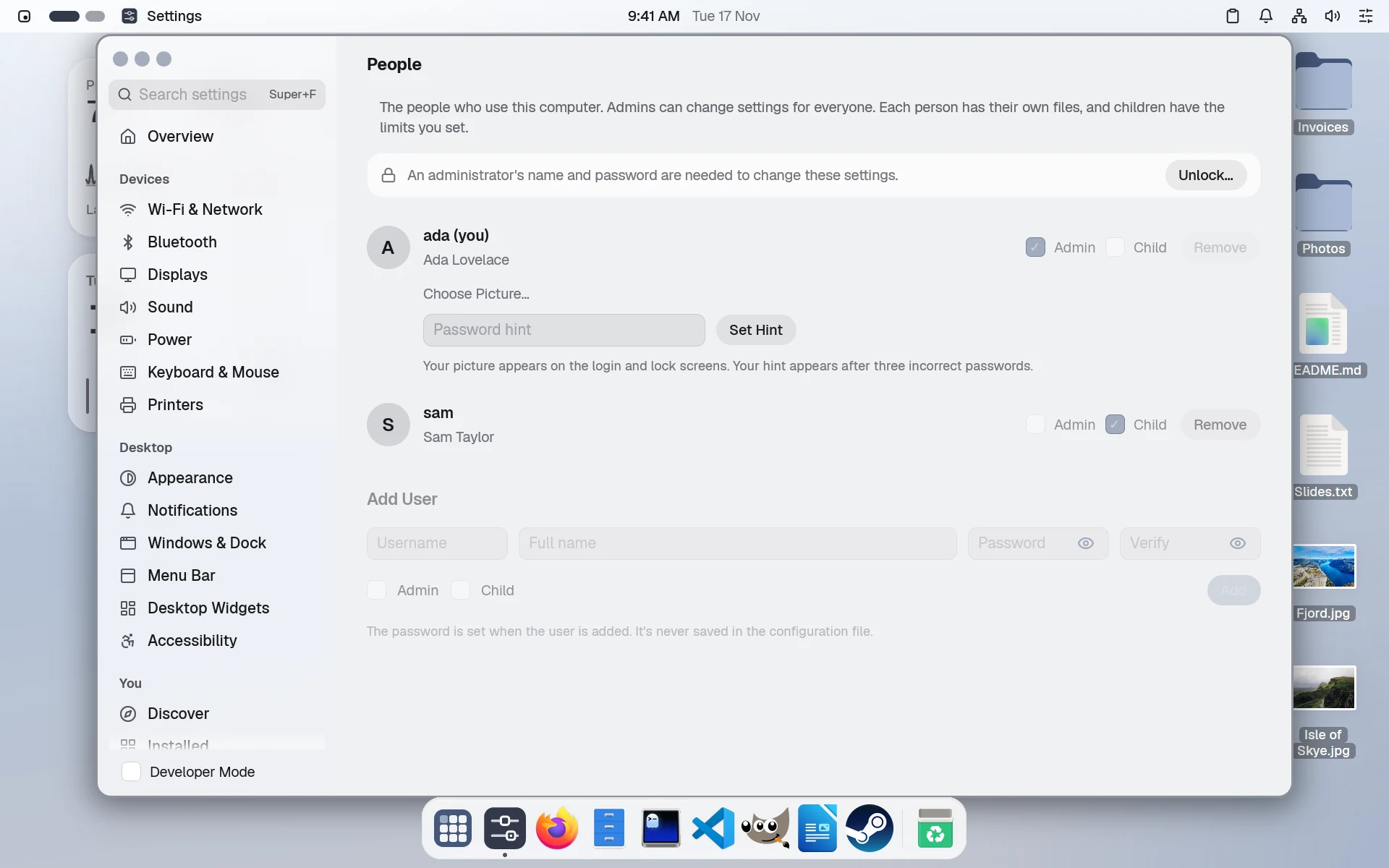
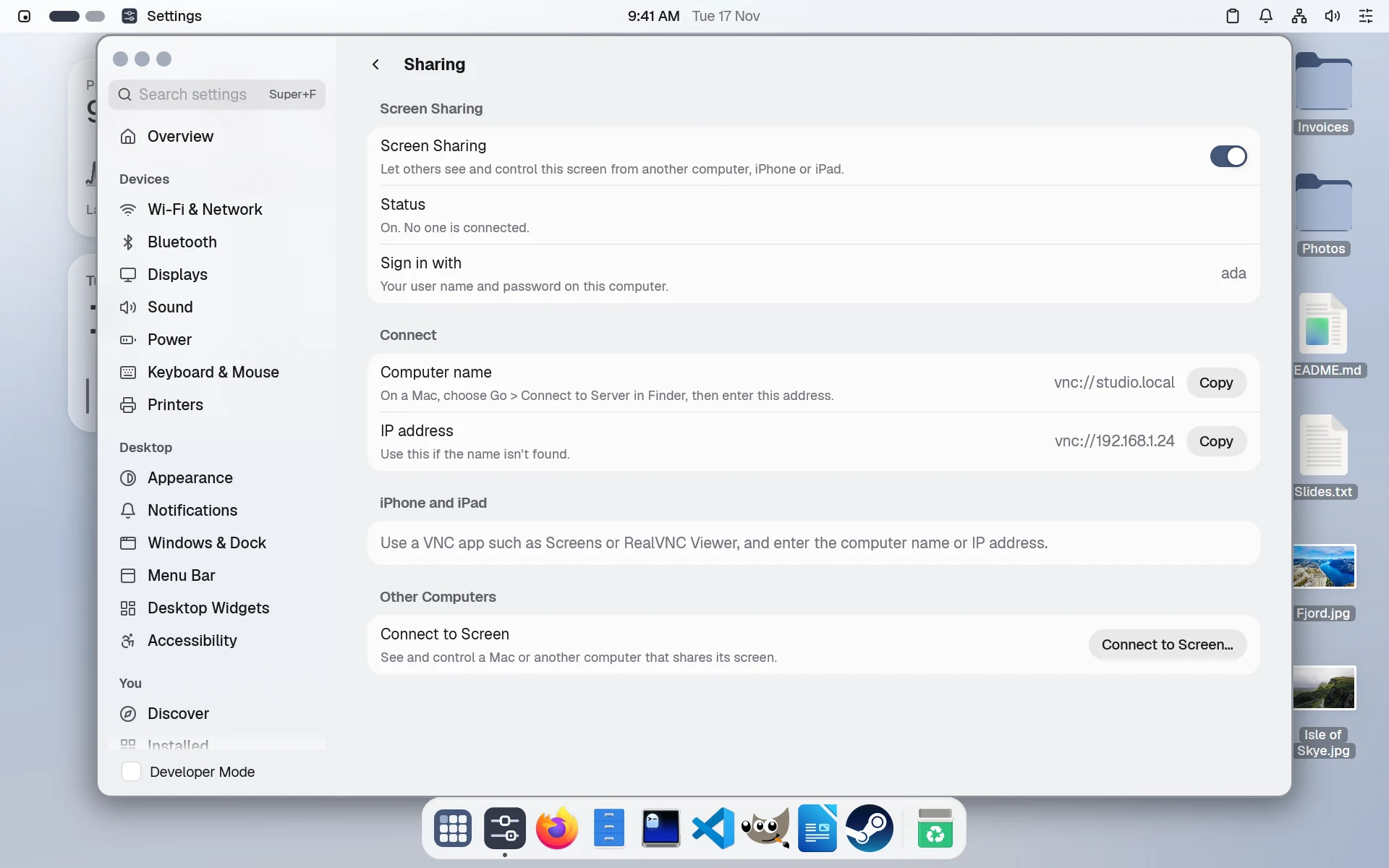
People in Settings for someone who isn't an admin: the settings for everyone dimmed, and Unlock to change them with an admin's passwordPeople in Settings for someone who isn't an admin: the settings for everyone dimmed, and Unlock to change them with an admin's password, in dark mode
Settings, with Unlock.
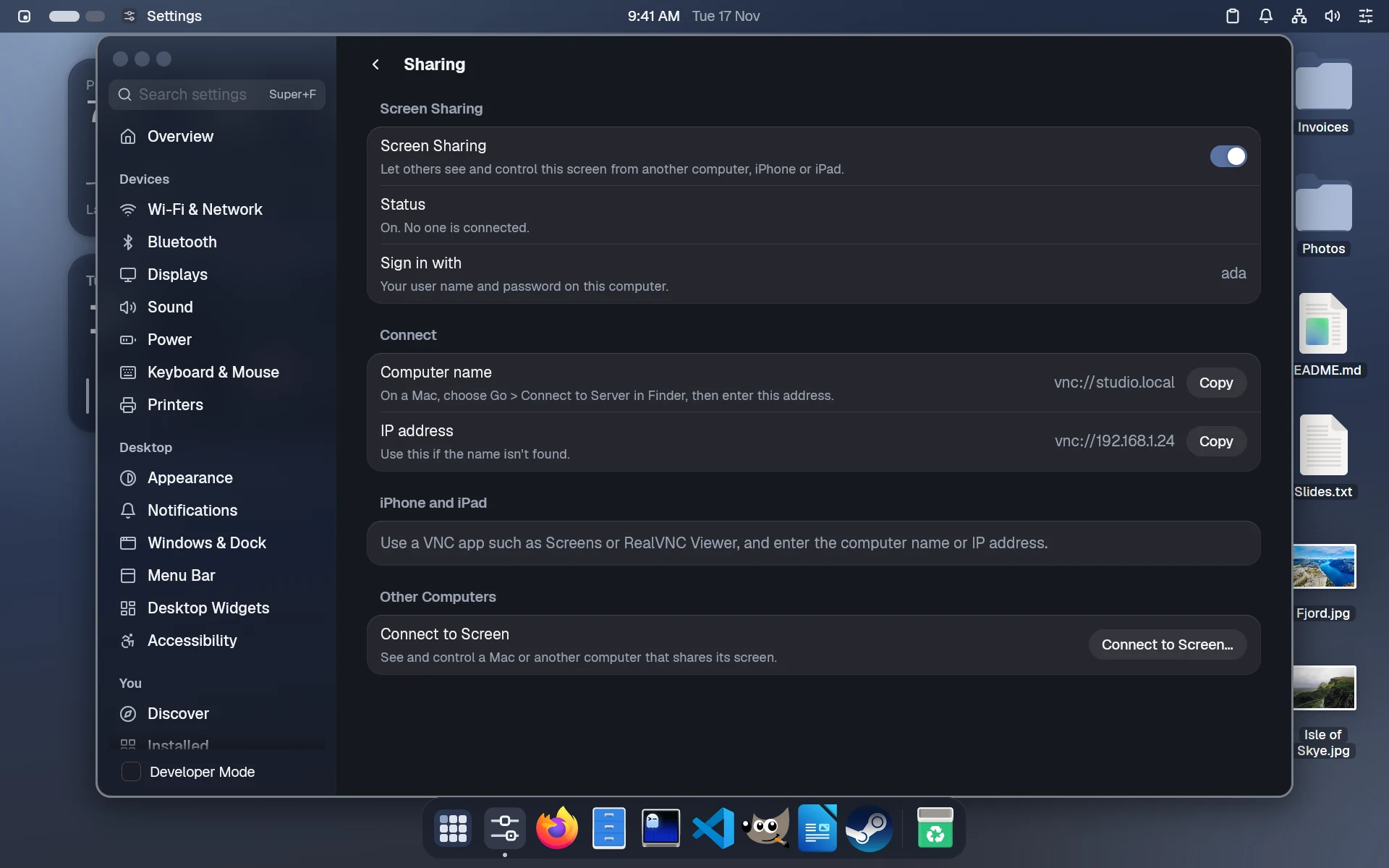
The Sharing page in Settings, with Screen Sharing on and the address to enter on a MacThe Sharing page in Settings, with Screen Sharing on and the address to enter on a Mac, in dark mode
Screen Sharing with a Mac.
  • A file for each personuser.nami
  • Limits for a child
  • Settings, with Unlock
  • Fingerprint login
  • Tailscale, built in
  • Connect to any screen

Install

The namiOS Installer.

Run it on Windows, a Mac or Linux. It writes your computer.nami as you choose, and puts namiOS next to Windows or instead of it.

namiOS Installer

Add-Ons

computer.nami


Choose your files in the next step: a computer.nami and your user.nami, or a git repository such as github:you/nami-config.

Continue

Try it here. Pick Customize, then add an app or two.

  • Next to Windows
  • Ready in a few choices
  • Move in from Ubuntu or Windows
  • Secure Boot
  • Try it in a windownami try
  • Make a USB drivenami usb

Built on

  • nami
  • nixpkgs
  • niri
  • Ghostty
  • GNOME apps
  • PipeWire
  • systemd-boot

The wallpapers are NASA's photos, from Apollo 8 to Artemis II.

Alpha

Be among the first to try namiOS.

We're inviting testers in small groups. Sign up, and you'll get the namiOS Installer by email when it's your turn.

What you want to try

We use your email only to invite you to the alpha and ask how it's going. Privacy

Happy with the distro you have? See nami for it