The shortcuts here are the Linux ones. With Mac shortcuts (chosen at the first start, or in Keyboard & Mouse), Super works as Command.
Keep your desktop in your file
Whatever you change in Settings is written under namios: in your ~/user.nami, so it follows you to your other computers through Sync.
namios: appearance: { look: auto, accent: blue, glass: medium, lens: subtle } dock: { on: true, position: left } keyboard: { keys: mac } # Super works as CommandGNOME and GTK apps’ own settings go under settings:, as on any distribution: see Set desktop settings.
Use the bar and Control Center
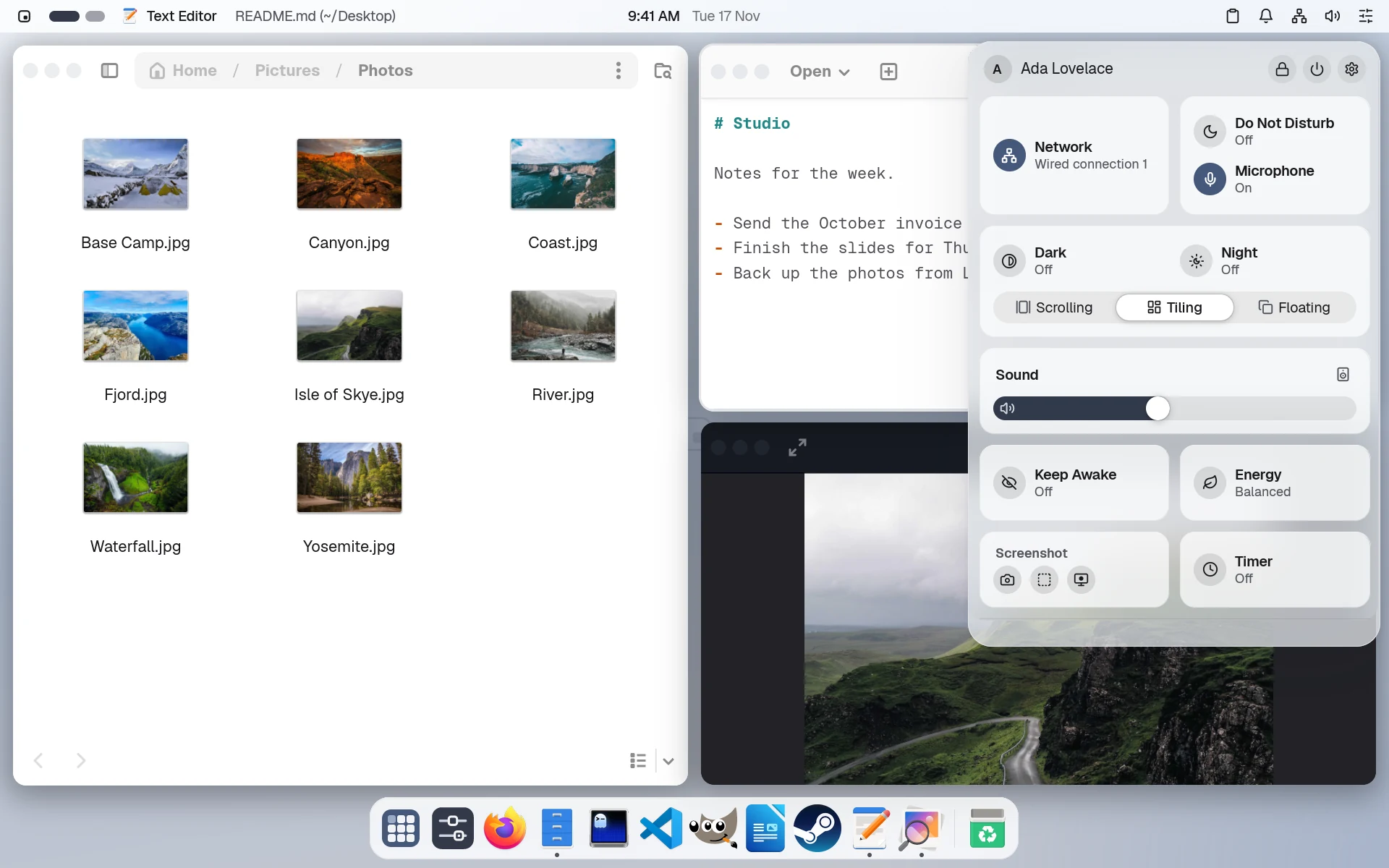
The right of the bar has the clipboard, notifications, battery, network and sound. Press Super+A for Control Center: Wi-Fi, Bluetooth, Focus, brightness with Dark and Night, sound, and modules such as Keep Awake, Screenshot and Timer. Edit Controls chooses which show.
Scripts and agents can do the same from the command line: nami desktop volume 40, nami desktop dnd on --for 1h, nami desktop look dark. See Control the desktop.
The clock in the middle widens to show what’s going on, such as music, a timer or your next event. Click it for the calendar, a shelf for files and a timer.
Choose how windows are arranged
Pick a layout in Control Center or in Settings › Windows & Dock, and switch whenever you like.
| Layout | Windows |
|---|---|
| Scrolling | Each window is a column; new ones open beside the last, and the row scrolls sideways. |
| Tiling | Windows share the screen side by side. |
| Floating | Windows stay where you put them, with the Dock. |
Hold Super+Tab (or Alt+Tab) to switch apps, most recent first.
Set the glass
Settings › Appearance has two glass controls, each off, subtle, medium or strong. Frosted glass (glass:) blurs what’s behind the bar, Dock, menus and sidebars; Glass (lens:) bends the background at rounded edges, like thick glass.
Reduce transparency and High contrast in Accessibility turn both off.
Find an app
Press Super+Shift+A, or click the first icon in the Dock, for All Apps. Start typing to find one, then press Enter. Super+Space opens the launcher, which also finds files, settings and commands, and from three letters on offers apps to install.
To make a folder, drag one app onto another and hold it there. Folders are kept in your file:
namios: all-apps: folders: - name: Games apps: [org.gnome.Mines, org.gnome.Chess] # by their menu entry's nameAdd widgets
Files in your Desktop folder show on the wallpaper; right-click one for Open, Rename and Get Info. Add the weather, a calendar or a clock in Settings › Desktop Widgets.
See every shortcut
Press Super+Shift+/ to see your keyboard, in your layout, with every shortcut on it. Hold Super, Ctrl, Shift or Alt to see what each key does with it, or search for a shortcut by what it does.
Share your screen
Settings › Sharing › Screen Sharing lets others see and control your screen over VNC, signing in with your name and password. From a Mac, choose Go › Connect to Server in Finder and enter vnc://<computer name>.local.
Connect to Screen… on the same page lists the screens shared on your network. From farther away, use the computer’s Tailscale address.